

leopechansky
January 26, 2021

Customizable shortcuts

  • January 26, 2021
  • 203 replies
  • 51005 views

The main source of inspiration for this idea was to match the keyboard shortcuts themselves to different keyboard layouts. Right now, users who don’t use US keyboards have to memorize the location of the keys, rather than to use the actual character location to be able to use the shortcuts. Those involving this region are primarily the case:
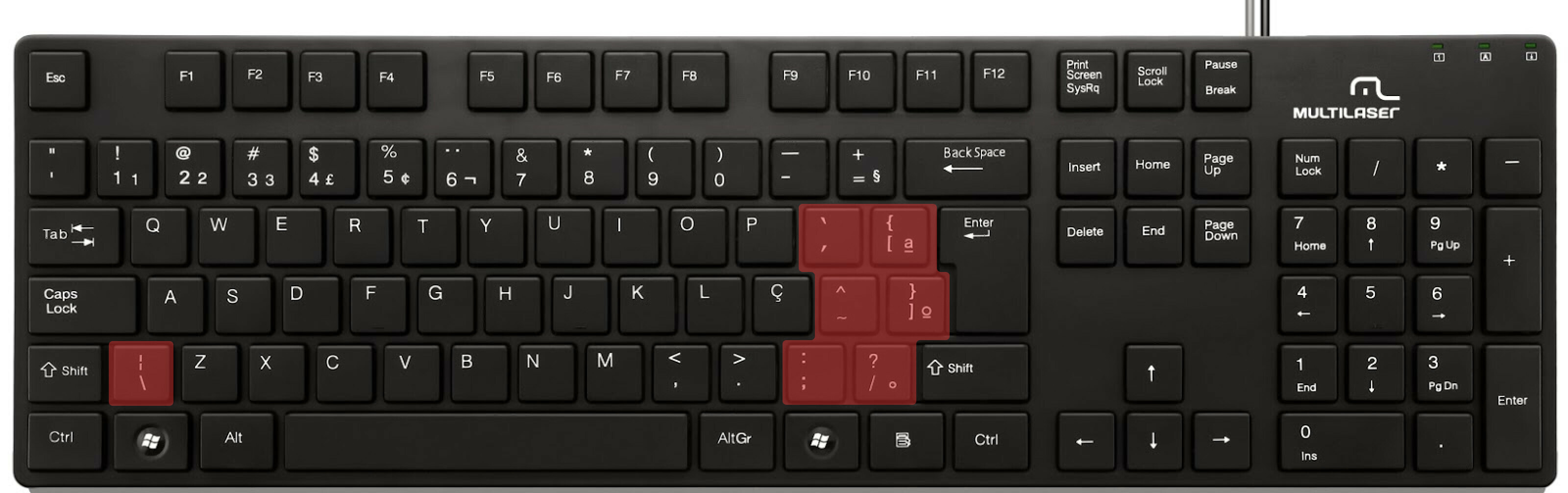

ABNT2 layout (Brazil).

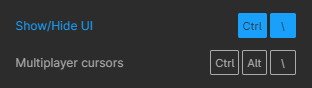
And here’s an example of confusing shortcuts:
image

Although this problem could be solved by just rebinding the shortcuts to the actual character and not the location on the keyboard, I’ve noticed there are some other issues concerning key bindings.

On this forum post, a member of the community asked for help on backing one layer level with a different shortcut from what Figma has right now. This makes the user adapt their workflow to the tool, and not the other way around — and that hinders efficiency. It would be nice if the tool itself provided some sort of customization on this regard.

Although being a workaround, Mac users can customize keyboard shortcuts by application, but it is a bit limited. It’s also not a possibility for Windows users.

I think this could be a game-changer, as i’ve seen people who refused to migrate from other tools to Figma because they couldn’t customize shortcuts. It would also give the user more control over the tool and their workflow.

What do you guys think about it?

203 replies

Antoine_Guillien
May 4, 2021

Hello there,

First of all, amazing product, I love it, very handy and intuitive !
I think that the possibility of customizing the editor shortcuts would be a cool feature.

For example, I’d like to be able to use ‘w’ for the hand tool and ‘x’ for the move tool

Bassel
May 7, 2021

Keyboard shortcuts are not all working on German Standard Keyboard! 😔
The symbol is already on the keyboard (not the same place of the English keyboard) so i can press the buttons but the shortcut is not functioning.

This is really annoying in Figma, and now it is the same at FigJam!

I made a list of these shortcuts:

Show/Hide UI: Ctrl +
Multiplayer Cursors: Ctrl + Alt +
Previous Page: Page Up
Next Page: Page Down
Adjust Font Size: Ctrl + Shift + < and >
Adjust Font Weight Ctrl + Alt + < and >
Adjust Letter Spacing Alt + < and >
Adjust Letter Height Shift + Alt + < and >
Remove Fill Alt + /
Bring Forward Ctrl + ]
Send Backward Ctrl + [
Bring to Front Ctrl + Shift + ]
Send to Back Ctrl + Shift + [

I hope this will help you fix it.

Gludion
May 10, 2021

Same here (french keyboard 🙂 )

Harald_Skogland
Active Member
May 10, 2021

You can modify this in MacOS Shortcuts per app. Personally I use control 3-6 for Send to Back, Send backwards, Bring forward and Bring to Front.

David5
May 10, 2021

Thanks for your answer. Does the MacOS Shortcuts apply on the navigator version of Figma ?

David5
May 10, 2021

Even in the desk app, those shortcuts doesn’t work (only bring forward works):

James_Sannino
May 10, 2021

I think alot of these MacOS Keyboard Shortcut don’t work because they’re not in Figma’s topbar menu, eg “Select Parent” isn’t there with the other select functions in the menu so it doesn’t work in the MacOS shortcut tool 😜

It’s possible to go into the terminal and use hidutil and remap the keyboard keys, but that’s a pretty annoying process. https://www.grzegorowski.com/how-to-remap-single-mac-keyboard-key

Harald_Skogland
Active Member
May 11, 2021

David, the shortcuts modifier in MacOS distinguishes between modifier keys and the rest of the keyboard. You typically can’t use a combination of only modifier keys as a shortcut ( Control, Command, Option and Shift). You need to combine a modifier key with another key like ‘Control+1’ or ‘Command+u’. Also be aware that MacOS and Figma is already using a lot of the available shortcuts, so try to test what you want to use first, to make sure that combination does not already perform an action in Figma or MacOS. Good luck 🙂 p.s. I’m not sure what you mean by navigator version, but if you mean Figma in browser, no, I believe the shortcuts won’t work there.

David5
May 11, 2021

Hi Harald, I’m not using only modifier keys in my combinations (I have “^” and “$” that are not modifiers). And I use these shorcuts in XD and Sketch, it works well. So may be it’s already taken by Figma but nothing happen when I use these shortcuts. Anyway, again these shortcut issues are very annoying.

PS: Yes I was talking about the browser version sorry 😛

Harald_Skogland
Active Member
May 11, 2021

Ok, I don’t know which keyboard you’re on, but for me MacOS will equate ‘^’ with the keyboard key Control. In your image, you have one shortcut that goes ‘^-⌘-^’, I believe MacOS interprets this as ‘Control-Command-Control’. There are also some combinations that Figma won’t accept like for example simply ‘F1’, which is why I started writing in this thread. My advice is to try out and experiment, you don’t need to have them identical to the typical Adobe layout. Even Adobe programs are inconsistent with the hotkey layout between themselves. Personally I prefer Control+3 to 6 for these 4 commands.