

megaroeny
Active Member
August 19, 2021

Finding Missing Library components/styles

  • August 19, 2021
  • 91 replies
  • 25524 views

First off, I’m loving the new Swap Library feature!

Problem

Today, it actually helped me discover some “rogue” styles and components that were leftover from an old library! Now I can try to locate those and finally get rid of them in our current library!

But wait - what if I don’t actually know where these are in the file? Or even further, what if I can’t get Figma to find a match?
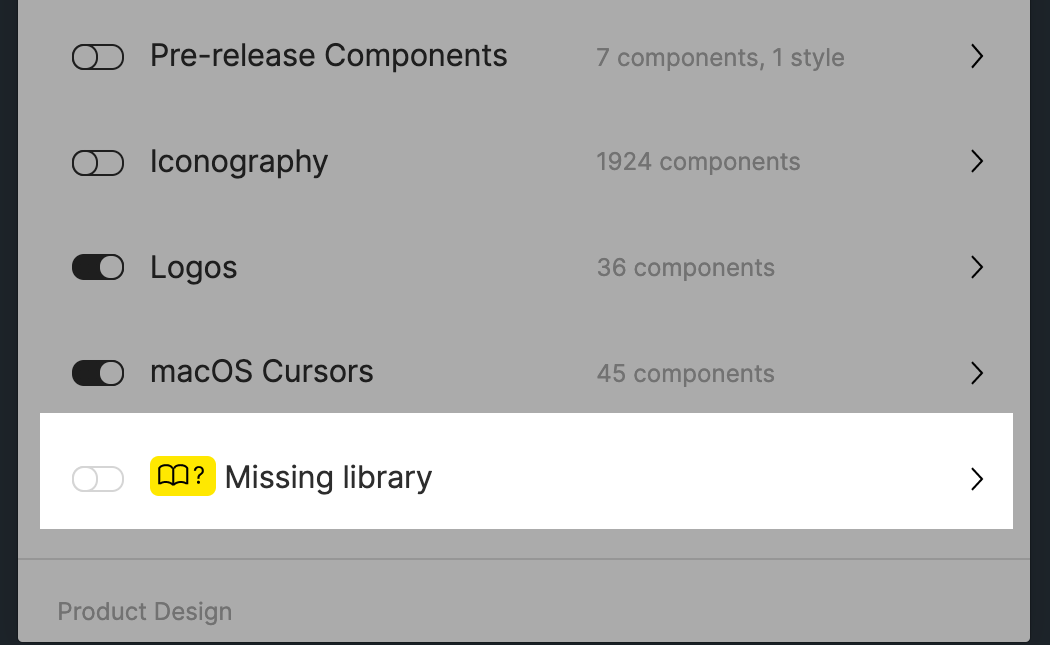
Suggestions:

  1. The one thing I wish this feature could do is to help me actually locate those rogue styles or components. I tried using the Instance Finder plugin but it still didn’t help because I have to actually locate them on the canvas/file first. ☹
  2. What if the dialog let us force a new style or component match, instead of us running into a dead-end with the None found message. Currently, it tries to match using the name. But that might not always work (like in this case.)
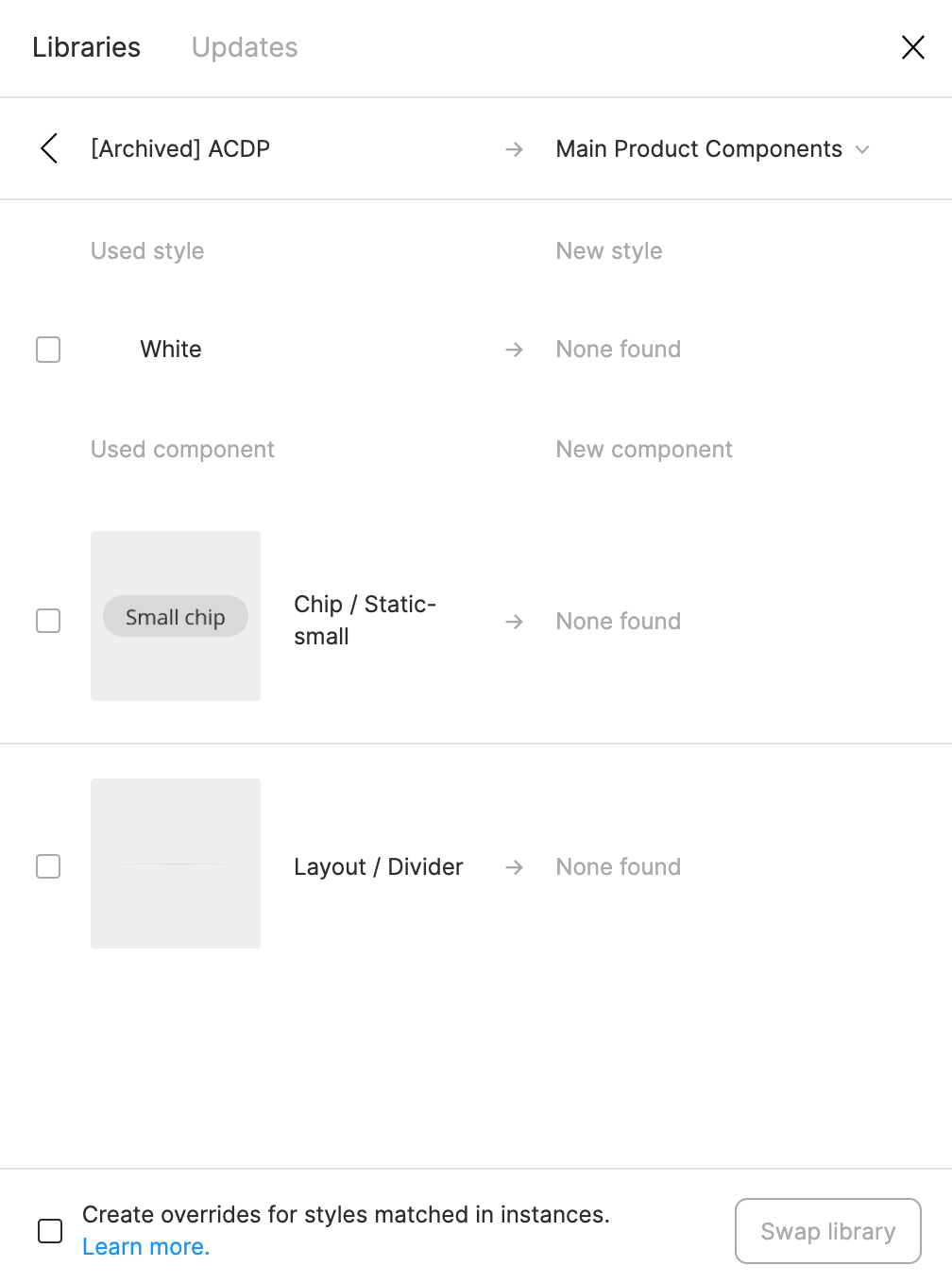
Any ideas are appreciated. Otherwise, wanted to pass this suggestion on to the Figma team. Thanks!

91 replies

megaroeny
megaroenyAuthor
Active Member
July 14, 2023

Isn’t that similar to what was marked as the best answer?

The main difference with yours is you’re suggesting creating a new library. But most folks already have existing libraries. Is that a fair comparison?

Alicia_Folch
September 29, 2023

I solved it with this plugin:

Figma
megaroeny
megaroenyAuthor
Active Member
September 29, 2023

Fantastic, thanks for sharing!

Daniel88
October 22, 2023

This worked. For text, i pumped up the text size to like 2000 and it really stood out.

Ellu
November 17, 2023

Selecting ‘everything’ on a page only selects what is visible. It won’t find the same thing in hidden layers, so if your components are set up with multiple choice layers, you have to make changes at the component level, and cross fingers that you didn’t detach any of your instances.

Ruslan_Gabdrashitov
New Member
December 11, 2023

A great solution! Thanks, it helped!

Saeed1
March 6, 2024

Its great, I was able to solve my problem easily

Abstractic
March 15, 2024

I was trying this approach to find lost text style (see below), but the script crashes and I get a strange error message 🤔

Code tried:

figma.root.findAll(n => {
    var style = figma.getStyleByIdAsync(n.textStyleId);
    if (style) {
        console.log(style.name)
        if (style.name === "Body/Highlight/Body Tiny") {
            figma.currentPage.selection = [n];
        }
    }
})

Error message:

figma_app.min.js.br:976 Uncaught Error: in findAll: "findAll" callback crashed: in getStyleByIdAsync: TypeError: Cannot convert a Symbol value to a string
    at DocumentNode.findAll (figma_app.min.js.br:976:4044)
    at <anonymous>:1:12

However, it looped through a lot of content where the console gives me undefined before it crashed. I’ll assumed that is correct.

Andre_T_1991
April 17, 2024

Hi everyone!

I was having a huge problem trying to find where some missing color styles were to fix them and I just found a weird away around that, but Figma should implement an easier solution.

–

Steps

  1. Make a safe branch/version history
    (this solution requires temporarily deleting things, so you should have a safe backup to go back to)

  2. Deleting Pages in Bulk
    Basically I started deleting pages in bulk to try to narrow down which page the problem was coming from.
    What you do is keep the Assets/Library open and observe if by deleting some bulk of pages the Missing Library goes away. If you have more than 1 missing style, go inside it and see if that one specifically goes away by deleting the pages. You will do this every step.
    My file had about 30 pages, so I divided in blocks of 10.
    I could see that deleting one block specially solved the issue, so I figured that’s where the problem was.
    Go back to the Safe version.

  3. Deleting Pages Individually
    Here, you should narrow down in which page or pages the issue is coming from.
    Luckily from me, it was only one, but if it’s in more than that, you should do an elimination process to narrow down which ones have still have the problem.
    Go back to the Safe version.

  4. Deleting Components/Frames
    Here I wasn’t so lucky, as it seemed all 3 components on the page had this issue, but I at least knew that for sure.

  5. Deleting Groups/Frames inside the Component(s)
    Again, you try to narrow down in each component in which part the problem is coming from. Lucky for me, these components had the same structure, so all 3 of them the missing style seemed to come from the same one.

Go back to the Safe version.

  1. Deleting Layers
    Here is to narrow down which layers have the missing style.
    In my case, it was a text layer. Oddly enough, looking at the selection colors of it (there was two), none missing style were shown, not even something with the same hex color.

After that, I knew for sure these text layers, for some reason, had this missing style, even if it didn’t show anywhere, from selection colors, plugins like similayer or Missing Library Usage Finder. Whenever I deleted only them, the issue went away.

So I just made a new text layer from the scratch and substituted in the components.
Voi lá, no more Missing Libraries.

It’s a hassle, but it worked for me.

tl;dr: When plugins like Missing Library Usage Finder don’t work, in a safe branch or version history, try deleting things until you can narrow down in which layers this “ghost” style is coming from. Delete them, even if it doesn’t appear to be using the missing style.

Hope that helps somebody.

Valentina8
November 28, 2024

after tons of plugins this was the only way around for the last ghost style 🙂 THANKS