

megaroeny
Active Member
August 19, 2021

Finding Missing Library components/styles

  • August 19, 2021
  • 91 replies
  • 25524 views

First off, I’m loving the new Swap Library feature!

Problem

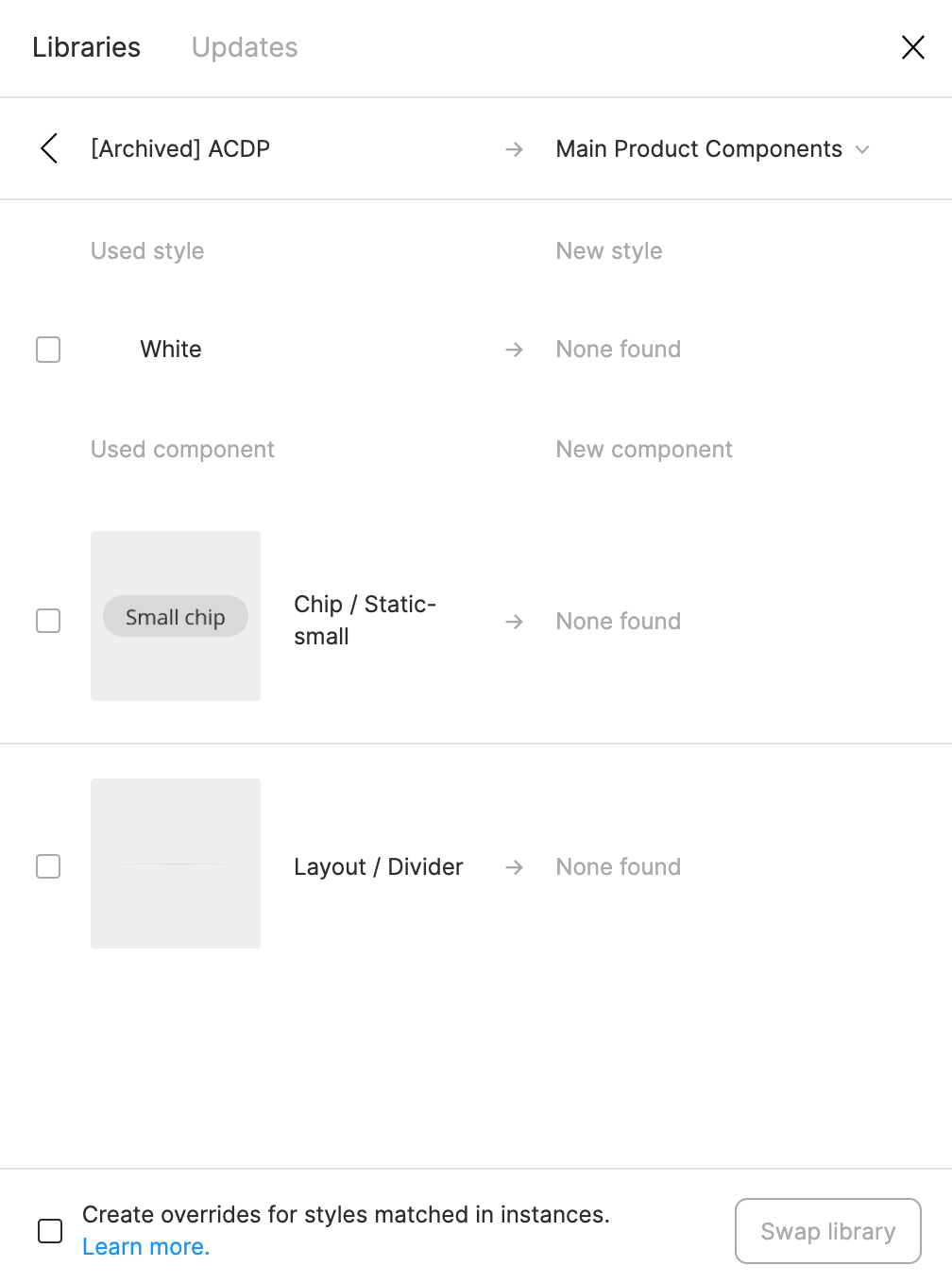
Today, it actually helped me discover some “rogue” styles and components that were leftover from an old library! Now I can try to locate those and finally get rid of them in our current library!

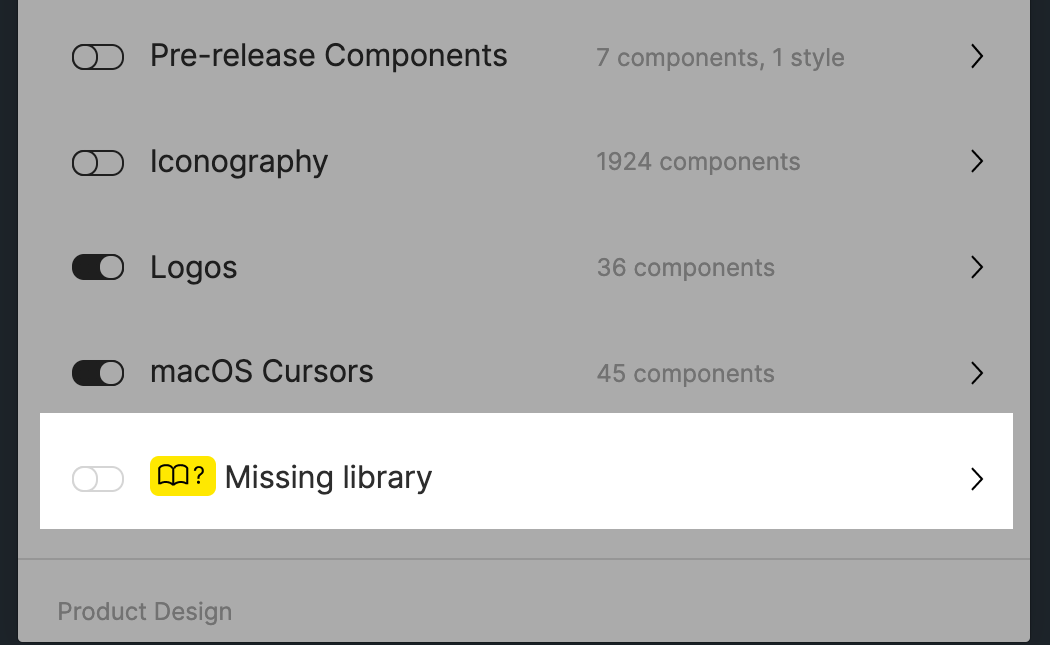
But wait - what if I don’t actually know where these are in the file? Or even further, what if I can’t get Figma to find a match?
Suggestions:

  1. The one thing I wish this feature could do is to help me actually locate those rogue styles or components. I tried using the Instance Finder plugin but it still didn’t help because I have to actually locate them on the canvas/file first. ☹
  2. What if the dialog let us force a new style or component match, instead of us running into a dead-end with the None found message. Currently, it tries to match using the name. But that might not always work (like in this case.)
Any ideas are appreciated. Otherwise, wanted to pass this suggestion on to the Figma team. Thanks!

91 replies

Marie-Eve_Vesel1
June 8, 2022

The same idea can be used to look for missing components:

  1. Create a new component with the same name as the missing one: make it big with a background color that clashes with your brand colors (for instance, bright pink) and include text that says ‘MISSING COMPONENT’.

  2. After swapping the component, add a little ⛔ icon in the name (or something similar to indicate there’s an issue with that component).

  3. Now you can easily identify the missing component instances either in the layers panel or directly on the canvas when you see that bright pink rectangle disrupting your beautiful designs. At that point, you can replace the dummy instance with what’s actually supposed to go there.

  4. Delete the dummy component (bright pink is overrated after all).

It’s definitely a brute force, manual process, but it works when all else fails.

Monique2
July 1, 2022

That’s so smart. It worked for me.

Tsurit_Ben-Tsur1
July 16, 2022

Hey 🙂 I’m Tsurit (She) the developer of this plugin. Thank you for this awesome feedback, I’m glad it helps you!

Alexandre_Istrasoft
July 18, 2022

you’re welcome ! thanks to you for the plugin !!

Jessica_Coser
July 20, 2022

I haven’t find a way to fix this issue with components, but with styles you can delete each style and that style group title will be removed.
it still be present as “missing library” however it will not bother when searching for a style

Jason_Post
July 28, 2022

edit - added reply to original poster of code Pete_Lada under this post

Hi @Sam_Walsh wanna check if your console syntax still works on your end. Found your post, and tried it on Figma Desktop App version 116.2.4 but I can’t get anything to select.

Attached screenshot of fresh file with Header1 text style I tried to run the console log search with.

Jason_Post
July 28, 2022

cc tag @Pete_Lada if your console syntax still works on your end for finding missing text styles. Sorry I missed you in first reply post, see above for details and screenshot. Thanks in advance!

Pete_Lada
July 28, 2022

make sure you’re searching for the correct thing. looks like you’re searching for an effect style name in your code, where you probably want a text style (textStyleId)

Jason_Post
July 28, 2022

Yup, that’s what I missing, thanks @Pete_Lada !

For reference, changed var style = figma.getStyleById(n.effectStyleId); to var style = figma.getStyleById(n.textStyleId);

And variable ID names seem to be:

  • textStyleId for Text
  • effectStyleId for Effects
  • fillStyleId for Color

Thanks so much everyone! Community is giving me ways to hack around Figma’s shortcomings!

Jesse_S
August 4, 2022

Would it be possible to also use this line of code to swap styles with a library style?
What would that code look like? Because I’m not a coder at all 😅 But that would be very helpful for my use case