September 7, 2023
Solved

Truncating text glitch/problem

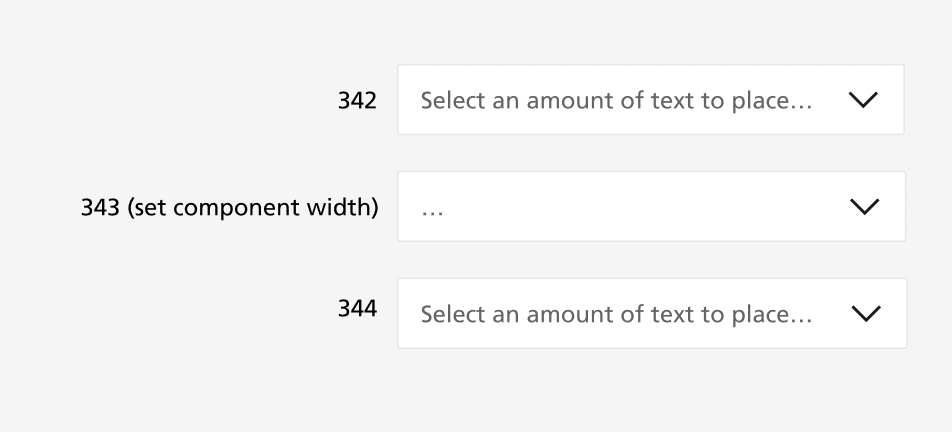
I have text in a component set to truncate, however when I create an instance of the component and add text through the properties panel I only get an eclipse at the start of the text box (no text).

However when I change the width of the instance the truncation works as expected. (see attached).

Additionally, if I input text directly into the instance (by clicking into the text box), the truncating is works properly.

Can anyone help and is this a glitch or am I doing something wrong?
This topic has been closed for replies.
Ryan_52
Ryan_52Solution
Technical Quality Specialist
September 12, 2023

Hi everyone, thank you for your patience. Our engineering team has successfully released a fix! Please refresh Figma to ensure that you are using the fixed version.

22 replies

Antoine
Active Member
September 11, 2023

We’re having the same bug! Will try reporting it.

September 11, 2023

I’m having the same problem, and the weirdest part is that instances of the component with the issue…don’t have the issue. Same exact settings on the text, but even when I paste a new instance of the component, that instance has properly truncated text. But the main component does not. It truncates about 20% of the way into the line, instead of 100%.

Ryan_52
Figmate
Technical Quality Specialist
September 11, 2023

Hi everyone, thank you for reporting this. Our engineering team is actively investigating the matter and working to a resolution.

Ryan_52
Figmate
Ryan_52Solution
Technical Quality Specialist
September 12, 2023

Hi everyone, thank you for your patience. Our engineering team has successfully released a fix! Please refresh Figma to ensure that you are using the fixed version.

September 12, 2023

Seems to work for me, but it looks like I have to “resize” all places, is there a way to “refresh” all my work?

Irfan_Dahir
September 12, 2023

image
Looks good on my end now.

@Ryan_52 Thank you guys for the quick fix!

Kelly_Ne
New Participant
September 12, 2023

Cool, thanks for a quick update, @Ryan_52!

I agree with @Lars_Dahlen though, I also have to see to every single section and click on it to actually update it. I don’t have to resize it to nudge the truncate to start working properly, but I do have to simply select the text container to update the truncate. Refreshing the file does do the trick.

Mel_Bosch
New Participant
September 12, 2023

Thanks for the update but i still think it isn’t working perfectly. The truncation ist still ending to soon. The truncation is ending in the middle of a button and when i am clicking inside the textfield, the truncation is running out of the textframe.

mel b.
Ryan_52
Figmate
Technical Quality Specialist
September 13, 2023

You may need to select a problem instance and click the ‘Regenerate all instances (slow)’ command (found in the Main Menu in the top left, and then click “Quick Actions” and type the command and click this), for these to now display correctly.

Ryan_52
Figmate
Technical Quality Specialist
September 13, 2023

Can you try and reload the file or Regenerate all instances (slow) to see if that helps? If you are still seeing an issue, mind reaching out to our support team directly via this form for help: https://help.figma.com/hc/en-us/requests/new