Jarek
August 25, 2023
Solved

How to clear “Used variables” that don’t exist in the file anymore?

  • August 25, 2023
  • 102 replies
  • 14114 views

Hi folks!

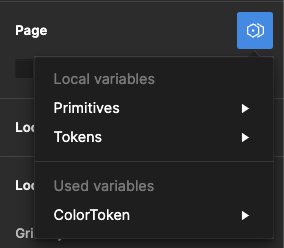
I used some components from other files in my project, and even though I removed them, I still see some Variables available in the “Page → Modes”. They are not available anywhere else. It doesn’t affect the project; when I select one, change the page, and then return to it, that mode is selected.

I checked my file, and nothing leads to the other file anymore – no styles, variables, components, etc.

It seems like a bug, and I see some variables pulled from another file, but can I remove it somehow?

image

Best answer by djv

Hey All, sorry for the continued trouble and frustration!

If the Detach deleted variables quick command does not work, the remaining ghost variables you’re seeing are still present because they’re still actively being used from collections within your design components and/or deleted color styles.

Be sure to review your file for variables that are being used across multiple pages. We understand how this can be confusing, especially when you have multiple collections with similar names and modes, making it difficult to differentiate between them.

Unfortunately, the team confirmed that we don’t have an automatic solution to fix this or a simple way to view which variables come from what collections. But in order to completely remove ghost variables, you’ll need to manually remove all instances of those variables from your file.

If you need help locating old variables that are still being referenced in nodes on the canvas and are able to share your file with us, please do so here: https://help.figma.com/hc/en-us/requests/new

Be sure to use your Figma account email, include a link to the file, share edit access with support-share@figma.com, and our Technical Quality team can help you locate and remove the old variables.


102 replies

elywahib
September 23, 2024

It’s not working, at least for me.

elywahib
September 23, 2024

Why hasn’t this bug been fixed yet?

Nouela
New Participant
September 23, 2024

Any updates on this issue? Just spent nearly a week using the Token Studio plug-in to scrub my file layer-by-layer, page-by-page. Ghost variables are still there.

Tony_Ke
September 26, 2024

Hello boss. Figma please dooooo something. I’ve got OCD, so seeing this really bothers me.

Alina_Peicheva
October 3, 2024

Hi Denise,

The issue highlighted in the video is slightly different from the one many of us are experiencing. Miggi demonstrated how to delete a variable created and deleted within the current file, but the main concern arises when we copy components from a different design system into our file. These components appear as “Used Variables” in the “Apply Variable Mode” tab. The challenge is figuring out how to remove these “Used Variables” without manually detaching each padding, gap, color, typography, etc.

Upon analysis, I found that this is not a bug because once all variables from the ‘foreign’ design system are detached and the page is reloaded, the “Used Variables” no longer appear. However, doing this manually is time-consuming, and I can tell you that 99% of the time, there will always be one lost ‘foreign’ variable that prevents the “Used Variables” from being completely removed. Therefore, I would be really happy if Figma introduced a “Detach All Used Variables” command. Currently, I address this by manually detaching all linked elements and refreshing the page, as without a refresh, it takes time to update.

Figma provides a “Copy variables into this file” option when pasting a UI element from a different file, which is useful. However, that’s not quite what we need in this case; we need a way to paste elements without any styles or variables. A new context menu option for “Paste without styles/variables” would be helpful.

I hope this clarifies the issue. I look forward to any ideas on adding these two features: the “Detach All Used Variables” command and the “Paste without styles/variables” functionality.

Thank you!

Jim_Knox
Active Member
October 8, 2024

doesnt work for me either,

djv
Figmate
djvAnswer
Community Support
October 8, 2024

Hey All, sorry for the continued trouble and frustration!

If the Detach deleted variables quick command does not work, the remaining ghost variables you’re seeing are still present because they’re still actively being used from collections within your design components and/or deleted color styles.

Be sure to review your file for variables that are being used across multiple pages. We understand how this can be confusing, especially when you have multiple collections with similar names and modes, making it difficult to differentiate between them.

Unfortunately, the team confirmed that we don’t have an automatic solution to fix this or a simple way to view which variables come from what collections. But in order to completely remove ghost variables, you’ll need to manually remove all instances of those variables from your file.

If you need help locating old variables that are still being referenced in nodes on the canvas and are able to share your file with us, please do so here: https://help.figma.com/hc/en-us/requests/new

Be sure to use your Figma account email, include a link to the file, share edit access with support-share@figma.com, and our Technical Quality team can help you locate and remove the old variables.
Saloni_Sinha
New Member
October 9, 2024

Same problem! Please find a solution to easily remove them completely!

Yeazey
New Participant
October 11, 2024

i found solution with dead instances of used variables. First of all Figma didn’t respect hidden layers for “detaching deleted variables” as “reset variable modes in selection”, Figma also dont show hidden layer color in selected colors panel since hidden layers not selected.

Also this dead or old hidden layers across components forse Figma to show old/dead modes.

So to get rid of dead modes you need

  1. Select all in page
  2. Reset variable modes in selection.
  3. Detach deleted variables.
    wait till Figma did a thing and after that wait for Figma did all background updates.
  4. Check if “Dead mode” was removed (in my case it removed in 90% cases).
  5. if “Dead mode” still exist > look for hidden layers and remove them or reconnect to correct variable.

i get rid of Dead mode for about 30 min with this steps.
Enjoy

Rory_Pyatt
October 16, 2024

My ghost variables came down a button where I had deleted the master component, but had a modified version in my library. When I restored the component master, removed ghost variables, it all cleaned up for me.

But a more robust way of finding ghost variables would be appreciated.