sezer
New Member
July 31, 2025
Solved

Figma copy-paste no longer brings in vectors—only images. What changed?

  • July 31, 2025
  • 32 replies
  • 4198 views


I’m hoping someone can clarify this for me. I used to copy objects from Adobe Illustrator with Cmd +C and paste them into Figma with Cmd +V, and they would arrive as editable vectors. I’m absolutely certain this worked before.


Lately, though, every paste comes in as a flattened image instead of vectors. Nothing in my workflow has changed, so I’m starting to wonder if I’m losing my mind!


Has Figma (or Illustrator) changed something recently? Is there a setting or workaround I’m missing? Any insight would be greatly appreciated.


Thanks in advance!

Best answer by djv

Hey All, thank you for your patience while our team worked towards a solution with Adobe! 

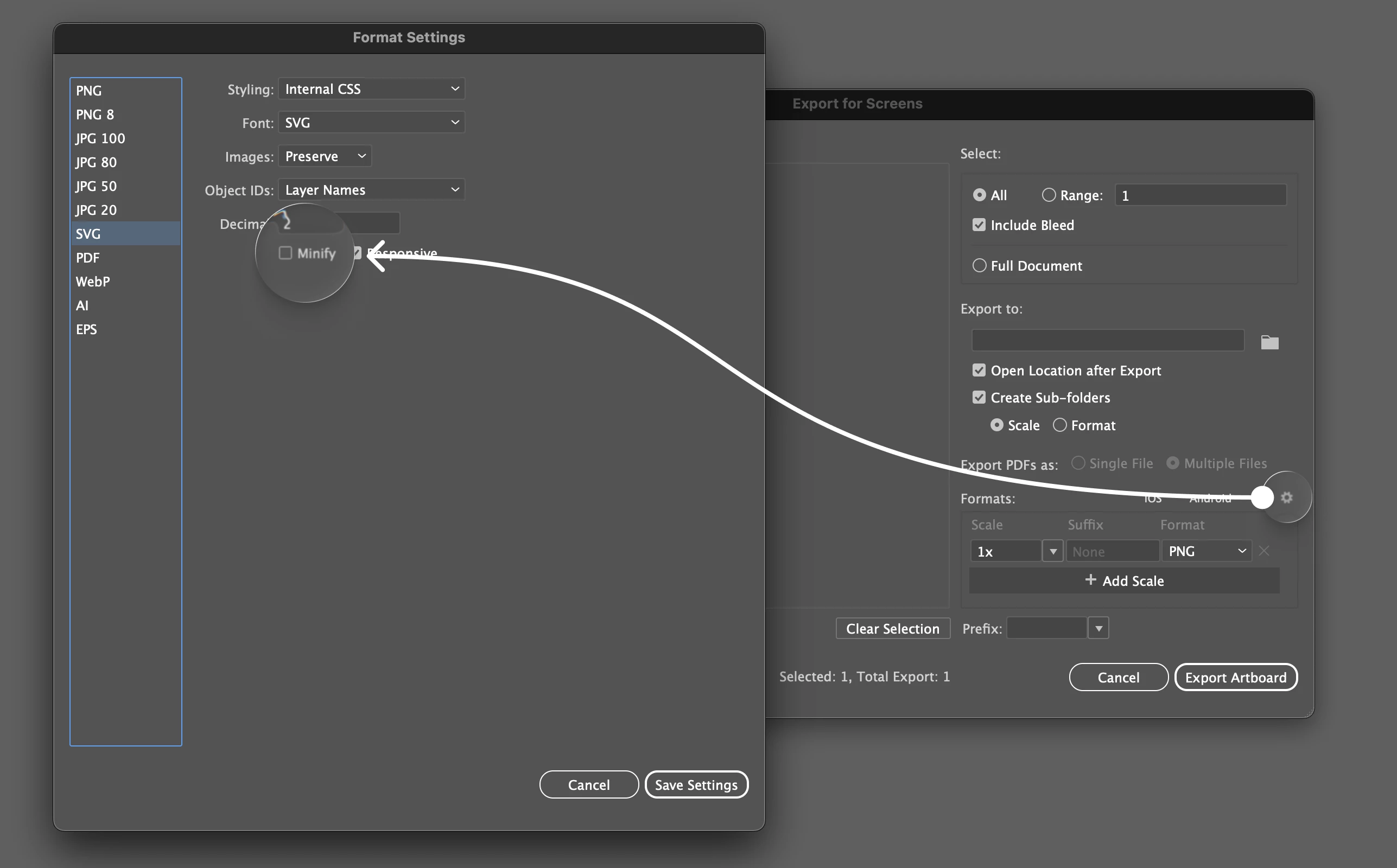
Adobe identified the root cause and now have a fix in place. The issue stems from a code change introduced in version 29.8.x and is not related to the recent SVG settings change. They also confirmed the exact repro: the issue occurs when the SVG “Minify” option is enabled.

They will be disabling the feature flag associated with this code change and will let us know once it’s complete. After the flag is turned off, you will need to restart the application and Copy/Paste with the Include SVG setting enabled to ensure it will work as expected.

You can find the setting under File > Export for Screens, and hit the little settings icon in that Dialog...go down to SVG and uncheck minify (until the fix has been fully rolled out by Adobe).


32 replies

djv
Figmate
Community Support
September 25, 2025

Thanks, ​@Brian_Olson

I’ve sent this over to the team to try and duplicate using your same specs. So far, the teams have only seen the issue on macOS, so good to know that you’re using Windows. I’ll report back as soon as we know more! 

In the meantime, the teams found another temporary solution. While not ideal, but if you go to: Preferences > General > Reset preferences in Illustrator, copying and pasting into Figma will begin to work again. 

Brian_Olson
Active Member
September 26, 2025

Thank you for passing that along djv.

Resetting preferences in Illustrator did not fix vector pasting for me.

djv
Figmate
Community Support
September 26, 2025

Thanks for trying, ​@Brian_Olson

Can the team get a copy of your illustrator preferences folder? This will help us work with Adobe to track down this bug.

It's located in: %AppData%\Adobe\Adobe Illustrator <version> Settings 

Just zip up the folder and send it over here: https://help.figma.com/hc/en-us/requests/new?ticket_form_id=360001744374

If you can let us know the ticket number, we’ll make sure it gets routed to the right team - thanks again! 

Brian_Olson
Active Member
September 26, 2025

Thanks for trying, ​@Brian_Olson

Can the team get a copy of your illustrator preferences folder? This will help us work with Adobe to track down this bug.

It's located in: %AppData%\Adobe\Adobe Illustrator <version> Settings 

Just zip up the folder and send it over here: https://help.figma.com/hc/en-us/requests/new?ticket_form_id=360001744374

If you can let us know the ticket number, we’ll make sure it gets routed to the right team - thanks again! 

Done. I did not get a ticket number. Just a toast saying submission was successful after a redirect to help.figma.com

djv
Figmate
Community Support
September 26, 2025

Thanks, ​@Brian_Olson

And no worries - we got it! (Ticket #1525635 for your reference.

djv
Figmate
Community Support
October 1, 2025

Hey ​@Brian_Olson, thanks again for your  patience!
 
Our team is still working with Adobe on this issue, and they need to review information from another preferences folder. The location for the preference folder on Windows is %AppData%\Adobe\Adobe Illustrator <version> Settings but the folder that you provided previously seems to be from %appdata%\Adobe\Adobe Illustrator\29.8.1.
 
At your earliest convenience, please locate and send us a copy of this other folder (for Illustrator version 29) - %AppData%\Adobe\Adobe Illustrator 29 Settings?
 
You should be able to access this by copying and pasting %AppData%\Adobe\Adobe Illustrator 29 Settings into the Windows search bar. All of this info should have also been sent to you directly via email, so if you could send this preference folder over in your open ticket, we would greatly appreciate it.

djv
Figmate
djvAnswer
Community Support
October 3, 2025

Hey All, thank you for your patience while our team worked towards a solution with Adobe! 

Adobe identified the root cause and now have a fix in place. The issue stems from a code change introduced in version 29.8.x and is not related to the recent SVG settings change. They also confirmed the exact repro: the issue occurs when the SVG “Minify” option is enabled.

They will be disabling the feature flag associated with this code change and will let us know once it’s complete. After the flag is turned off, you will need to restart the application and Copy/Paste with the Include SVG setting enabled to ensure it will work as expected.

You can find the setting under File > Export for Screens, and hit the little settings icon in that Dialog...go down to SVG and uncheck minify (until the fix has been fully rolled out by Adobe).


Brian_Olson
Active Member
October 17, 2025

Hey ​@Brian_Olson, thanks again for your  patience!
 
Our team is still working with Adobe on this issue, and they need to review information from another preferences folder. The location for the preference folder on Windows is %AppData%\Adobe\Adobe Illustrator <version> Settings but the folder that you provided previously seems to be from %appdata%\Adobe\Adobe Illustrator\29.8.1.
 
At your earliest convenience, please locate and send us a copy of this other folder (for Illustrator version 29) - %AppData%\Adobe\Adobe Illustrator 29 Settings?
 
You should be able to access this by copying and pasting %AppData%\Adobe\Adobe Illustrator 29 Settings into the Windows search bar. All of this info should have also been sent to you directly via email, so if you could send this preference folder over in your open ticket, we would greatly appreciate it.

Sorry for the slow response. Have been busy. I sent the settings requested above via support email just now. Request 1525635.

Brian_Olson
Active Member
October 17, 2025

Hey All, thank you for your patience while our team worked towards a solution with Adobe! 

Adobe identified the root cause and now have a fix in place. The issue stems from a code change introduced in version 29.8.x and is not related to the recent SVG settings change. They also confirmed the exact repro: the issue occurs when the SVG “Minify” option is enabled.

They will be disabling the feature flag associated with this code change and will let us know once it’s complete. After the flag is turned off, you will need to restart the application and Copy/Paste with the Include SVG setting enabled to ensure it will work as expected.

You can find the setting under File > Export for Screens, and hit the little settings icon in that Dialog...go down to SVG and uncheck minify (until the fix has been fully rolled out by Adobe).


No luck


jhonmu76
New Member
October 18, 2025

The problem is not with Figma, The problem is with the Adobe illustrator update you just installed recently, Illustrator 29.71, Uninstall it and go back to the previous version, All will be fine.

You are absolutely right Steveagaba.