

Alborz_Heydaryan1
August 27, 2021

Make text follow a path or a circle

  • August 27, 2021
  • 44 replies
  • 39558 views

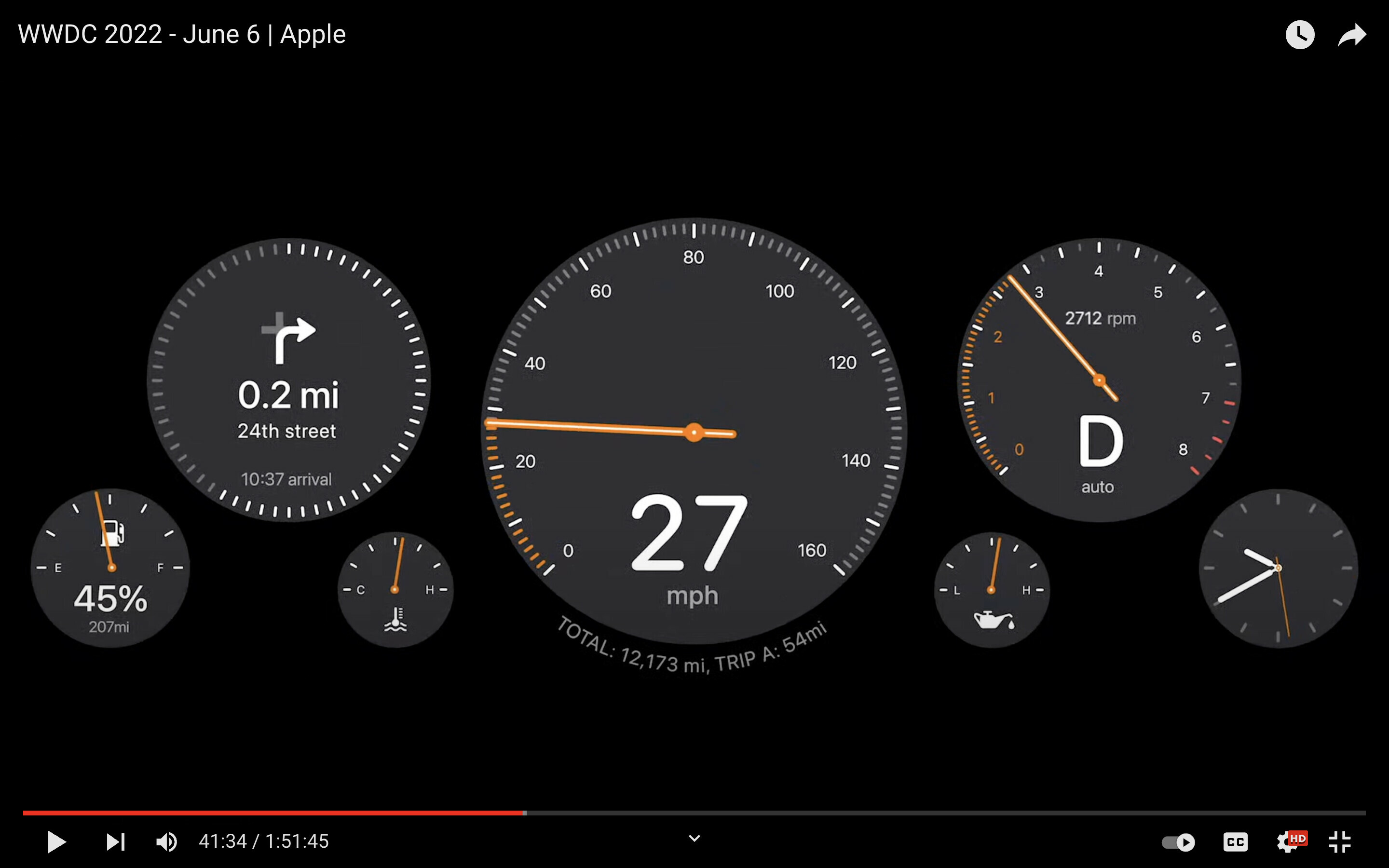
I’m trying to create the text effect in this image. The odometer’s text wraps around the circle very nicely.
Imgur

Right now I have to use a plugin, but I lose the ability to edit the text afterwards and there is no preview so I have to try a few times to get the text to wrap nicely.

Sketch had a feature where if you dragged a text on top of a path it would snap to it and would follow the path. A similar feature (perhaps with a better implementation) would be very welcome on Figma.

Pinned Reply By djv

Hey All, sorry for the confusion here! 

We officially launched the native Text on a path tool as part of the Figma Draw release on May 7, 2025 during the Config 2025 conference last year. 
 

You can create text layers that follow the path of a vector object, such as a shape or brush stroke. Use this to create text that flows along curves, circles, or other custom shapes.

To type text on a path:

  1. Select the  Text on a path tool from the toolbar.
  2. Hover your cursor over the path of a vector object until the  text on a path cursor appears.
  3. Click to add a new text layer and start typing.


As you type, the text layer will wrap around the chosen path. You can use the blue handle to determine where the text layer begins. To switch the text layer to the other side of the path, select Flip text orientation In the Typography section of the right sidebar. Hope this helps clarify! 

44 replies

jamuy87
New Participant
May 18, 2026

Create curved typography by making text follow a custom path or circle for logos, badges, and creative layouts.

djv
Figmate
Community Support
May 18, 2026

Hey All, sorry for the confusion here! 

We officially launched the native Text on a path tool as part of the Figma Draw release on May 7, 2025 during the Config 2025 conference last year. 
 

You can create text layers that follow the path of a vector object, such as a shape or brush stroke. Use this to create text that flows along curves, circles, or other custom shapes.

To type text on a path:

  1. Select the  Text on a path tool from the toolbar.
  2. Hover your cursor over the path of a vector object until the  text on a path cursor appears.
  3. Click to add a new text layer and start typing.


As you type, the text layer will wrap around the chosen path. You can use the blue handle to determine where the text layer begins. To switch the text layer to the other side of the path, select Flip text orientation In the Typography section of the right sidebar. Hope this helps clarify! 

jamuy87
New Participant
May 20, 2026

You can make text follow a path or a circle using the “Text on Path” feature available in apps like Photoshop, Illustrator, Canva, or CorelDRAW. Just draw a shape or curved path, select the text tool, click on the path, and start typing — the text will automatically follow the curve or circle.

jamuy87
New Participant
May 20, 2026

Make text follow a path or a circle. Create eye-catching designs by placing text along curves, shapes, or circular paths for logos, badges, posters, and creative layouts. A simple feature that adds a professional and dynamic touch to any design.