

Justin_Kalaskey
January 25, 2021

LAUNCHED: Elements now stick to the top when vertically scrolling in prototyping

  • January 25, 2021
  • 136 replies
  • 101434 views

Currently the only function of fixed positioning on an element is to make it persistent in the same spot at all times. While this is useful the majority of the time, there are instances where it would be helpful to have an element become fixed when it scrolls into view or reaches the top of the screen.

For example, there could be a web page that has a secondary navigation below the hero that will become fixed when it reaches the top of the screen and be persistent for the rest of the scroll depth. Then when a user scrolls back up, the element releases from the fixed position when it reaches its original position. You can see this in effect on this page: Develop custom experiences with the Zendesk Platform | Zendesk Sunshine. It could also be used in more advanced manners such as multi-level parallax scrolling.
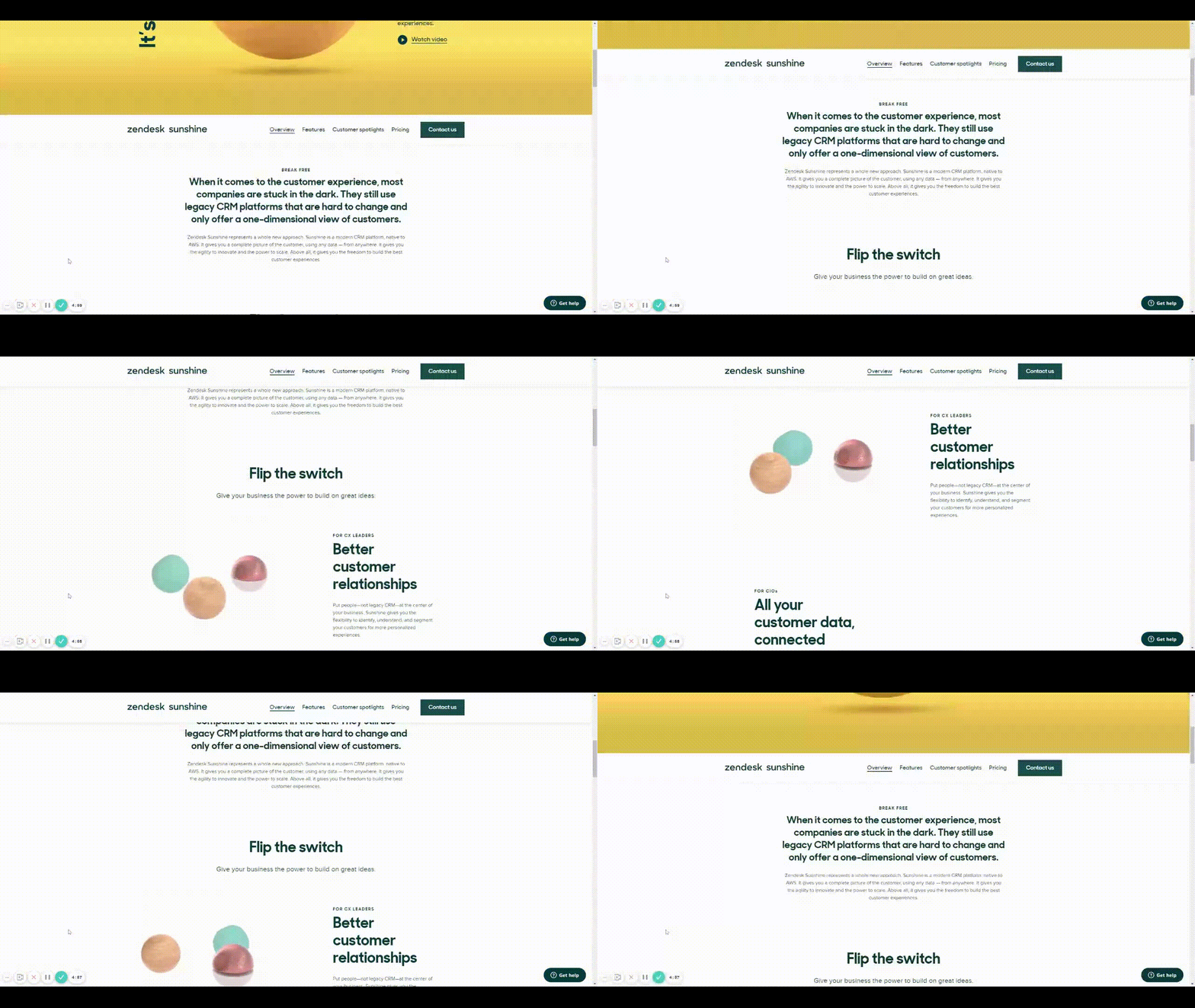
Zendesk scroll example

This would be very helpful for both engineering and stakeholders to understand functionality, especially when the designer isn’t there to describe it to them. It would also prove useful for user testing to understand if a chosen function works for users prior to spending time in engineering.

Does anyone have any other solution to this that I’m missing?

Thank you in advance and looking forward to hearing back!

136 replies

stelios
September 20, 2022

You can pretty much achieve this by putting your element with fix positioning in a new frame that allows vertical scroll. Then you have 2 scroll areas. That allows you to show off and explain the effect. It worked for me.

Prachita
October 5, 2022

Hey @stelios can you please explain this a bit further?

andreas_kramer
October 13, 2022

I think I found a good solution to your problem, but not sure if I understood your use case well.
Basically you can create a frame with auto layout, in it 3 frames:

  • header: fixed height
  • content:
    • fill container
    • but the content in it does not scale, takes as much space as it needs.
    • Check “Clip content”
    • in Prototype mode set “Vertical scrolling”
  • footer: fixed height

See my example file:

Figma
smn
October 18, 2022

+1 - I used Aninix to solve the explained issue but the result - as great as it is - is a video.
The way Aninix lets you animate the elements on the page is how I know it from Principle. What’s missing there is a chance to link between elements/frames.

Come on Figmadobe!!

Amy_Halvorsen
October 27, 2022

PLEASE ADD THIS.

This is so essential to prototype demos with sticky side navs and scrolling content. I need a left right expand collapse of a side nav while it also staying in place vertically and being able to scroll the content. You would not believe how may stakeholders have asked “is it going to actually do that?” when it doesn’t stay in place when I do my demos.

Nath
New Member
November 16, 2022

Could we have an update on this?

andredinis
New Participant
November 23, 2022

Yes! This would be super useful in many cases. Here’s another way someone could use this: RCA Programme finder. I think there’s no way to do this now…
There should be a way to assign where the fixed position would start and where it would stop in a specific frame.

Stefan_Brigola
December 11, 2022

Hey @Gleb Your solution sounds perfect! Can you please share a file in which the prototype works? I can’t figure out exactly how you solved this. Tried some settings but it doesn’t work for me. Thank you!

Gleb
Power Member
December 11, 2022

Gonna clarify again: this is not a solution, this is a suggestion of how things might work in Figma if they implement this feature. My prototype doesn’t function. It’s just an animated demo of the suggestion. There is no way to do a functional prototype like this in Figma currently.

Stefan_Brigola
December 11, 2022

@Gleb thank you for your answer. Ah ok understood! 🙂 Would be great this way!