

PNG exports of gradients should NOT contain transparent/translucent pixels

  • April 9, 2026
  • 4 replies
  • 70 views

Uhl
  • Active Member

[Reposting this since it’s been 8 months, it’s still an issue, and the original thread has been “closed for replies”]

When exporting frames with gradients to PNG, you'll get semi-transparent pixels—even when all gradient stops are 100% opacity. This happens whether the gradient is applied directly to the frame or on a separate layer, as long as there's no solid fill behind it.
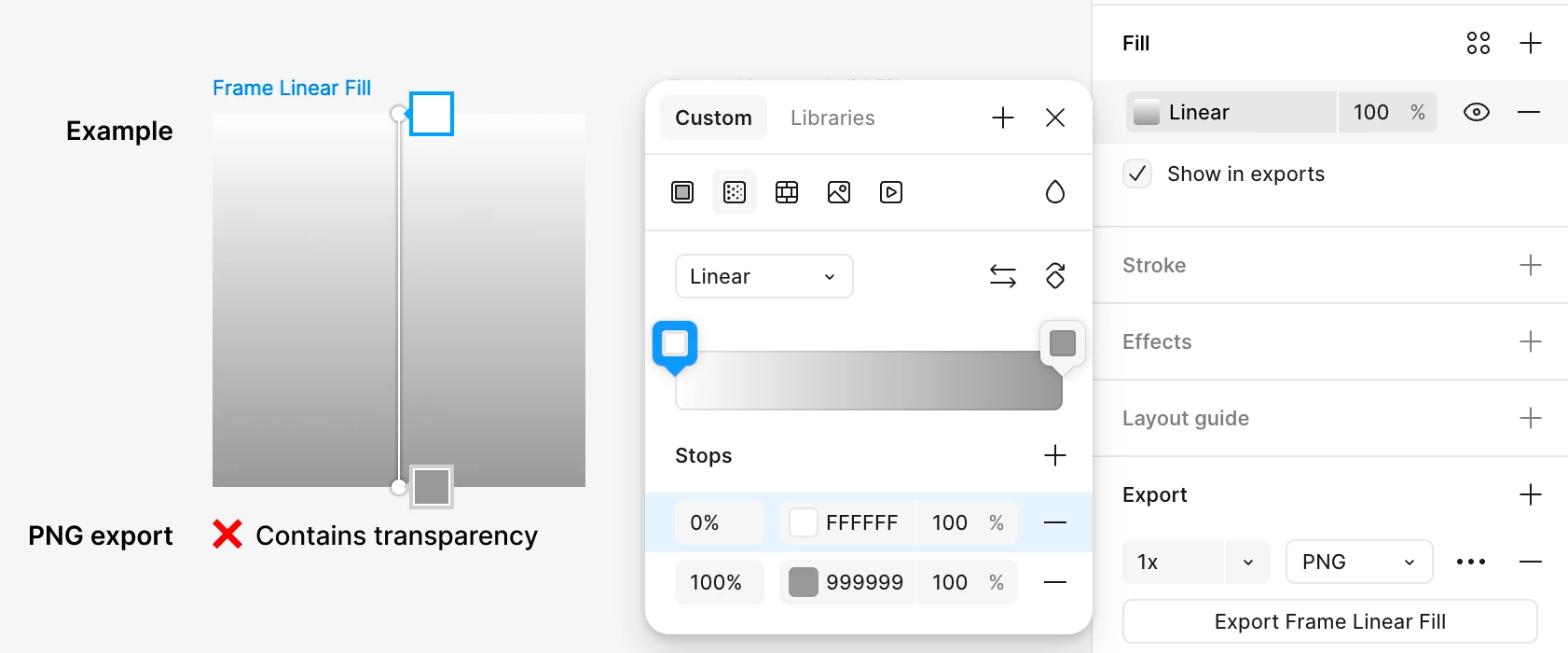


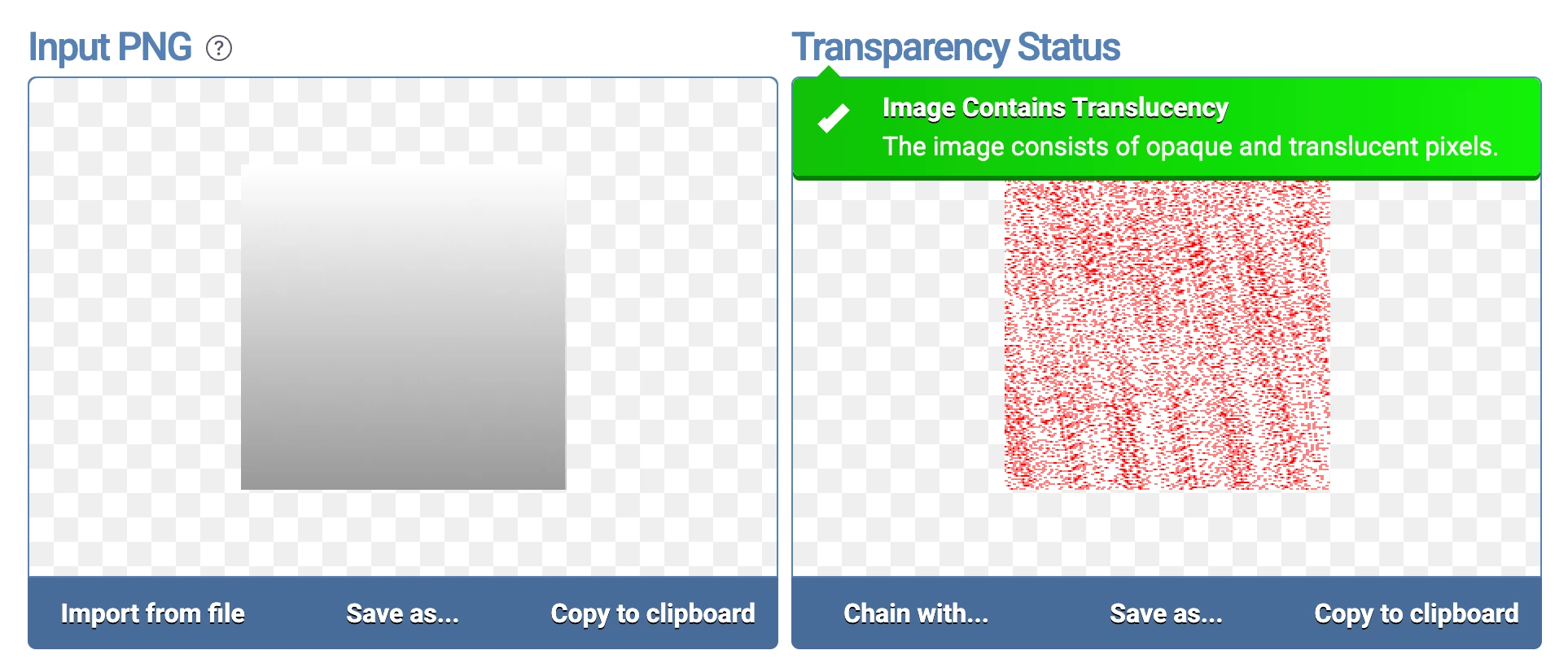
The attached Figma file includes four test frames. Visually, they appear identical, but only the fourth frame—with a solid fill behind the gradient—exports as fully opaque. You can verify this with a tool like: PNG transparency checker; the first three exports contain semi-transparent pixels.
 

A workaround is to move the gradient to a separate layer, then apply a solid fill to the frame behind it, like the fourth frame in the attached file. This avoids the PNG transparency problem but adds unnecessary layer complexity. 


Repro Steps

  1. Create a new Figma Design file
  2. Add a frame
  3. With the frame selected, change its fill to Linear Gradient.
  4. In the Export panel, click the + (plus) button.
  5. Confirm export type is set to PNG
  6. Click Export Frame 1 (or whatever you named it)
  7. In a browser, go to: https://onlinepngtools.com/check-if-png-is-transparent
  8. Drag the exported frame into the Input PNG box.

Current Results

Image contains translucency.

Expected Results

Image is completely opaque.

4 replies

Uhl
  • Author
  • Active Member
  • June 22, 2026

I first reported this almost a year ago, and it’s still reproducible.

It’s a clear export bug, and creates real friction for app developers. App Store screenshots can’t contain transparency, so PNGs that visually appear opaque but include translucent pixels produce blocking errors in App Store Connect.

The workaround does work, but it adds unnecessary complexity and is easy to forget. A 100% opacity gradient on a frame should export as an opaque PNG without needing a hidden solid fill behind it.

Given Figma’s AI investment, this feels like the kind of bug an LLM-assisted debugging pass should catch. The PNG export pipeline is clearly producing alpha where it shouldn’t.

Please prioritize fixing this. 🙏


djv
Figmate
  • Community Support
  • June 22, 2026

Hi ​@Uhl, thank you so much for following up here!

We really appreciate your patience, especially knowing you first noticed this nearly a year ago. We can confirm this is a known, long-standing bug: frames with a gradient fill (and no solid fill behind it) are producing semi-transparent pixels on PNG export, even when all stops are at 100% opacity.

We completely understand how frustrating this is, particularly given the real-world impact on App Store submissions. In the meantime, the temporary solution you've shared: placing a solid fill layer on the frame behind the gradient, does resolve the alpha issue on export. It's not ideal, but it should unblock you for now. A couple of quick questions to help us make sure we have the full picture:

  • Are you seeing this in both Figma for Desktop and the browser app?
  • Does this affect all gradient types (linear, radial, angular) or primarily linear?


Rest-assured that we've already logged this with our team and will update this thread if/when we have more to share. Thanks again for your persistence in flagging this; it genuinely helps!


Uhl
  • Author
  • Active Member
  • June 22, 2026
  • Are you seeing this in both Figma for Desktop and the browser app?


Can’t answer that, I only use the desktop app. I avoid the browser app like the plague.

Still not happy that the desktop app is not a proper Mac app, but that’s a separate discussion. ;) 


  • Does this affect all gradient types (linear, radial, angular) or primarily linear?

Did a quick test and yes, it affects all gradients. 


And here’s the result from OnlinePNGTools Transparency Checker


djv
Figmate
  • Community Support
  • June 22, 2026

Thanks for the additional context, ​@Uhl!

I’ll pass this onto the team, while they continue to investigate and work towards a fix.