

PNG exports of gradients contain transparent/translucent pixels
When exporting frames with gradients to PNG, you'll get semi-transparent pixels—even when all gradient stops are 100% opacity. This happens whether the gradient is applied directly to the frame or on a separate layer, as long as there's no solid fill behind it.
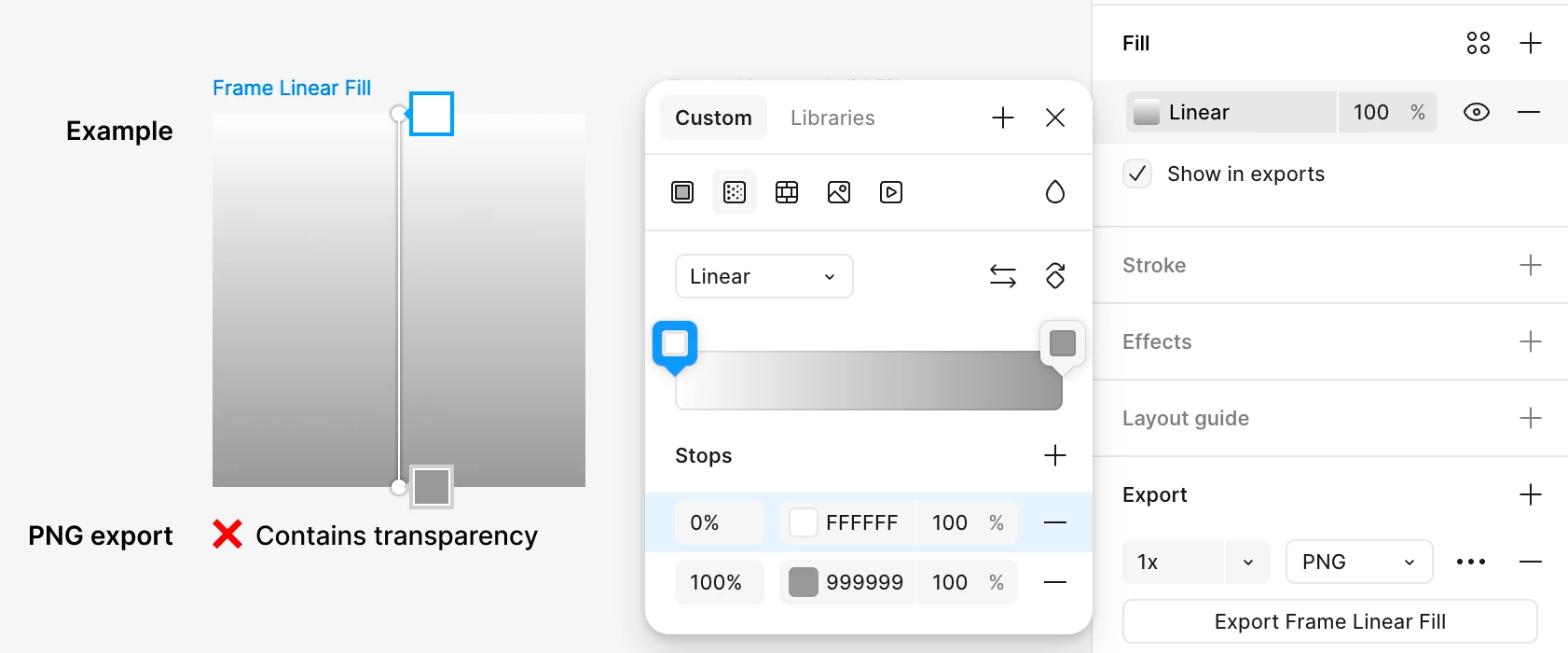
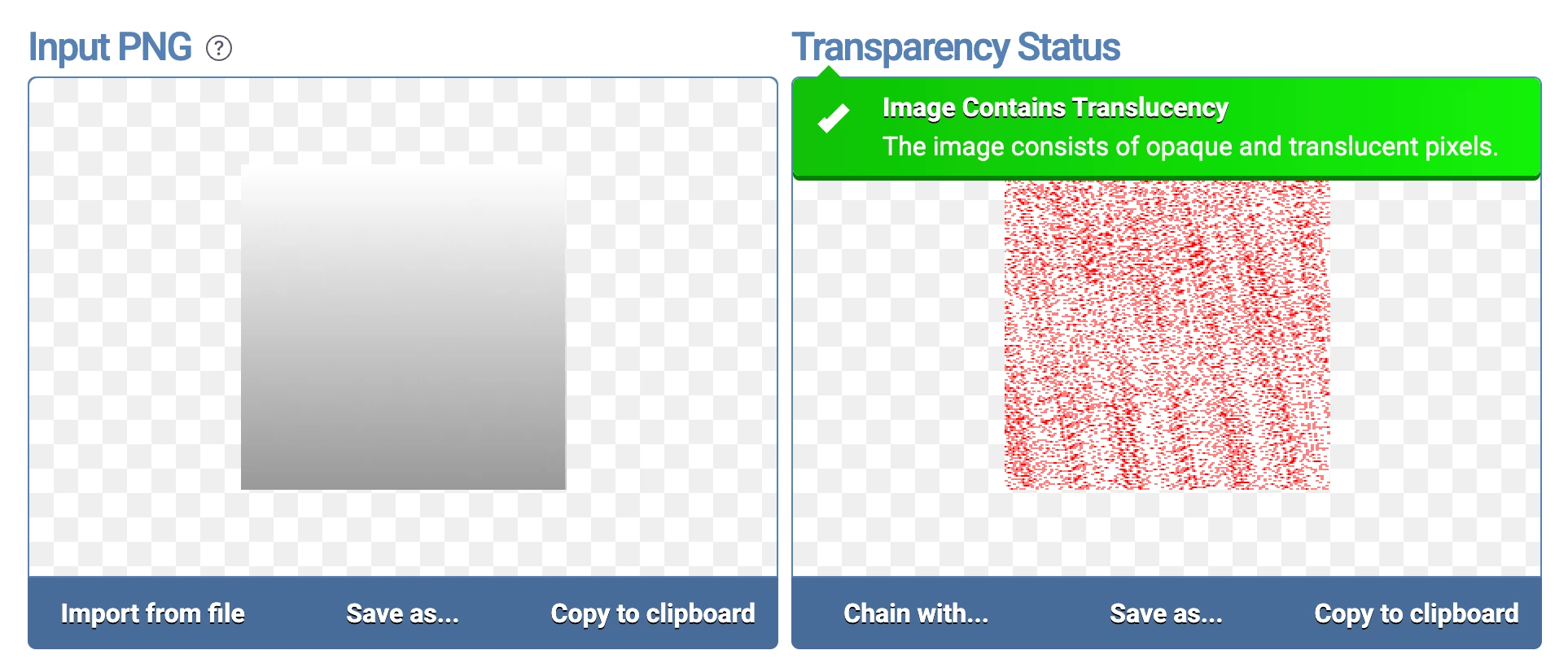
The attached Figma file includes four test frames. Visually, they appear identical, but only the fourth frame—with a solid fill behind the gradient—exports as fully opaque. You can verify this with a tool like: PNG transparency checker; the first three exports contain semi-transparent pixels.
A workaround is to move the gradient to a separate layer, then apply a solid fill to the frame behind it, like the fourth frame in the attached file. This avoids the PNG transparency problem but adds unnecessary layer complexity.
Repro Steps
- Create a new Figma Design file
- Add a frame
- With the frame selected, change its fill to Linear Gradient.
- In the Export panel, click the + (plus) button.
- Confirm export type is set to PNG
- Click Export Frame 1 (or whatever you named it)
- In a browser, go to: https://onlinepngtools.com/check-if-png-is-transparent
- Drag the exported frame into the Input PNG box.
Current Results
Image contains translucency.
Expected Results
Image is completely opaque.