

Deepika_D
November 27, 2023
Question

Icons' colour override not working properly when they're nested

  • November 27, 2023
  • 13 replies
  • 3414 views

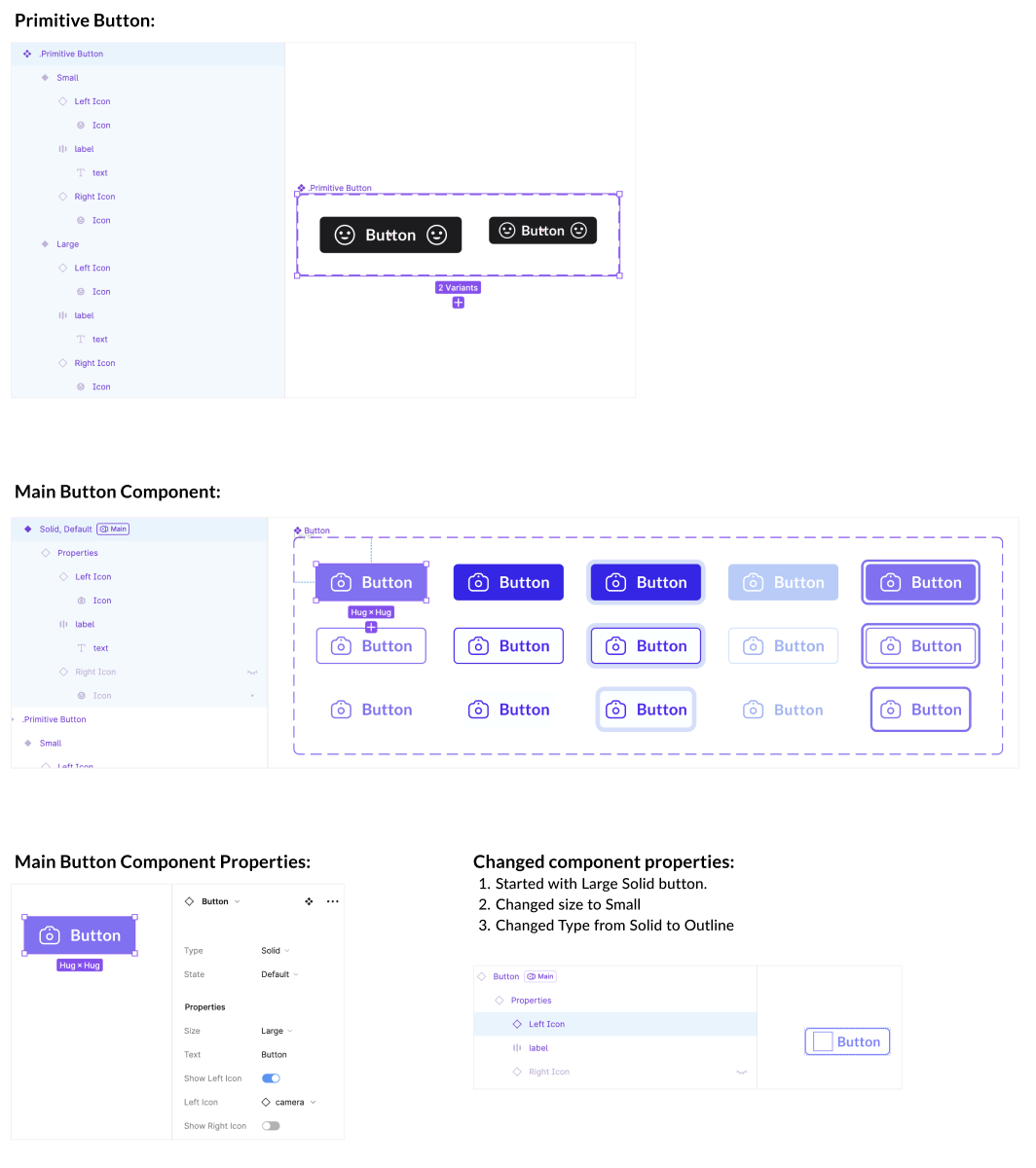
To make use of component properties better and reduce the no. of variants I tried creating my button with primitives which have 2 variants:

  1. Large: Icon size 20px (with instance swap), font style is button large (i.e. font size: 14px)

  2. Small: Icon size 16px (with instance swap), font style is button small (i.e. font size: 12px)

Then I used this large variant to create a new component called ‘Button’ which comprises of all the different types (solid, outline, ghost etc) and states (default, hover, disabled etc.).

Now when I take out a child of this ‘Button’, and change the properties of ‘Button’ first and then of ‘Primitive’ it works fine but when I have done this and try to change the properties of ‘Button’ again, then the icon colour gets back to primitive’s icon colour.

I’m not sure what I’m doing wrong, I’ve kept the name of icons also similar as mentioned by @Molly_Hellmuth in this article for Icon Best Practices.

For better understanding:
P.S. If this works fine for you, please try changing the icon and try again if it still works 🙃

Is this a Figma bug or am I doing something wrong? Any feedback is appreciated 🙂

13 replies

Nuel
New Member
December 4, 2025

Thank you @Manuela Rosa, It worked fine.

Rishik
New Member
January 21, 2026

To make use of component properties better and reduce the no. of variants I tried creating my button with primitives which have 2 variants:

  1. Large: Icon size 20px (with instance swap), font style is button large (i.e. font size: 14px)

  2. Small: Icon size 16px (with instance swap), font style is button small (i.e. font size: 12px)

Then I used this large variant to create a new component called ‘Button’ which comprises of all the different types (solid, outline, ghost etc) and states (default, hover, disabled etc.).

Now when I take out a child of this ‘Button’, and change the properties of ‘Button’ first and then of ‘Primitive’ it works fine but when I have done this and try to change the properties of ‘Button’ again, then the icon colour gets back to primitive’s icon colour.

I’m not sure what I’m doing wrong, I’ve kept the name of icons also similar as mentioned by @Molly_Hellmuth in this article for Icon Best Practices.

For better understanding:


P.S. If this works fine for you, please try changing the icon and try again if it still works 🙃

Is this a Figma bug or am I doing something wrong? Any feedback is appreciated 🙂

We had a similar issue and we found out that its matters if you have names everything the same way or not , in our case the vector itself inside the icon frames where named icon and vector , as soon as we changed it all to icon but editing in layers panel it worked fine. Our team found out about this solution by reading the untitled UI documentation while we were using the kit.


David_D
New Member
May 14, 2026

hey! I know it's been a while since you posted this but recently I've come across the same issue and would like to share the workaround I found for it after 2 days of smashing my head against the wall :) 

Apparently this problem occurs because of figma's confusing and honestly lacking "maintain override" rules. As in: your icon placeholder (camera) will ~almost~ always work since its color style is ""documented"" on your Main Button Component, but once you change the instance (eg. arrow) and the button's size and type/state… well, figma kind of gets lost cause even if your icons share the same structure they're not the same component, so in a way you never overrode your arrow color. (anyway that's my take as to what may cause this issue)

Ok but how do we work with what we got? Masks! Once you take your icon placeholder, mask it and put inside your button component the color you set will never be applied to the icon itself but to your mask. This way you'll be swapping the icon but it's fine since the color override will happen on a… let's say "always present and constant" layer that's already been "color mapped" on your main button component. And it worked for me like every. single. time!

Here's a step by step so you can try it for yourself :) 

  1. create your mask group
    (You can opt to turn this group into a component, personally I don't like this approach since your "swap instance" will have to be activated inside this "mask component" and you'll lose the flexibility to set different preferred values for each specific use)


  1. place this masked group inside your button primitives and select the nested icon to create the swap property


    3. And that's it basically! Just remember to expose the nested instances when working on your main button component. Now when you set the icon color for your primary button it will actually be applied to your square/mask, so basically what we're doing is creating a manual color override!


    You can see that I changed size, icons, style and states and the colors that I defined on my main component are still matching. But if I select the icon layer you'll see that the "automatic" color override failed: small button is using the color I set on my button primitives, large button is using my default icon color (straight from my icon library). And ✨ it does not matter ✨ all thanks to our mask!
     

hey! I know it's been a while since you posted this but recently I've come across the same issue and would like to share the workaround I found for it after 2 days of smashing my head against the wall :) 

Apparently this problem occurs because of figma's confusing and honestly lacking "maintain override" rules. As in: your icon placeholder (camera) will ~almost~ always work since its color style is ""documented"" on your Main Button Component, but once you change the instance (eg. arrow) and the button's size and type/state… well, figma kind of gets lost cause even if your icons share the same structure they're not the same component, so in a way you never overrode your arrow color. (anyway that's my take as to what may cause this issue)

Ok but how do we work with what we got? Masks! Once you take your icon placeholder, mask it and put inside your button component the color you set will never be applied to the icon itself but to your mask. This way you'll be swapping the icon but it's fine since the color override will happen on a… let's say "always present and constant" layer that's already been "color mapped" on your main button component. And it worked for me like every. single. time!

Here's a step by step so you can try it for yourself :) 

  1. create your mask group
    (You can opt to turn this group into a component, personally I don't like this approach since your "swap instance" will have to be activated inside this "mask component" and you'll lose the flexibility to set different preferred values for each specific use)


  1. place this masked group inside your button primitives and select the nested icon to create the swap property


    3. And that's it basically! Just remember to expose the nested instances when working on your main button component. Now when you set the icon color for your primary button it will actually be applied to your square/mask, so basically what we're doing is creating a manual color override!


    You can see that I changed size, icons, style and states and the colors that I defined on my main component are still matching. But if I select the icon layer you'll see that the "automatic" color override failed: small button is using the color I set on my button primitives, large button is using my default icon color (straight from my icon library). And ✨ it does not matter ✨ all thanks to our mask!
     

THANK YOU, ​@Manuela Rosa !!! I too have been banging my head against the wall with this whole icon colorization bug and your fix is perfect.