JipJ
New Member
August 1, 2025
Solved

FIX being rolled out by Adobe: Issue with copying vector shapes from illustrator to Figma 2025 (MAC)

  • August 1, 2025
  • 12 replies
  • 1649 views

HI, 


Yesterday all of a sudden I couldn’t copy and paste vector shapes from Adobe illustrator to Figma anymore… When is copy from Illustrator the shape now changes to an image file instead of an SVG. I have restarted my Macbook restarted Figma and illustrator, run the latest update of Figma but nothing works.


This really slows down my proces because I now have to export each vector and import it manually in Figma.

Can someone please help me with this problem.

This topic has been closed for replies.
Best answer by djv

Hey All, thank you for your patience while our team worked towards a solution with Adobe! 

Adobe identified the root cause and now have a fix in place. The issue stems from a code change introduced in version 29.8.x and is not related to the recent SVG settings change. They also confirmed the exact repro: the issue occurs when the SVG “Minify” option is enabled.

They will be disabling the feature flag associated with this code change and will let us know once it’s complete. After the flag is turned off, you will need to restart the application and Copy/Paste with the Include SVG setting enabled to ensure it will work as expected.

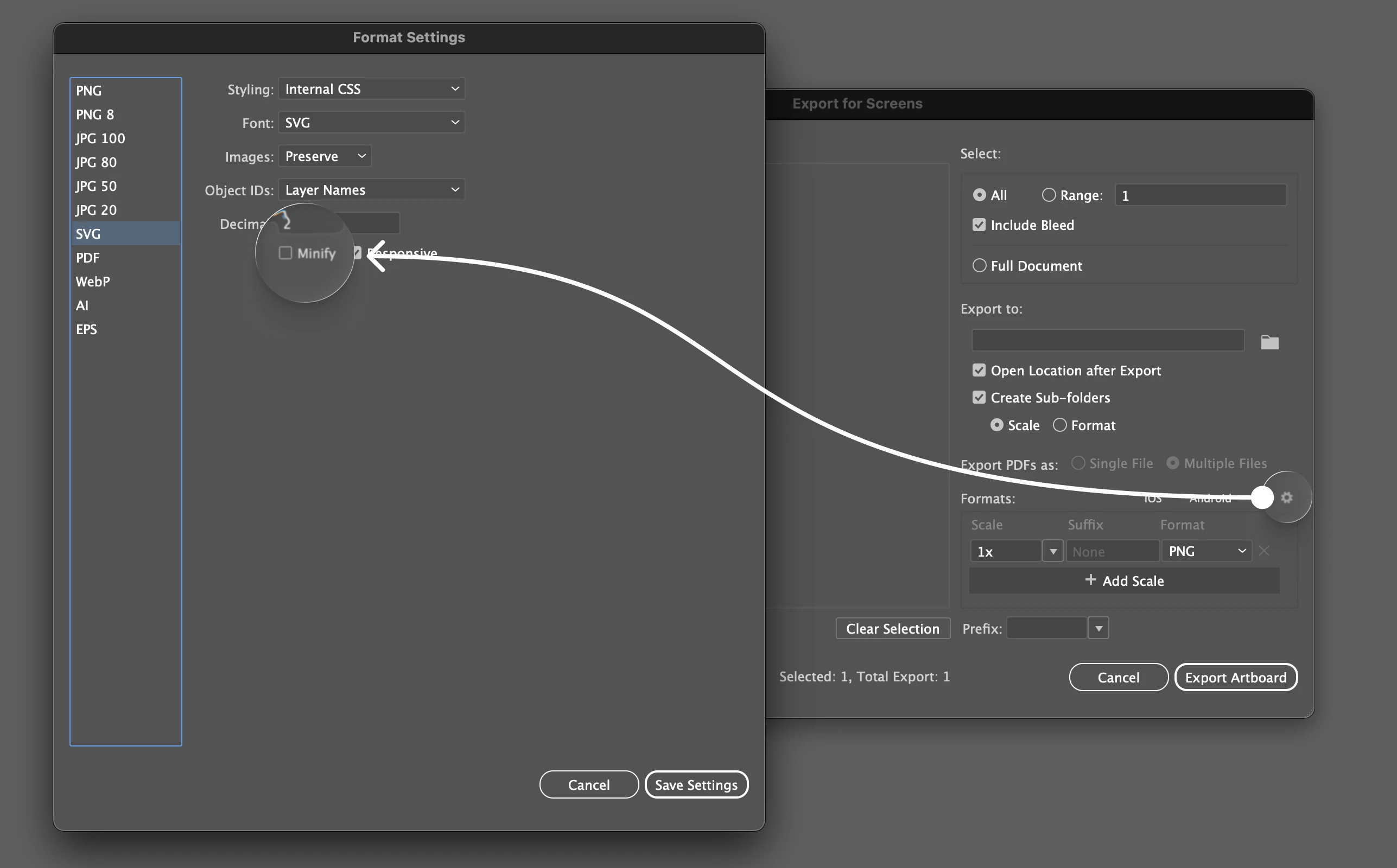
You can find the setting under File > Export for Screens, and hit the little settings icon in that Dialog...go down to SVG and uncheck minify (until the fix has been fully rolled out by Adobe).


12 replies

djv
Figmate
djvSolution
Community Support
October 3, 2025

Hey All, thank you for your patience while our team worked towards a solution with Adobe! 

Adobe identified the root cause and now have a fix in place. The issue stems from a code change introduced in version 29.8.x and is not related to the recent SVG settings change. They also confirmed the exact repro: the issue occurs when the SVG “Minify” option is enabled.

They will be disabling the feature flag associated with this code change and will let us know once it’s complete. After the flag is turned off, you will need to restart the application and Copy/Paste with the Include SVG setting enabled to ensure it will work as expected.

You can find the setting under File > Export for Screens, and hit the little settings icon in that Dialog...go down to SVG and uncheck minify (until the fix has been fully rolled out by Adobe).


Rob27
New Participant
October 6, 2025

Thank you djv, I unchecked ‘Minify’ and now I can copy/paste straight to Figma