

Justin_Trout
New Member
February 24, 2024
Solved

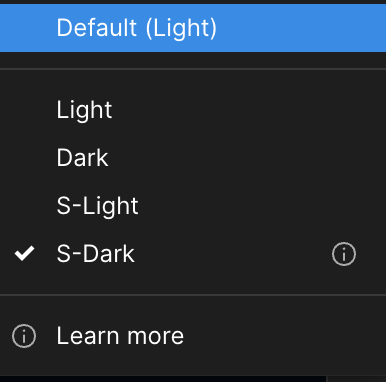
Library assets may need to be republished for modename mode to show

  • February 24, 2024
  • 28 replies
  • 3562 views

I am getting a message that says “Library assets may need to be republished for modename mode to show.” There is also a little icon next to the mode name in all of my files when selecting a palette mode. We use a single design system file that has all of our variables and the other palettes don’t seem to have the same problem. The error message is not very helpful and I have cleaned up all of the files and resolved everything I can find but this message never goes away. Can anyone help me understand what is going on?

I have included a couple of images as an example of what I am seeing.
Screenshot 2024-02-23 at 17.11.59

Best answer by Justin_Trout

This was resolved through support. What needed to happen was to set all pages in the library file to the default mode at the page-level and republish. I am still waiting to hear back about what the issue was and why this process resolved it.

28 replies

Grant Szalay
New Member
December 3, 2025

@Tom E. I’m having the exact same issue, but with sizing variables in Styles. I can select a font style, weight, size, etc. and select a variable. After closing the window and opening up the style again, it’s not connected to the item anymore.

Here, I’ve hovering over Paragraph spacing for a Heading 1. Figma knows what variable it’s linked to, as you can see in the tooltip.


However, if I click on the Variable 24, you can see it’s not really connected correctly:
 

No matter how many times I re-select the correct one, it defaults back to “nothing selected.”

Oddly enough, this problem seems to be jumping around. Yesterday, I had the same issue with font-weight. I would select “bold” from my list of variables and it wouldn’t stay selected. Today selecting a font-weight works correctly.

Do you mind sharing how you actually fixed this? I keep reconnecting and when I re-open a style, it’s not connected anymore.

Tom E.
New Participant
December 4, 2025

@Grant Szalay in our case, simply selecting the correct value from the variable collection resolved it.

What you described seems like a different issue, especially the jumping around part.

In your example, when you click on the variable and it opens the variable menu, it’s highlighting a completely different variable (“Primitives/spacing/xxxs”). Have you tried unlinking the variable and then relinking it to the correct variable?

What are the variable collections you are using, are they local or from team libraries?

Grant Szalay
New Member
December 4, 2025

@Tom E. In this case, all the variable collections and styles are in the same file. The light gray background is actually just Figma highlighting the 1st item in the variables window. If any variable is selected, the selection doesn’t stick. I immediately reopen the variables dropdown and it’s as if nothing was ever selected.

I can select any other variable and it simply won’t stick. I’ve unlinked, reselected a new variable, and it still doesn’t stick.

Here’s a better screenshot. You can see the line height in the styles window is a variable, it’s 52, and Figma sees it as “Typography/heading/lineHeight/1” however, it’s NOT selected in the variable doropdown menu.


Tom E.
New Participant
December 5, 2025

@Grant Szalay I think that might be a Figma UI bug - it behaves the same way for me.

The font style does not show a selection in the variable collection for Line height variables:


But if I assign the style to an element and then detach the style, it does show up selected in the element’s line height property:


So even though the UI behaves unexpectedly, the variable itself is still connected (at least for me). 
If you have the text style assigned to an element, does the element’s line height not update when you change the line height setting in the text style?

jojojo
New Member
January 23, 2026

The same issue happened to me 😥.I’ve tried the solution above and it didn’t work. 

Obelix
New Member
March 24, 2026

This same issue has been plaguing me for months! The “fix” is extremely cryptic and tedious... Not good!!

Dhoyt
New Member
May 12, 2026

Same issue for me and I can’t seem to make the [i] go away.


Celyn_L
Figmate
Figmate
May 12, 2026

Hi ​@Obelix, ​@Dhoyt, thanks for flagging this. 

It’d be helpful to submit a bug report so the team can take a closer look at what’s happening in your specific setup.

You can do that by:

Going to the Support Hub - Clicking Start a chat -Typing “Report a bug”

When submitting, it would be really helpful to include:

  • A direct link to the affected file
  • Invite support-share@figma.com with “Can View” access (Note that this will not impact your billing and allows us to reproduce and investigate the issue with Engineering)

The team will follow up with you directly from there. Thank you.
