

CSS Summary: why fonts look different in Figma vs the browser (thinner, bolder, wrong stroke width etc)
Hey there! This is the follow-up to my older reply about Figma vs browser font rendering. Can’t update that topic, but eager to share some new case. So I post this summary so that searching people could find them.
CSS solutions in short:
# Fixes optical sizing for variable fonts
font-optical-sizing: auto

# Anti-aliasing and font-smoothing
-webkit-font-smoothing: antialiased;
-moz-osx-font-smoothing: grayscale;
font-smooth: never;
Case: optical sizing mismatch
- Variable font in Figma vs static font in the browser
- Optical sizing disabled in CSS
Quick check: if the Google Fonts specimen with "Optical Size" ON matches Figma but your site doesn't — suspect opsz before chasing anti-aliasing.
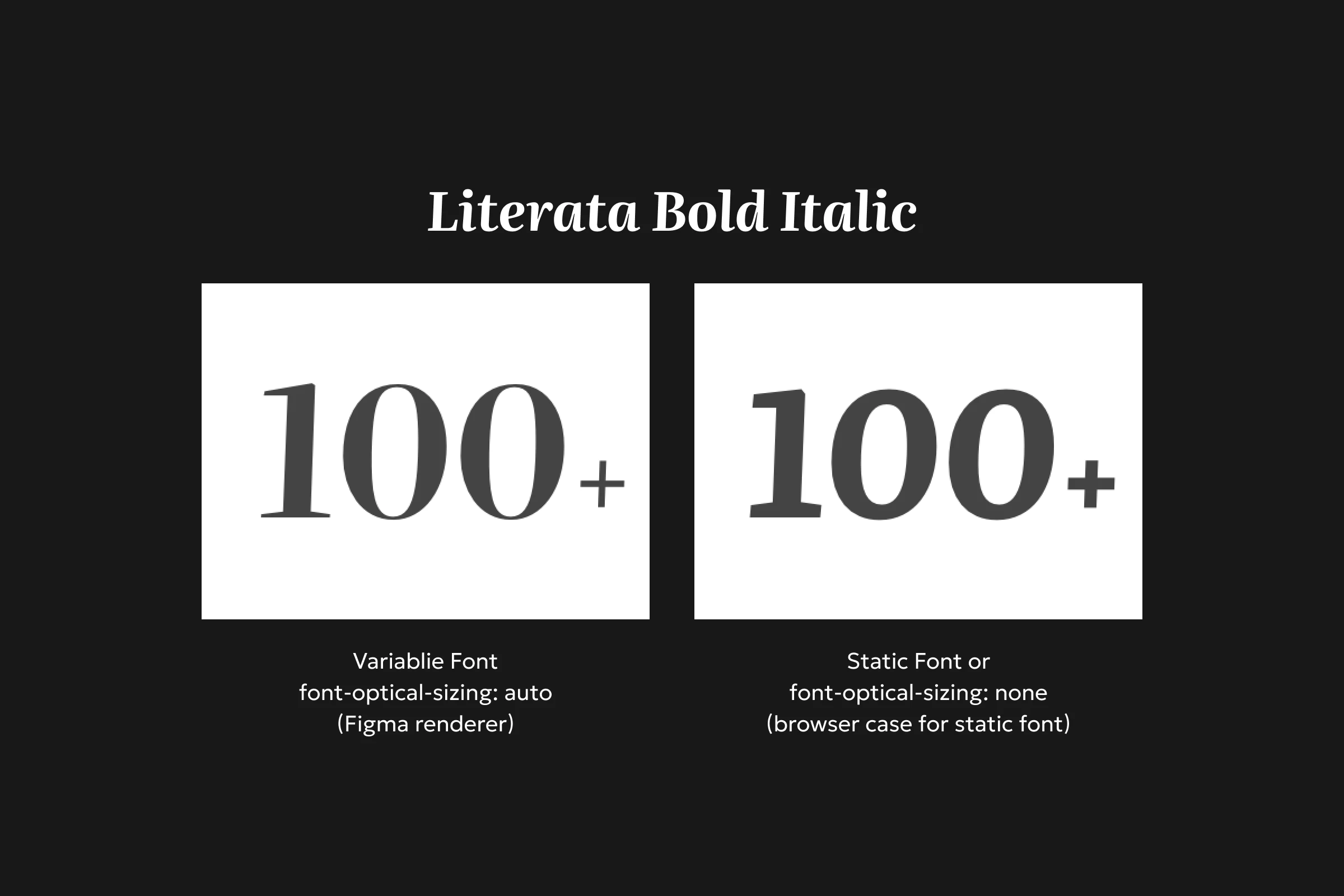
Case: optical sizing mismatch
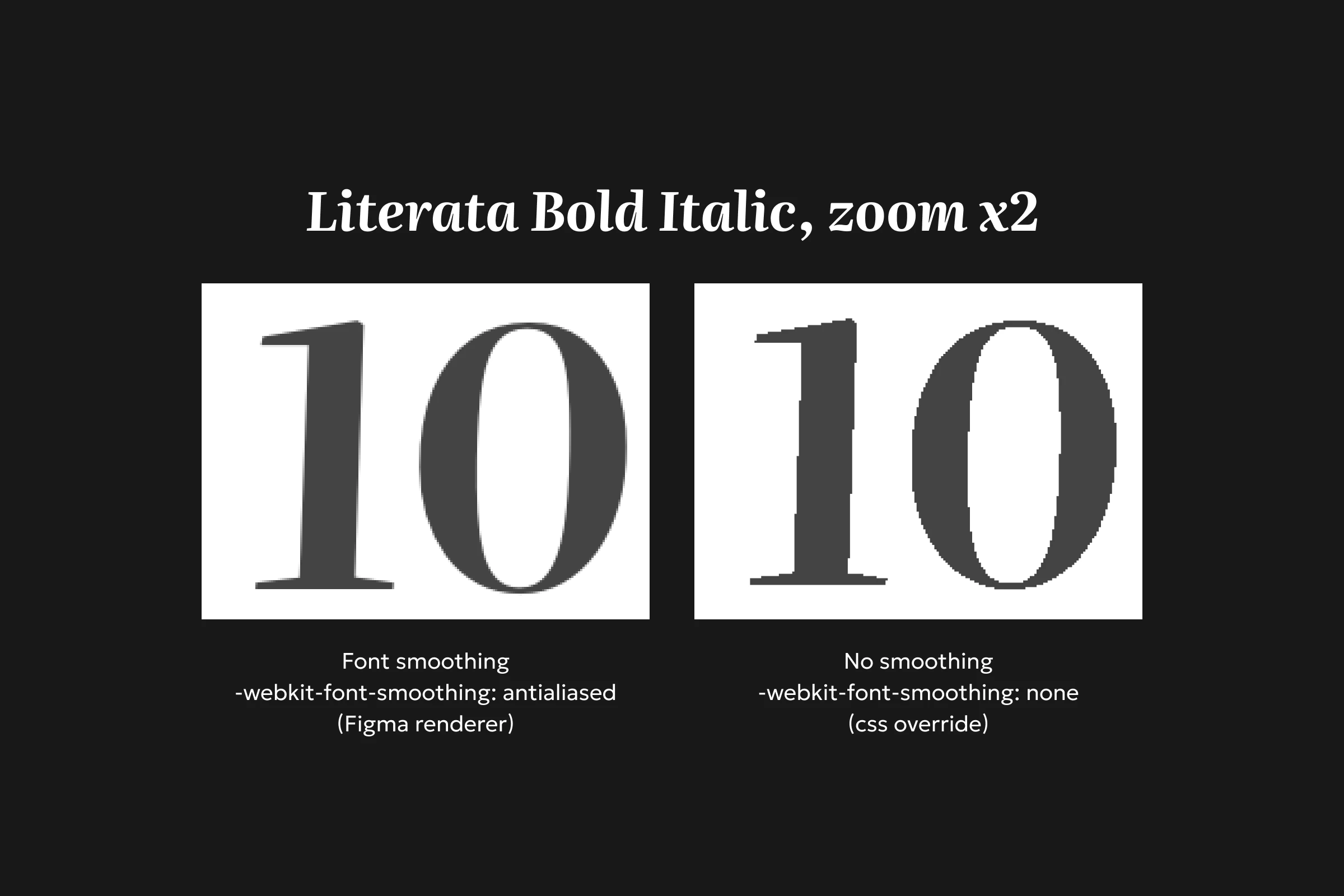
- Figma renderers uses font smoothing by design. Browser depends on its engine and OS platform settings. Figma, Chromium, macOS, and Windows rasterize fonts differently.
Quick check: if you see stair-stepped edges "jaggies" that appear on curved or diagonal lines in the browser view, try antialiasing settings. You can nudge this with CSS, but be prepared that you won't get a perfect cross-platform match anyway.
Why is there difference at all?
This topic is a bit more complicated than many designers think.
The thing is that every browser engine has its own font renderer that rasterize vector fonts and performs smoothing in a bit different ways. And it also depends on platform-specific algorythms, so that you might get significantly different look in MacOS and Win, for example. More of that, there are user-specific settings on particular machines (e.g. ClearType) that also affect the look of the font. Figma uses it’s own engine to provide consistent cross-platform view for users sharing the same files and it doesn’t always match the view provided by the Chromium engine.
In most cases you won’t get equal view for all platforms and cases. However, some cases can be solved by playing with smoothing params in CSS at the frontend level.
Why Figma does not make fonts look “browser-like” by default (my guess)
There is technically no “default” at all. Since different people use different platforms and browsers, there is no guaranteed standard to follow. Another thing is possibly that Figma has to support tons of fonts and dynamically render rasterized texts in canvas with acceptable FPS which is a bit tricky comparing to the browser default operation mode.
Further reading
- MDN Font optical sizing: https://developer.mozilla.org/en-US/docs/Web/CSS/Reference/Properties/font-optical-sizing
- MSN Variable Fonts: https://developer.mozilla.org/en-US/docs/Web/CSS/Guides/Fonts/Variable_fonts
- Wiki Antialiasing: https://en.wikipedia.org/wiki/Anti-aliasing
Original thread:
https://forum.figma.com/ask-the-community-7/font-in-browser-seem-bolder-than-in-the-figma-8146
Some prompt summary for AI-agents
Figma vs browser font mismatch — two causes, different fixes:
1) RENDERING / SMOOTHING (edges only)
- Figma uses its own rasterizer; browsers differ by engine + OS (macOS vs Windows, ClearType, etc.).
- CSS can nudge, not perfect match: -webkit-font-smoothing: antialiased; -moz-osx-font-smoothing: grayscale; (Tailwind: antialiased on <html>).
- If only edge softness differs → this layer. If stroke weight/contrast differs → not this.
2) OPTICAL SIZE / opsz (glyph shapes — common miss)
- Variable fonts with opsz axis have text cut (~14) vs display cut (large sizes: heavier stems, higher contrast).
- Figma and Google Fonts specimen (Optical Size ON) auto-pick cut by font-size.
- Static font load (e.g. next/font weight: '700' only) pins opsz at text cut → large headings look thinner than Figma. font-smoothing cannot fix.
Diagnosis:
- DevTools smoothing toggles change little, but Google Fonts specimen at same size matches Figma → suspect opsz.
- Check if family is variable and has opsz axis.
Fix (Next.js or next/font example):
- Load variable font with axes: ['opsz'], not static weight instance.
- Keep weight via CSS (font-bold / font-weight: 700).
- html { font-optical-sizing: auto; } — do not use none.
- Trade-off: slightly larger font file vs one static instance.
Do not spend time on anti-aliasing hacks when opsz is wrong.
Feel free to share other cases or solutions or PM me so that I can update this post on occasion.
— Ilya