

Israr_Choudhry
February 26, 2021

First on top layer order in Auto-Layout

  • February 26, 2021
  • 80 replies
  • 22893 views

Currently auto layout arranges layers from bottom up, i.e. the lower most layer in the layers list appears on top of every other layer on the workspace.
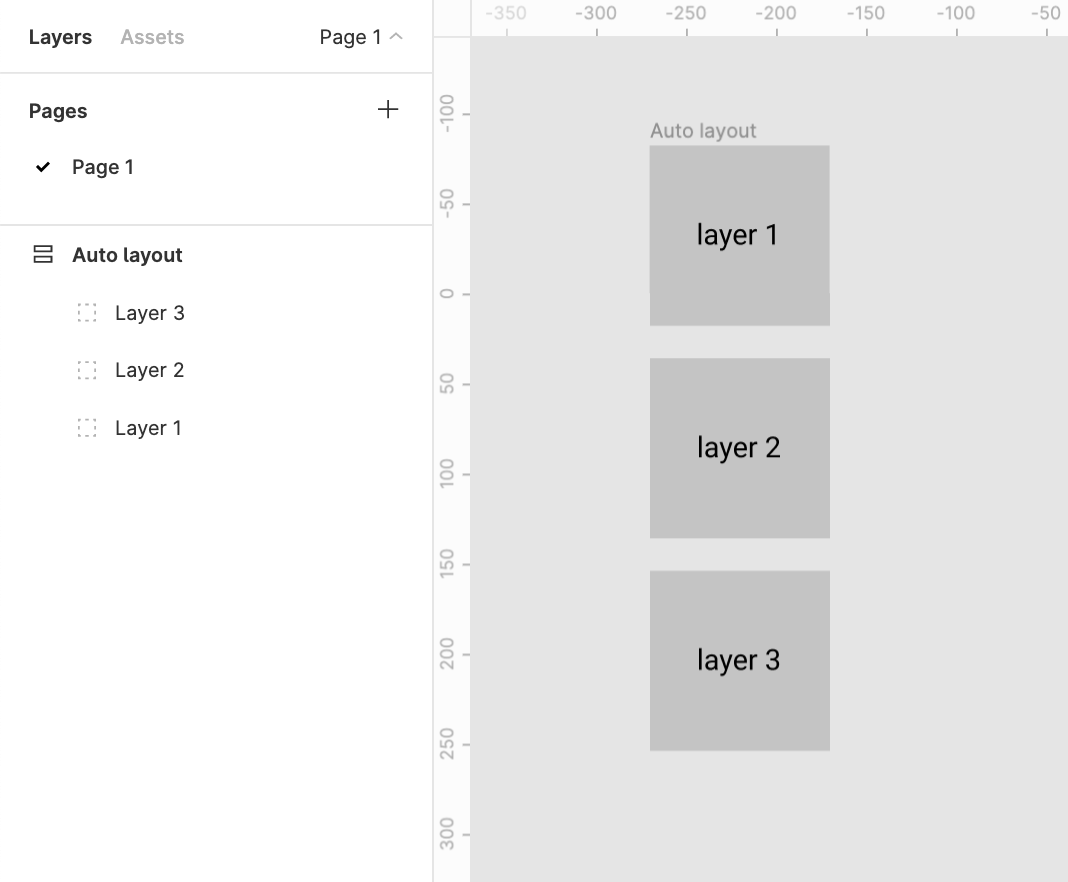
This creates two problems

1. Confusion
There’s a clear confusion of the order of layers shown in the layers menu and the representation in the workspace. This requires a bit of getting used to

2. Effects like drop shadow don’t work like they are expected to
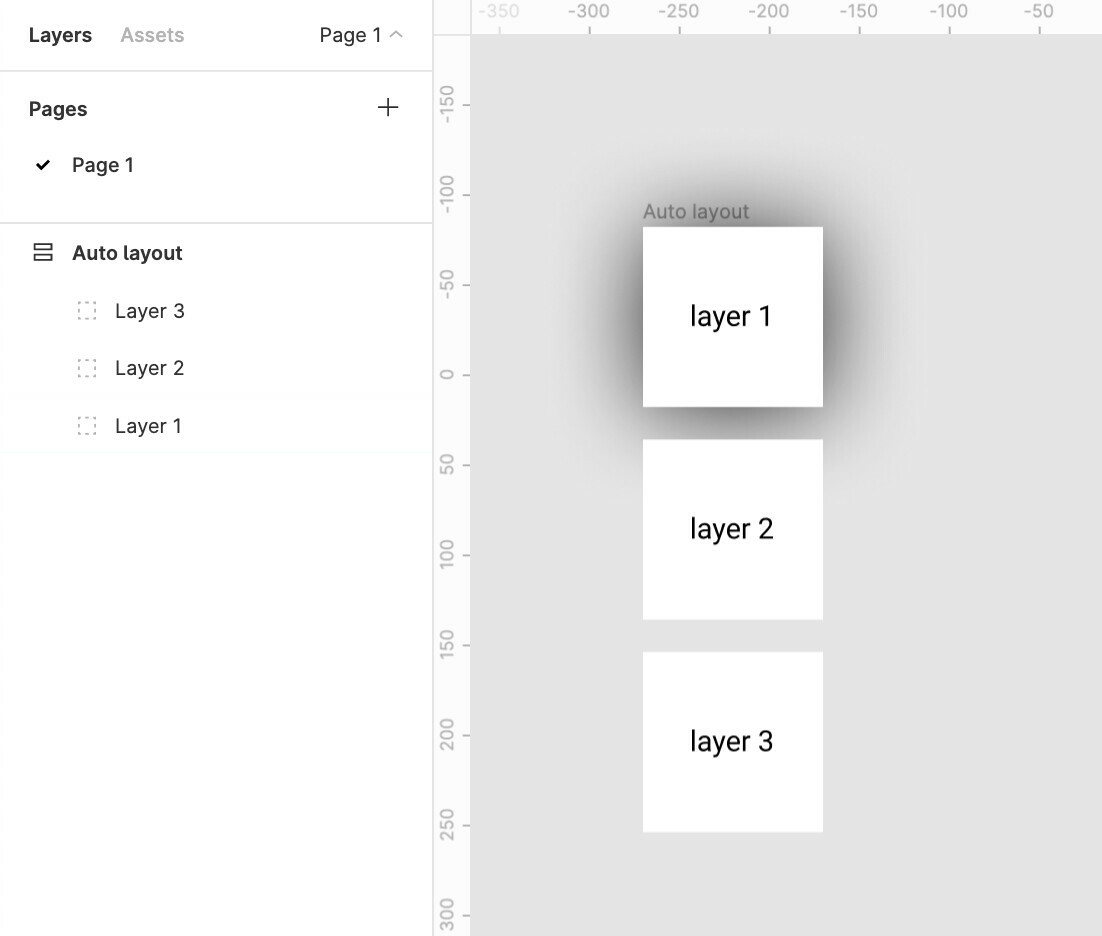
Applying a drop shadow to layer 1 does not cast the shadow on layer 2
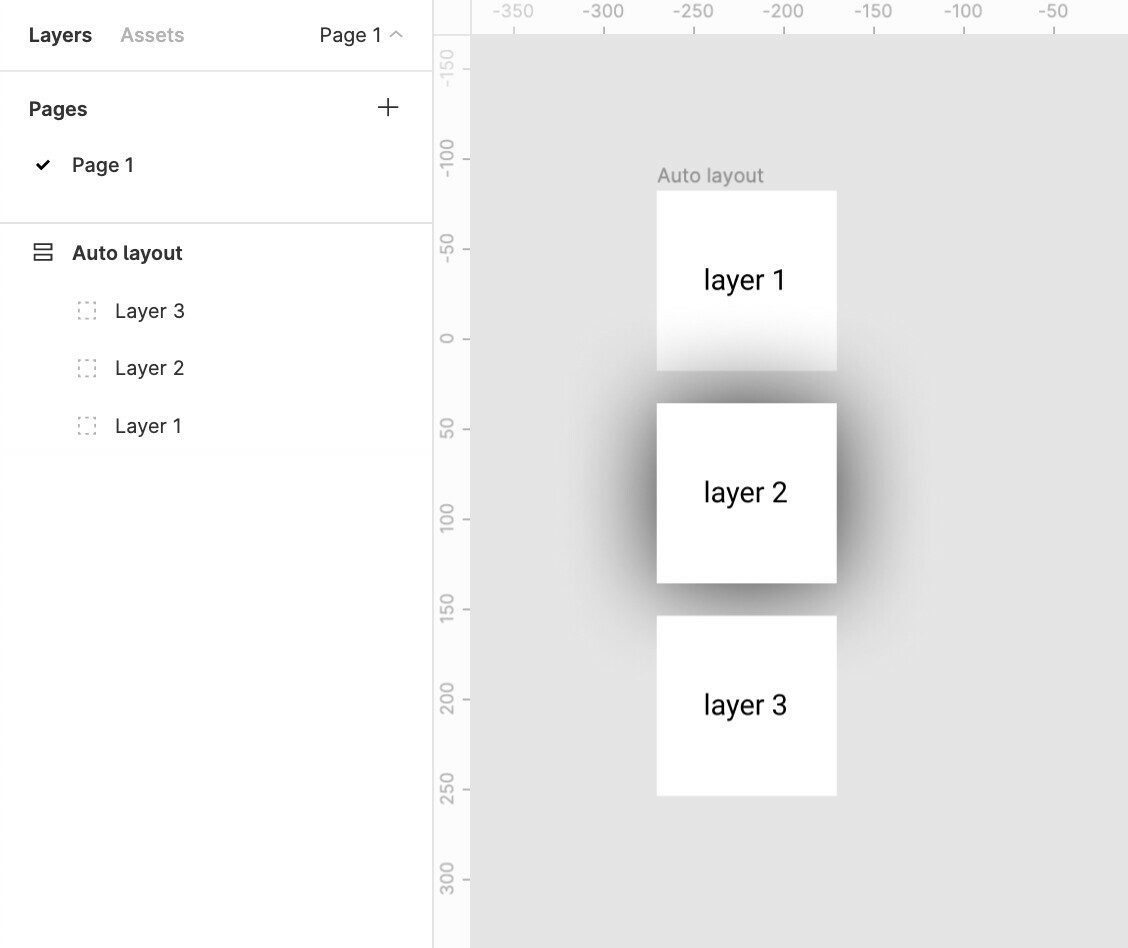
And applying a drop shadow to layer 2 casts a shadow over the top layer 1
The Order in the layer menu should be reversed.
Does anybody else see merit in this?

Update:
The same logic applies to horizontal auto-layouts.
The right most element is on top whereas the left most element should be on top majorly because we scan left to right hence the element on the lleft most extremity is to be scanned first.

for example:
Say we require a stack of layers to be shown which shuffles on drag
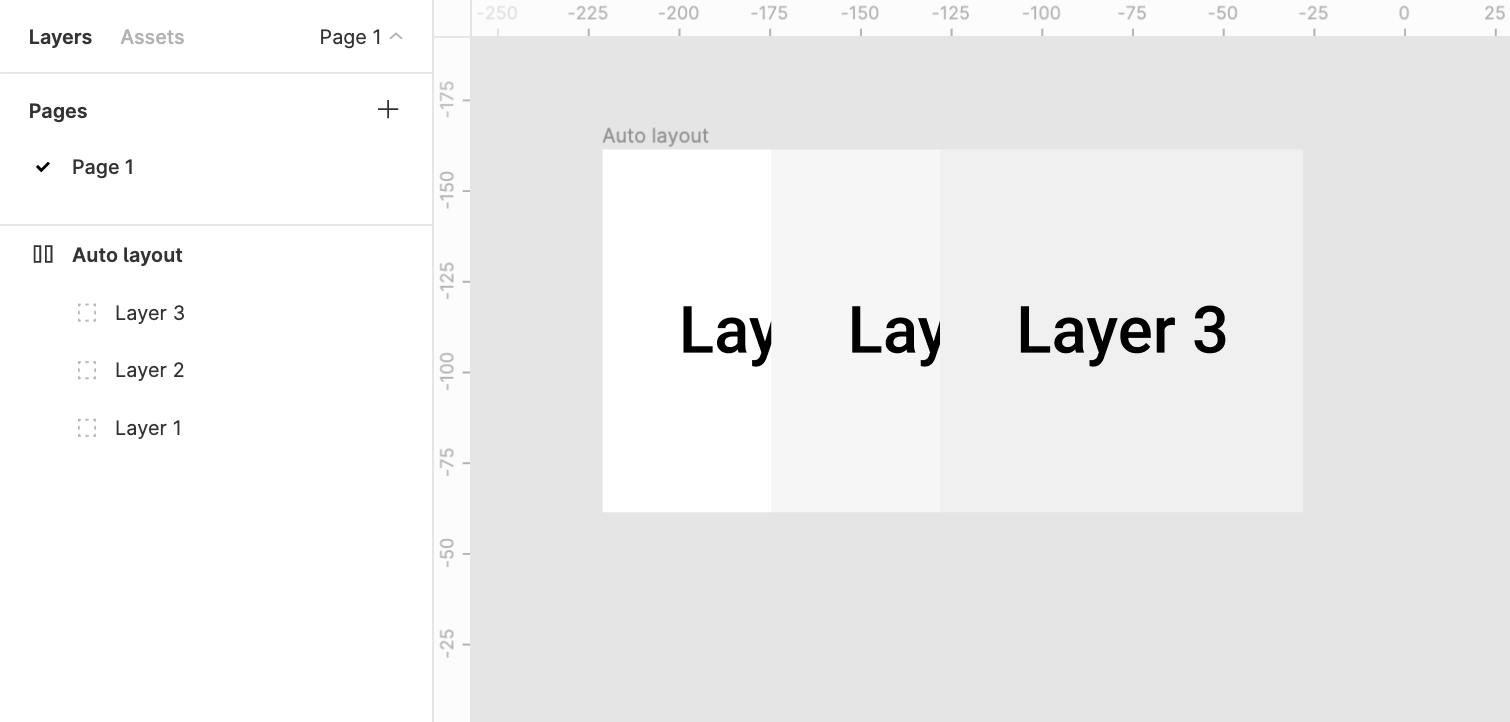
It would make more sense to bring layer1 above layer2 above layer3

80 replies

Zlatko
Active Member
February 26, 2021

I like to arrange my layers from top to bottom. But when I apply auto-layout to a bunch of layers, it reverses their order. Why on Earth it does that? It messes up with the way I‘ve been arranging layers for years.

For example, first comes Head, then Body, not vice-versa.

Maker of kinverse.app
tank666
February 26, 2021

I also arrange the layers from top to bottom, and I don’t like that Auto Layout changes the order. By the way, this is the problem we face if we arrange the layers in reverse:

UX/UI designer. Figma expert. Creator and developer of plugins and widgets for Figma and FigJam. Check out my resources in Figma Community: figma.com/@tank
Zlatko
Active Member
February 26, 2021

Hmm that actually makes sense.

Maker of kinverse.app
chudoloo
New Participant
February 28, 2021

Here’s Figma’s answer to the “why?”:

twitter.com

I definitely appreciated reading the above thought process that landed them at the current implementation.

Denis_Yermak
April 23, 2021

+1
It’s really annoying, that I’m forced to remove auto layout to reorder layers and get the shadows right and sometimes to stick the components.

Tony_V
June 4, 2021

When working in Auto-layout, the layers on the left panel are in the reverse order from the elements on the artboard. It would he helpful if they matched order so that the top element on the artboard is the the first layer on the left panel, not the last. Also if using a horizontal layout elements going from left to right would be top to bottom on the layer panel.

June 30, 2021

i disagree, because the layer panel is shown in order of the layer’s z-index. flipping this is actually less intuitive and would cause problems everywhere else.

Tony_V
July 1, 2021

I understand that what you’re describing is how it works when you’re not working in Auto-layout and it makes sense. However, Auto-layout works with a vertical and horizontal direction (X & Y), not with the z-index.

Fabrice
August 19, 2021

I don’t find this intuitive, I agree with the reporter. Layer panel systematically in reverse order compared to your object in the canvas.

In the case of auto-layout, where items do not overlap, Z index does not seem to matter to me. I guess we could consider the top object of a vertical auto-layout could be the one on the top layer too. At the moment Figma considers the bottom object is on the top layer, not sure why…

Fabrice
August 19, 2021

I agree it’s super annoying.
I suppose it comes from the fact that when you design a list, you create the first item, then the second, then the 3rd, etc. in that order. And you tend to consider the first is the most important one and therefore should be the one on “the top” casting shadow on everyone else. That’s because the way you read is either left to right (in most cultures) and top to bottom I guess…

But most for most tools, when you add a new object it has to be on the top of everything, simply to make sure you’re going to see it!

So the top-most in our intuition is actually the bottom-most in the tool’s logic.

We would need a way to gracefully combine those two logics…