

How to make a real motion blur in Figma (directional, curved, reusable)
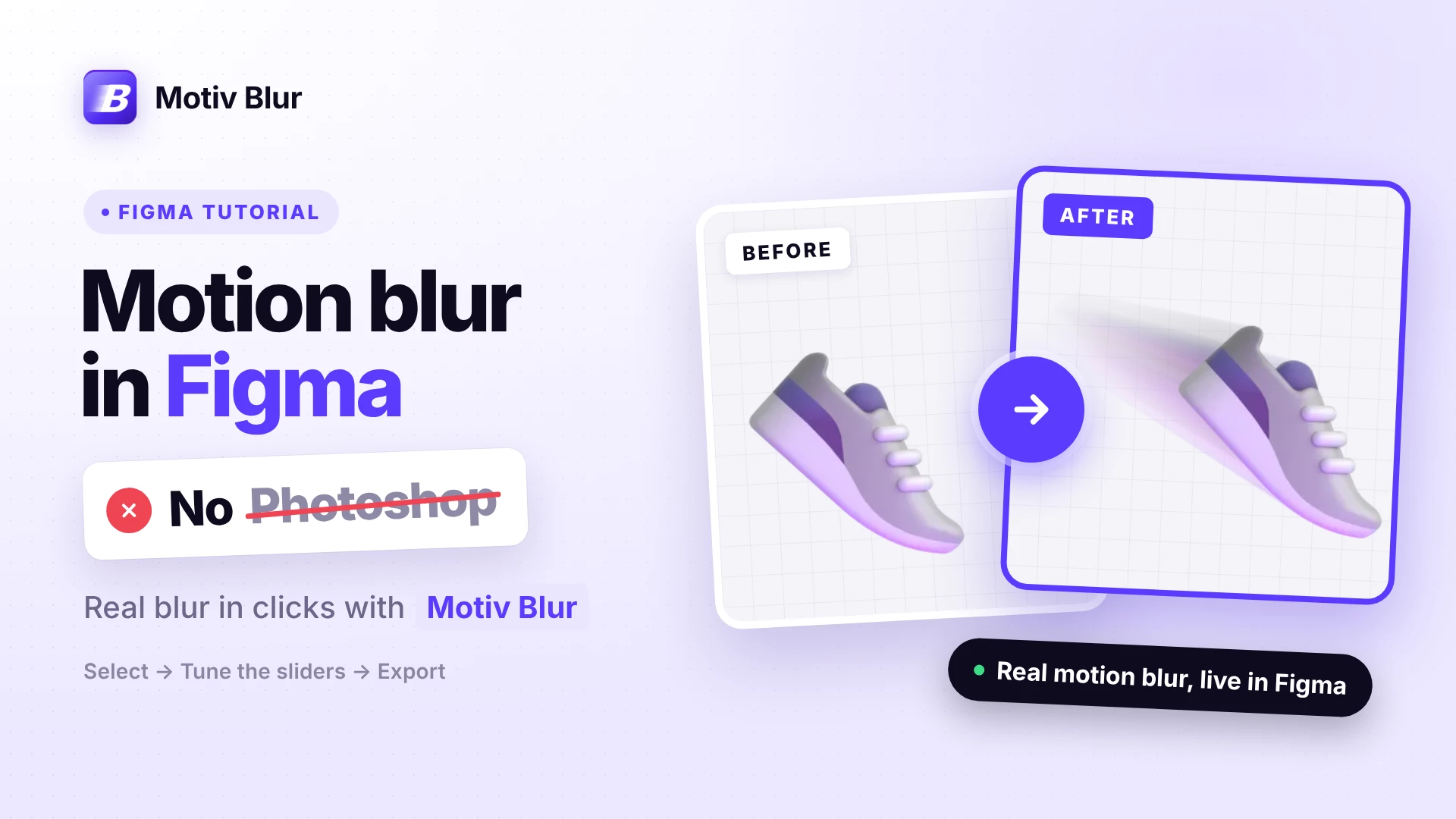
Figma’s built-in layer blur spreads the same amount in every direction. Real motion blur needs a direction and a trail, and it’s sharp at the front and fades out behind. Most people end up in Photoshop or After Effects for that, then export and re-import every time the design changes.
Here’s how I do it inside Figma with Motiv Blur, a plugin I built.
What you need: any layer, group or frame (a product shot, an icon, text, an illustration) and the Motiv Blur plugin.
Step 1: Select your layer
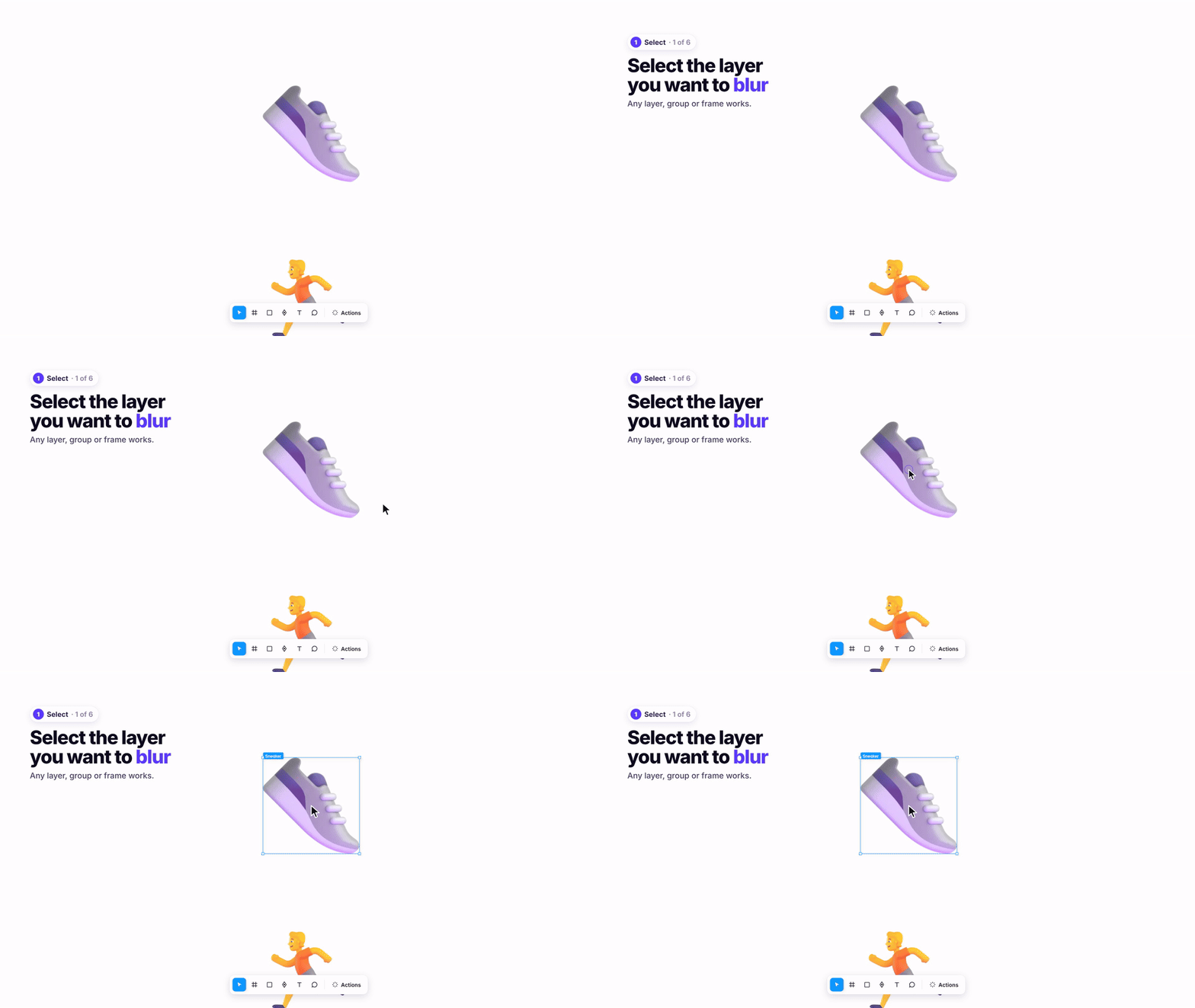
Click the object you want to put in motion. Any layer, group or frame works.
Step 2: Run Motiv Blur
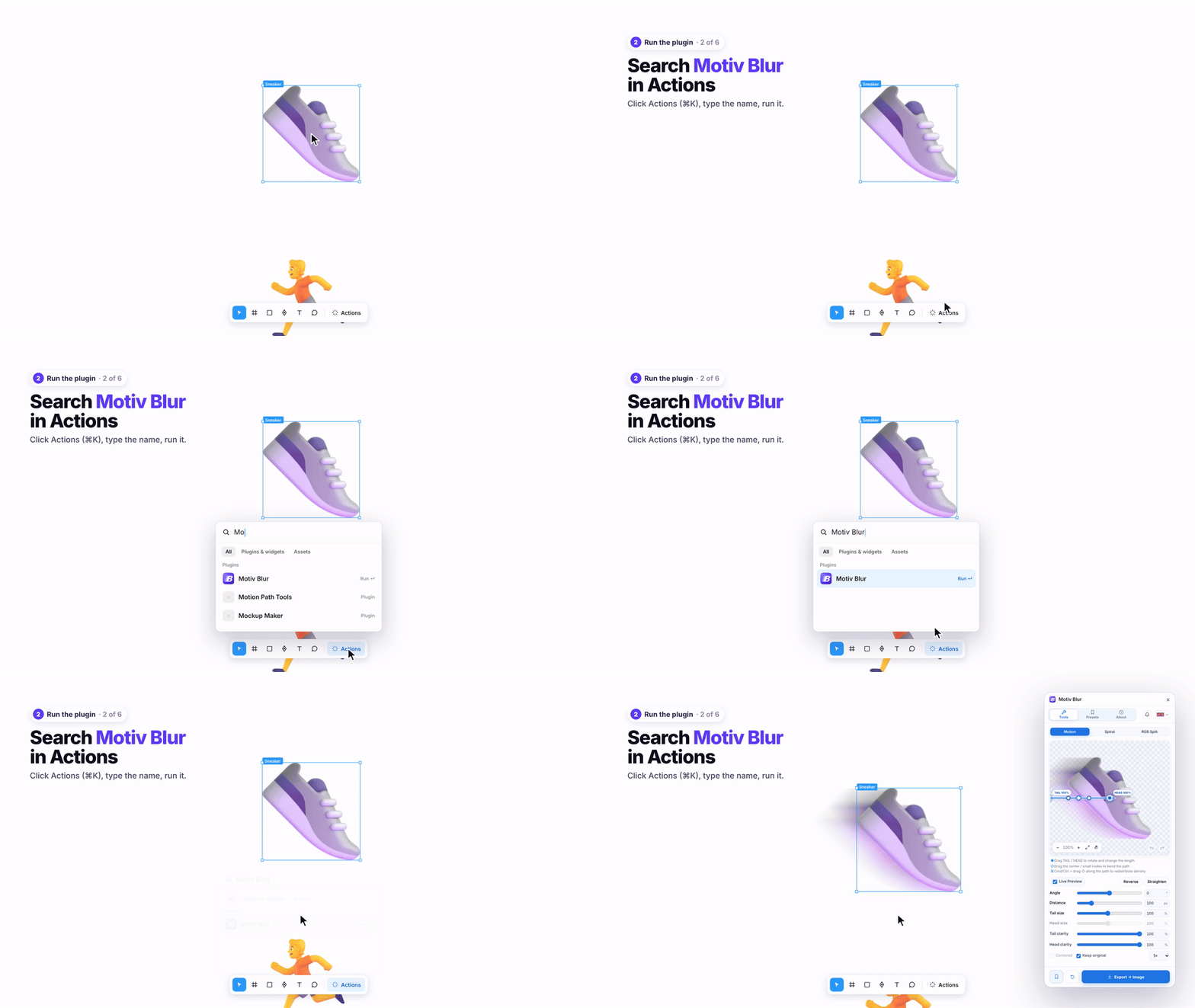
Open Actions (⌘/Ctrl + K), type Motiv Blur and press Enter. The plugin opens with a live preview of your selection.
Step 3: Tune the blur
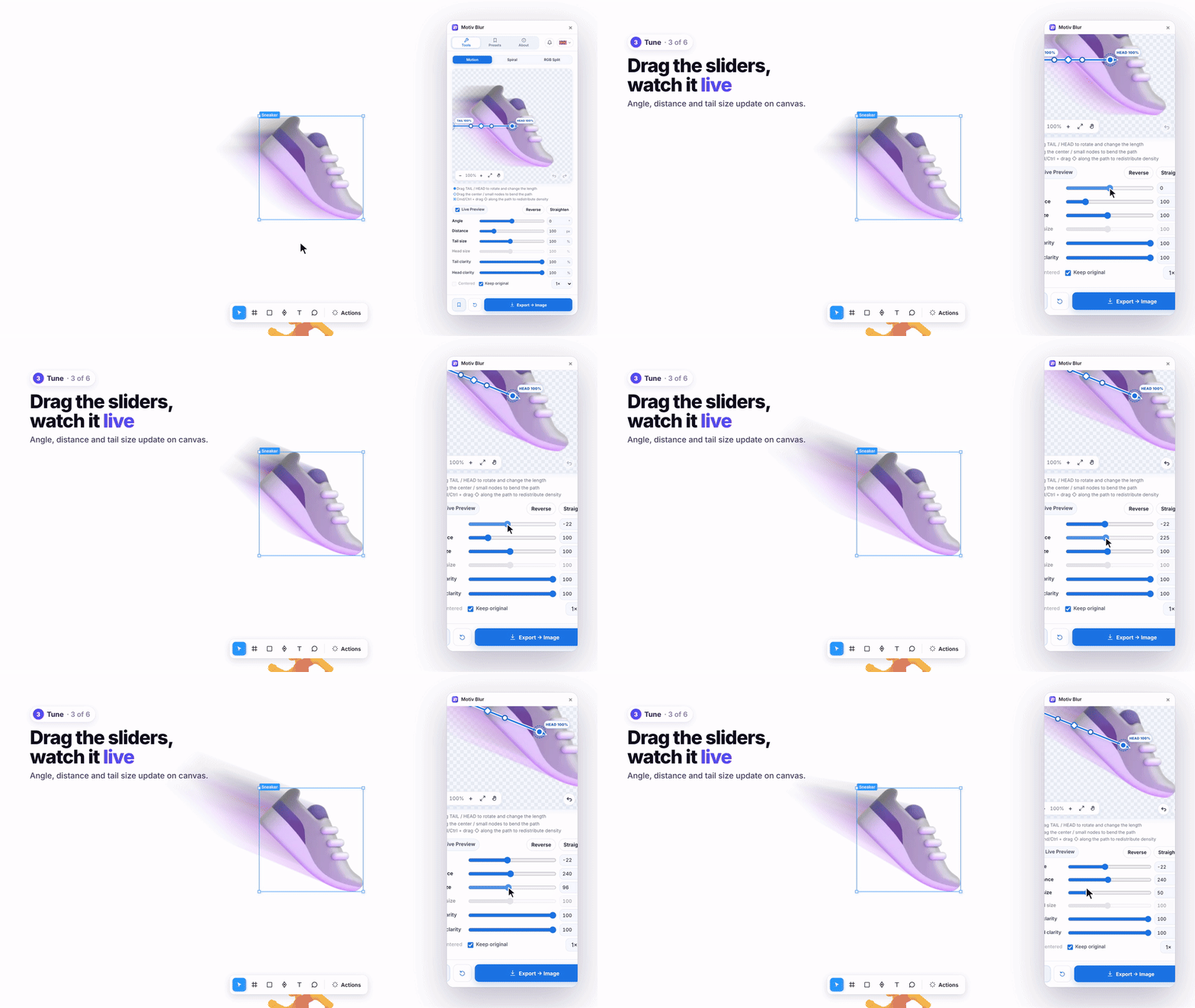
With Live Preview on, the canvas updates as you drag:
- Angle: the direction of motion
- Distance: how long the trail is
- Tail size: shrink the tail for a sense of depth and speed
- Tail / Head clarity: fade the trail out, keep the front crisp
You can also drag the TAIL and HEAD handles in the preview. Drag the ◇ in the middle of the path to bend it into an arc or a swoosh.
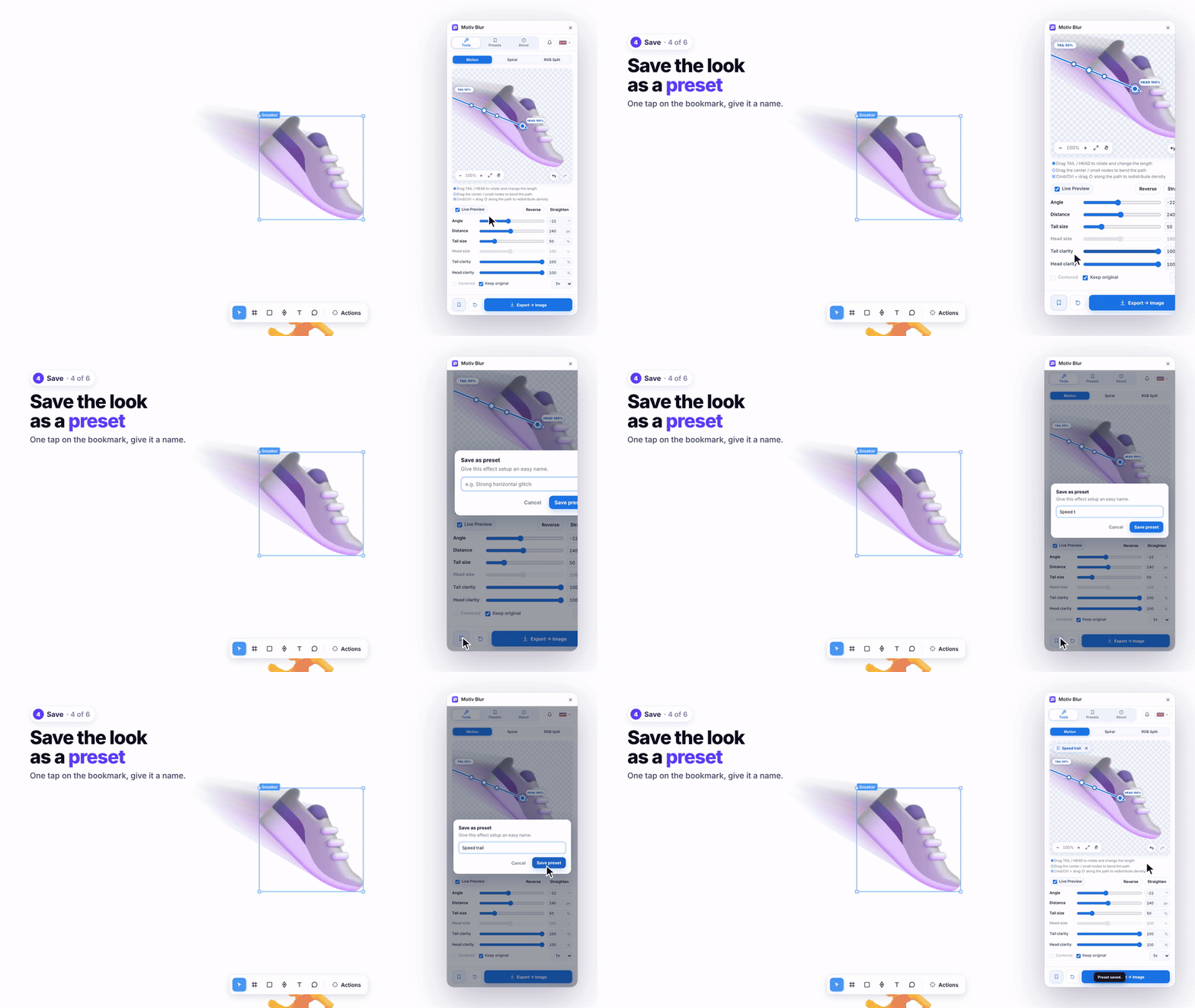
Step 4: Save it as a preset
Click the bookmark icon at the bottom and give it a name (for example “Speed trail”). Do this before you export, because exporting closes the plugin.
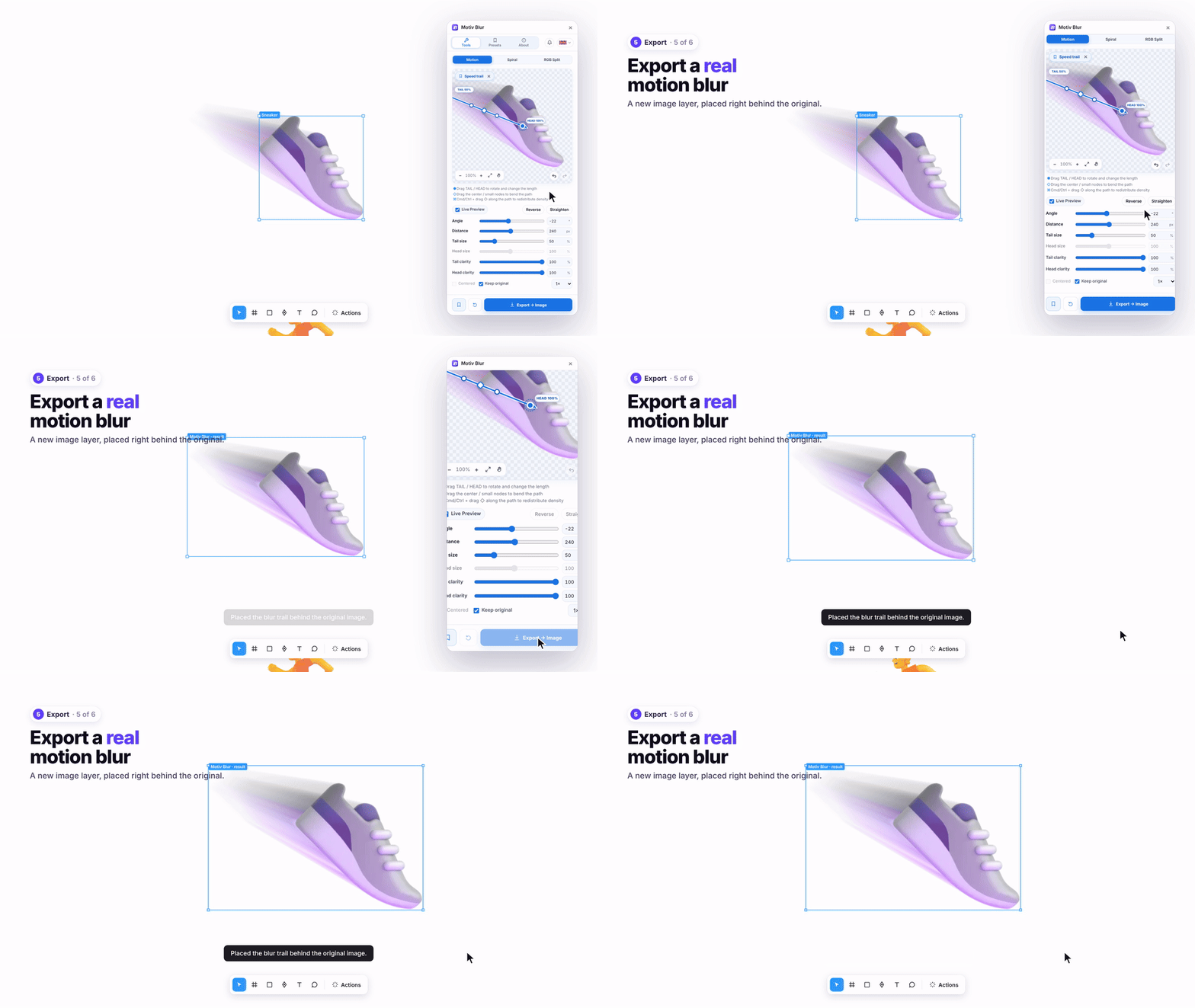
Step 5: Export to canvas
Click Export → Image. The blur trail becomes a real image layer, placed right behind your original. With Keep original on, the subject stays sharp in front.
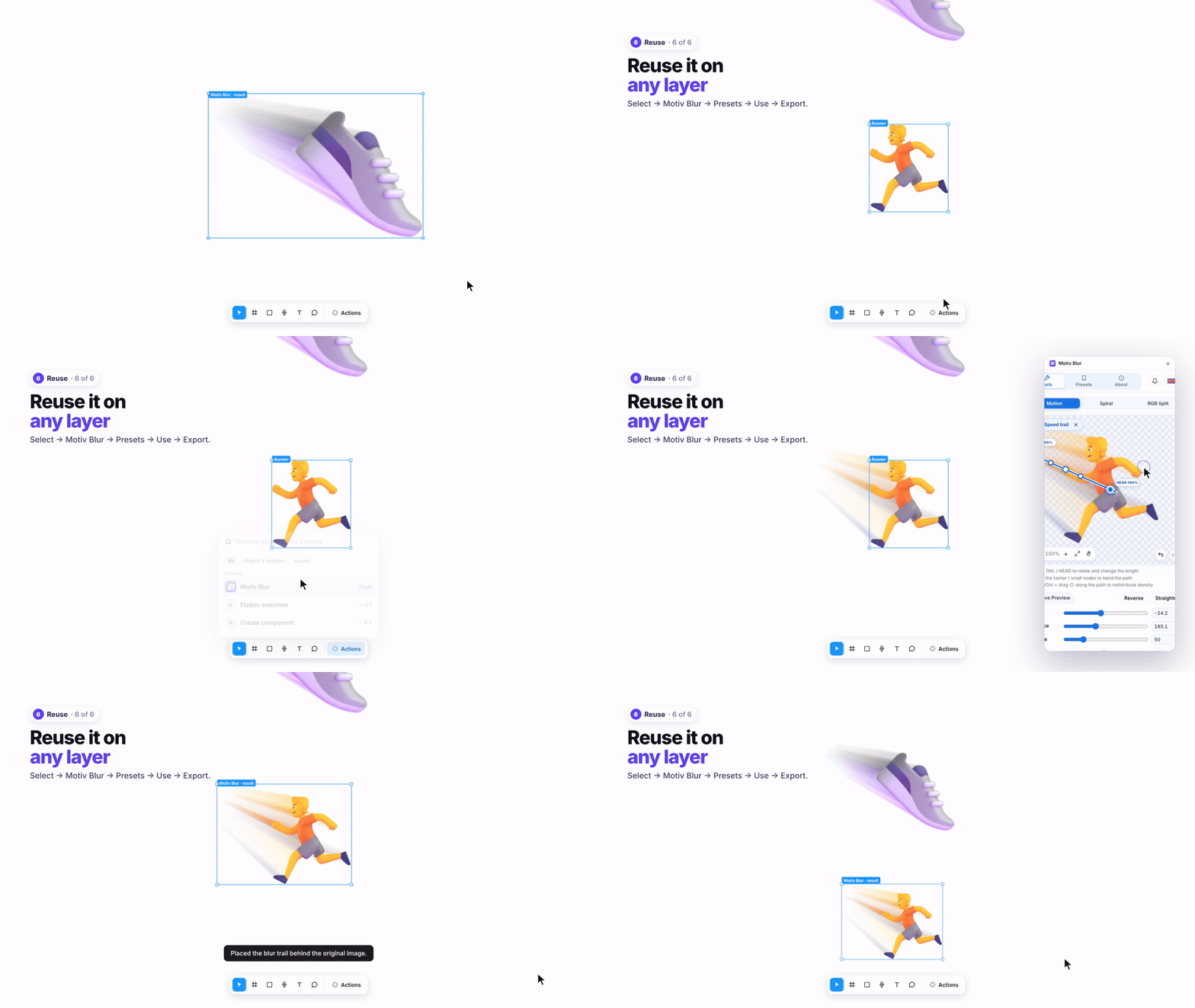
Step 6: Reuse the preset on any layer
Select another layer, open Motiv Blur again (it’s under Recents in Actions), go to Presets, click Use, then Export. You get the same look in two clicks, and it scales to the new layer’s size.
Tips
- Keep the trail on the opposite side of where the object is heading. It reads as speed instantly.
- A shorter tail size plus lower tail clarity looks more natural than a long, solid trail.
- Turn off Keep original if you only want the blur (for backgrounds or abstract effects).
- Need a sharper result for print or retina? Pick 2×–4× before exporting.
- ⌘/Ctrl + Z works inside the plugin, so experiment freely.
More than straight lines
- Spiral: Spin and Zoom blur around a centre you place anywhere
- RGB Split: a glitchy colour split with three bands, each with its own angle and offset
- Presets: can be exported as a file and imported into another file or shared with your team
Motiv Blur on Figma Community (free): https://www.figma.com/community/plugin/1663794670867928394
✨ Try Free Transform, by the same author. Distort, warp, envelope and liquify any layer right inside Figma: https://www.figma.com/community/plugin/1648207154922389186/free-transform
What would you use motion blur for? I’d love to see what you make with it.