

How to distort / put a design in perspective in Figma (and keep it editable)
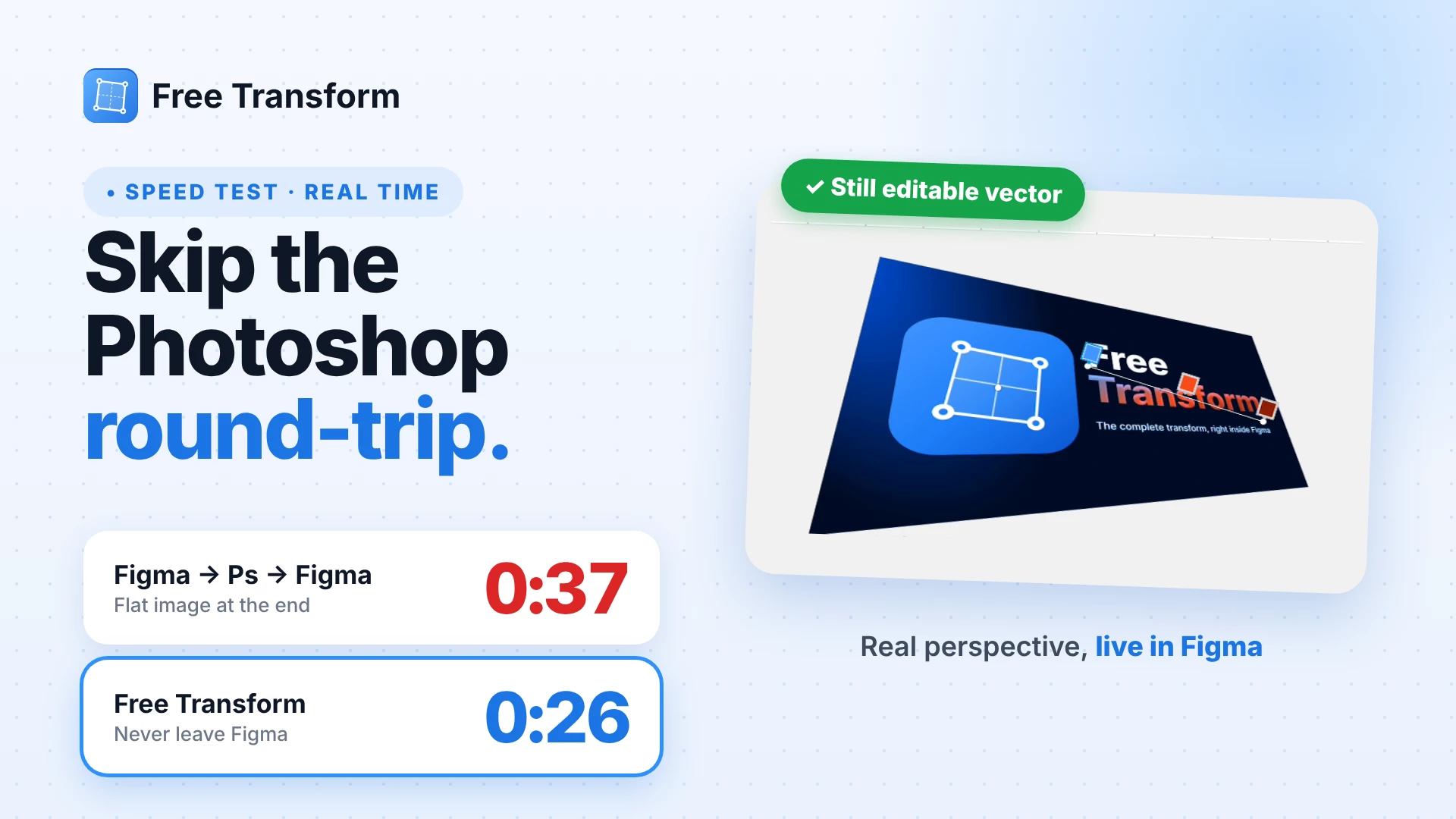
Figma’s native transform is affine only, so true perspective (moving each corner independently) usually means a trip to Photoshop. Here’s the in-Figma workflow I use, plus a quick timing comparison.
The usual round-trip
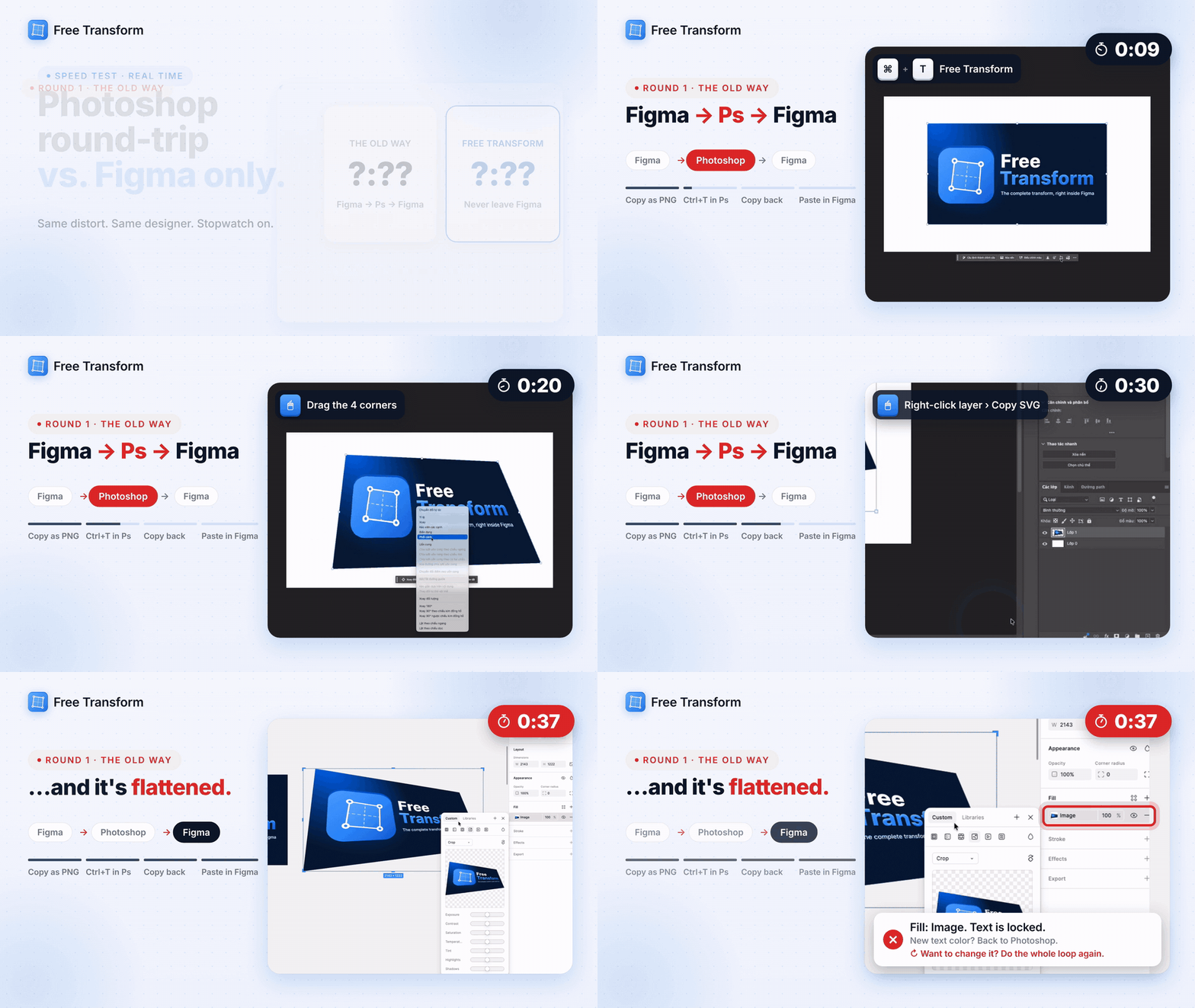
- Select the frame → Copy as PNG (⇧⌘C)
- Paste into Photoshop → Free Transform (⌘T) → right-click › Distort → drag the corners → Enter
- Right-click the layer › Copy SVG → paste back into Figma
It works, but the result comes back as an image fill, so text and colors are no longer editable.
Doing it inside Figma with Free Transform
- Select the frame or layer you want to transform.
- Open the Actions menu (⌘K) and run Free Transform (or Plugins › Free Transform).
- Choose Distort (or Perspective) from the mode dropdown.
- Drag the four corners in the plugin preview. With Live Preview on, the result updates on the canvas as you drag.
- In Output, choose Vector (or Image), then click Export.
- The result is placed next to your source as vector paths, so you can select a text path and change its fill color directly.
Timing, same design, same person
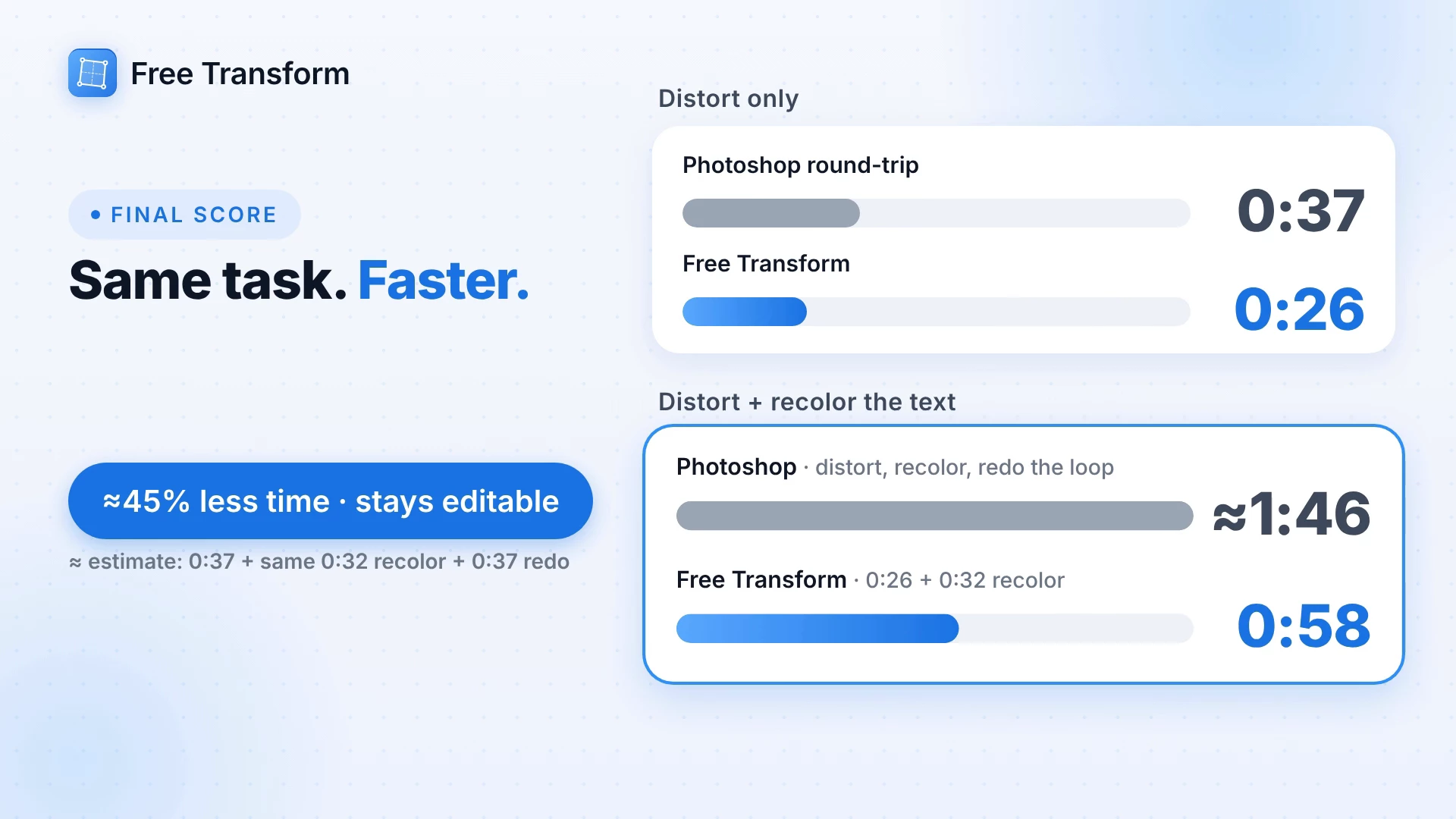
- Photoshop round-trip: 0:37, ends as a flat image
- Free Transform: 0:26, stays editable vector
- Distort + recolor the text: 0:58 in Figma, vs. about 1:46 estimated if you redo the Photoshop loop
Tips
- Use Image output for photos and heavy effects, and Vector when you need to keep editing shapes and colors.
- For mockups (laptop screens, posters, packaging), Fit to Quad snaps your design onto a drawn quad in one click.
- Envelope (Arc, Flag, Wave…) and Mesh Warp are in the same panel if you need curved distortions.
Plugin: https://www.figma.com/community/plugin/1648207154922389186/free-transform
Happy to answer questions or take feature requests in this thread.