

Question

Check Designs settings only available when an area with issues is selected

  • June 12, 2026
  • 4 replies
  • 31 views

flauridsen

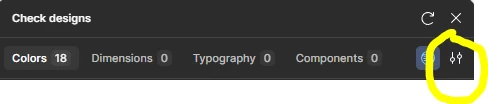
Minor thing, but I noticed that I can only open the Check Designs settings if issues are found.

Selection with issues:
Selection with no issues:
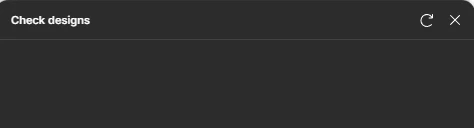
 

I think you could just keep the entire menu. I don’t mind seeing little 0s next to each category when it doesn’t find any issues. Regardless, the settings option should definitely show at all times when opening Check Designs.

4 replies

adamsmasher
Figmate
  • Figmate
  • June 14, 2026

Hi, ​@flauridsen! Thanks for your post and feedback! 


Could you provide a bit more information on the reasoning behind why you’d like that information always displayed? I could see it being useful for clarity’s sake so you can easily know that there’s nothing that Check Designs has flagged for you, but I’d love to know what you’re thinking. Once I’ve got a good idea of your rationale I will share your feedback with the team. Thanks!


By the way, I also moved your post to the Share You Feedback board - just wanted to make you aware.


flauridsen
  • Author
  • New Participant
  • June 15, 2026

Hi ​@adamsmasher.

Thanks for moving the post to the correct place :)


Showing the full menu for clarity’s sake is just because I find it nice, so that’s not particularly important.

However, I did have an issue with not being able to find the Settings menu. I’m working in a design system-file on trying to remove styles, components, etc. that have been copy-pasted in from other systems over time, but since the default setting is “All libraries” I found that Check Designs would mark everything as okay since styles and components did come from other libraries. But since Check Designs found everything was okay I was unable to go in and change the setting to “Only created in this file”.


The same argument can be made for the Contrast level setting. If all your elements are AA-compliant, but you’re going for AAA-compliance then you can’t change the setting since Check designs will mark everything as being ok and hide the settings menu.


EDIT: Just for good measure - I had already removed the other libraries from my file in the Assets menu.


adamsmasher
Figmate
  • Figmate
  • June 18, 2026

Hi, ​@flauridsen. Those are both really solid reasons for always showing the Settings button for Check Designs. To summarize and make sure I’m understanding both use cases correctly, they are:

  1. Turning off “All Libraries” so Check Designs will identify elements that were copy/pasted from other libraries and don’t make local designs.
  2. Changing the contrast level setting when all designs currently match the current setting.


As a temporary solution, I’m thinking you could add a layer that you know will prompt Check Designs to find something so the button shows. In the meantime, let me know if I’ve summarized this well and I’ll share your feedback with the team.


flauridsen
  • Author
  • New Participant
  • June 22, 2026

Hi ​@adamsmasher. Yep, that summarizes it perfectly. Cheers :)