
Solved

There is no - Quick actions bar

  • January 20, 2026
  • 3 replies
  • 38 views

Artyom_Vokiikovvvv

Good afternoon! I recently created an account. I wanted to use “Make at image”, but it's just not there =(

 

Best answer by Gayani_S

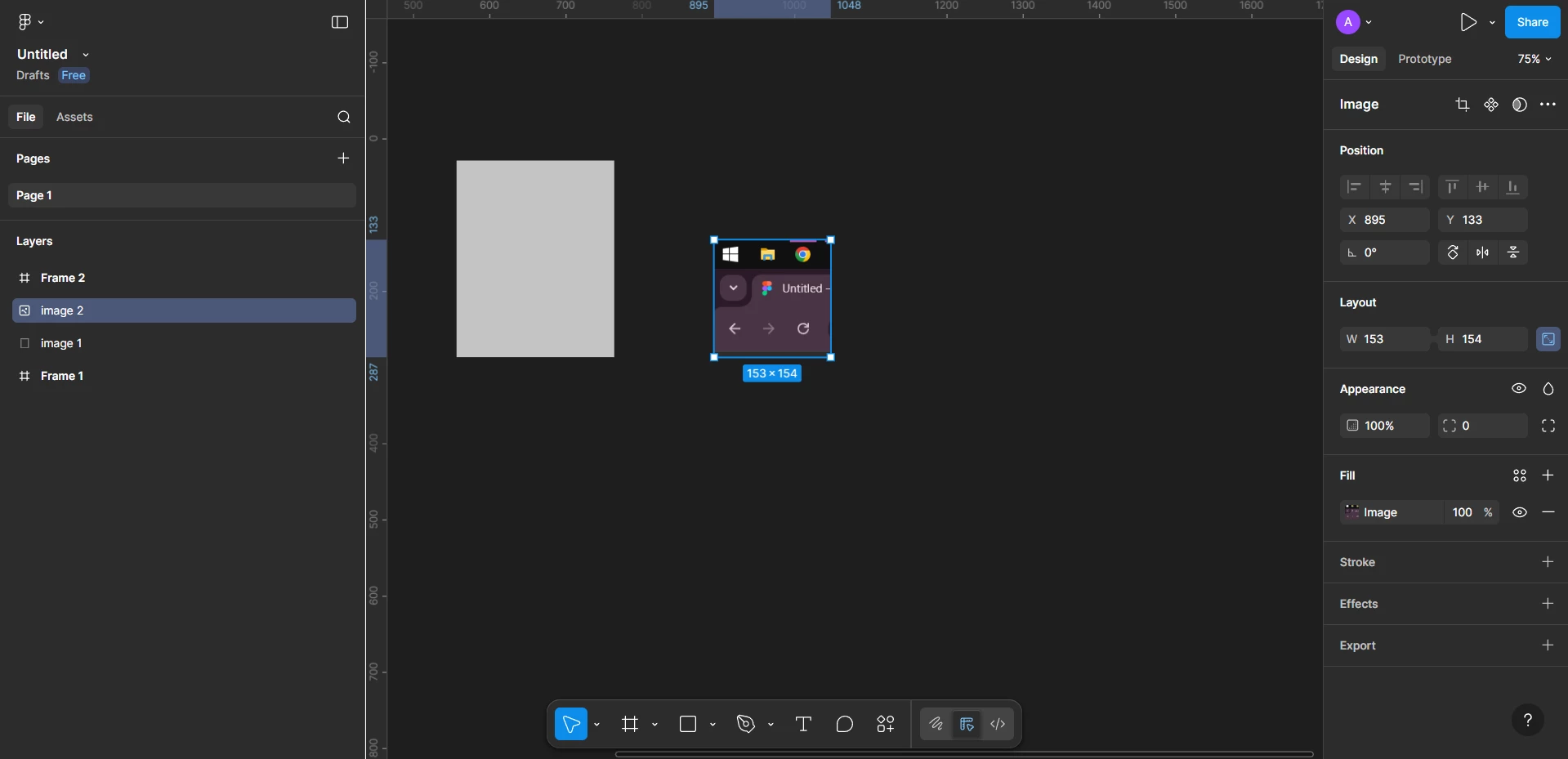
Hey ​@Artyom_Vokiikovvvv, sorry for the confusion! I am just seeing in your screenshot that you’re on the starter plan. The AI feature Make or edit an image with AI is currently only available on paid plans

Most of Figma's AI features are available to users on a paid plans with a Full seat. You might see some basic AI functions on a free/Starter plan, but these are typically limited. To get the most out of these features, an upgrade is usually necessary.
 

Thank you, 

Gayani 

3 replies

Gayani_S
Figmate
  • Community Support
  • January 20, 2026

Hey ​@Artyom_Vokiikovvvv, to use Make an image in Figma Design, FigJam, Figma Slides, or Figma Sites:

  1. Select where you’d like to add the new image. You can select a layer to fill an existing layer, or deselect all layers to make a new image layer.
  2. Open the  Actions menu and select Make an image.
  3. Enter a prompt in the text field. Try to include as much context as possible.
  4. From the dropdown menu, select an available AI model.
  5. (Optional) Click  Attach image as reference to upload a reference image from your computer.
  6. Click Make it or press ⌘Command Enter.
  7. If you’d like to make any adjustments, click Make changes.

You can find more information in our Help Center article: Make or edit an image with AI


Hope this helps! 


Artyom_Vokiikovvvv

Hey ​@Artyom_Vokiikovvvv, to use Make an image in Figma Design, FigJam, Figma Slides, or Figma Sites:

  1. Select where you’d like to add the new image. You can select a layer to fill an existing layer, or deselect all layers to make a new image layer.
  2. Open the  Actions menu and select Make an image.
  3. Enter a prompt in the text field. Try to include as much context as possible.
  4. From the dropdown menu, select an available AI model.
  5. (Optional) Click  Attach image as reference to upload a reference image from your computer.
  6. Click Make it or press ⌘Command Enter.
  7. If you’d like to make any adjustments, click Make changes.

You can find more information in our Help Center article: Make or edit an image with AI


Hope this helps! 


I opened the Actions, but unfortunately there's no Make an image. That's the problem. He's just not on this account.


Gayani_S
Figmate
  • Community Support
  • Answer
  • January 20, 2026

Hey ​@Artyom_Vokiikovvvv, sorry for the confusion! I am just seeing in your screenshot that you’re on the starter plan. The AI feature Make or edit an image with AI is currently only available on paid plans

Most of Figma's AI features are available to users on a paid plans with a Full seat. You might see some basic AI functions on a free/Starter plan, but these are typically limited. To get the most out of these features, an upgrade is usually necessary.
 

Thank you, 

Gayani