

Question

SheerID verification approved, but Education plan is still unavailable

  • September 3, 2026
  • 3 replies
  • 20 views

hyn

Hello,

I’m having an issue where my Figma Education verification has been successfully approved by SheerID, but the Education plan is still not available on my Figma account.

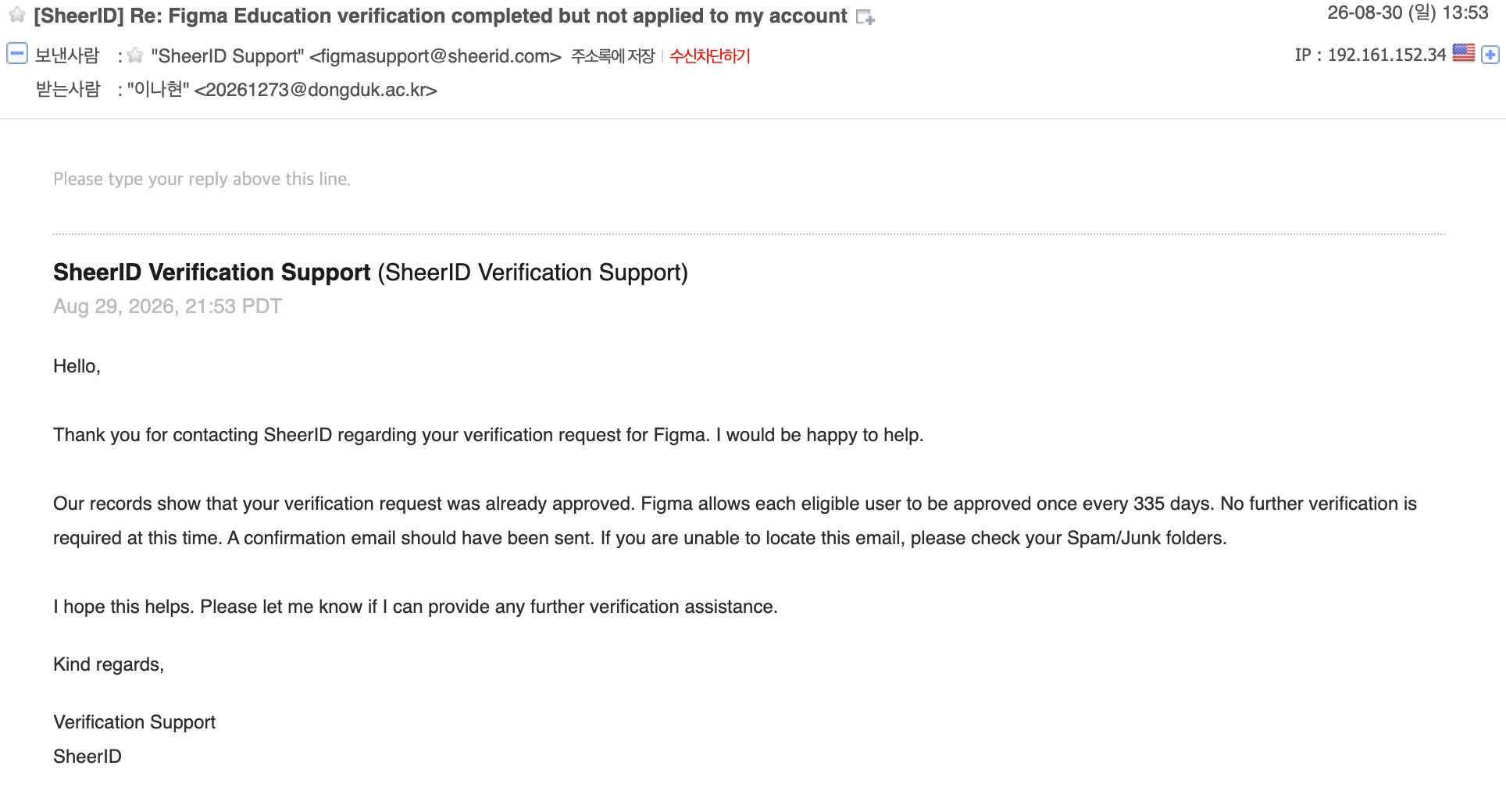
SheerID Support confirmed the following:

“Our records show that your verification request was already approved. No further verification is required at this time.”

However, my Figma account is still on the Starter plan.

When I open the Upgrade screen, I only see:

  • Starter
  • Professional
  • Organization

There is no Education plan option at all.

I also do not see any Education-related banner under All folders.

I have already tried:

  • Logging out and back into Figma
  • Creating a new team
  • Checking the Upgrade screen multiple times
  • Confirming with SheerID Support that my verification was successfully approved

This issue has been ongoing for a long time, and I have already completed all verification steps successfully.

The problem is not that I do not know how to select the Education plan. The Education option is simply missing from my verified account.

Could a Figma Community Support specialist please investigate this as an account-level issue and, if necessary, create or escalate a support ticket for the Figma team?

I can provide screenshots of:

  • The successful SheerID verification page
  • SheerID Support confirming that my verification was approved
  • The Upgrade screen showing only Starter, Professional, and Organization

Thank you.
 

3 replies

djv
Figmate
  • Community Support
  • September 3, 2026

Hi ​@hyn, thanks for reaching out! 

I understand the confusion here, so I’d be happy to help guide you through this. I took a look at your account, and I confirmed that your account is verified for Education. May I ask where in the process are you specifically getting stuck? And would you prefer to create a new team or upgrade an existing team? 

To create a new team:

  1. Open the Figma file browser and click Create free team in the sidebar or visit https://www.figma.com/files/create-team.
  2. Give your team a name and click Create team. You can always change this after the team is created.
  3. Start inviting students, educators and other collaborators to your team. Anyone you invite with can edit access to the team must verify their education status within seven days.
  4. Click Continue and then Complete upgrade.

To upgrade an existing team:

  1. Open the file browser by logging in to your account at figma.com.
  2. Next to the team name on the left sidebar, click the Free badge.
  3. In the upgrade modal, select the Education plan option and complete the upgrade process.

These instructions are also listed in our Help Center article here under 3. Create, upgrade, or join a team. Any indication on where you’re specifically getting stuck will help us guide you on next steps! 


hyn
  • Author
  • New Member
  • September 4, 2026

Thank you for confirming that my account is verified for Education.

This is exactly where I am getting stuck. I am trying to upgrade my existing team.

After clicking the Free badge next to my team, this is the upgrade screen I see. As shown in the attached screenshot, the only plans available are Starter, Professional, and Organization.

There is no Education plan option at all, so I cannot complete step 3 of the instructions you provided.

Since you have already confirmed that my account is verified for Education, could you please investigate why the Education plan is missing from this upgrade screen?


djv
Figmate
  • Community Support
  • September 4, 2026

Thanks for clarifying, ​@hyn

That’s definitely odd. Education should appear as an option in that modal. Two questions, so we can pin this down:

  1. When you click the Free badge next to your team name specifically, what options do you see? Are you able to provide a screenshot? 
  2. Are you the owner of the team you created, or did you join one someone else set up? Keep in mind only team owners and admins can perform the team upgrade.

Let me know, and I can help connect you with our Education team to investigate this further.