

Question

Pixel Preview shows Distorted Vectors and UI Elements that are Aligned to the Pixel Grid

  • August 11, 2026
  • 1 reply
  • 29 views

Futuremotion Studio

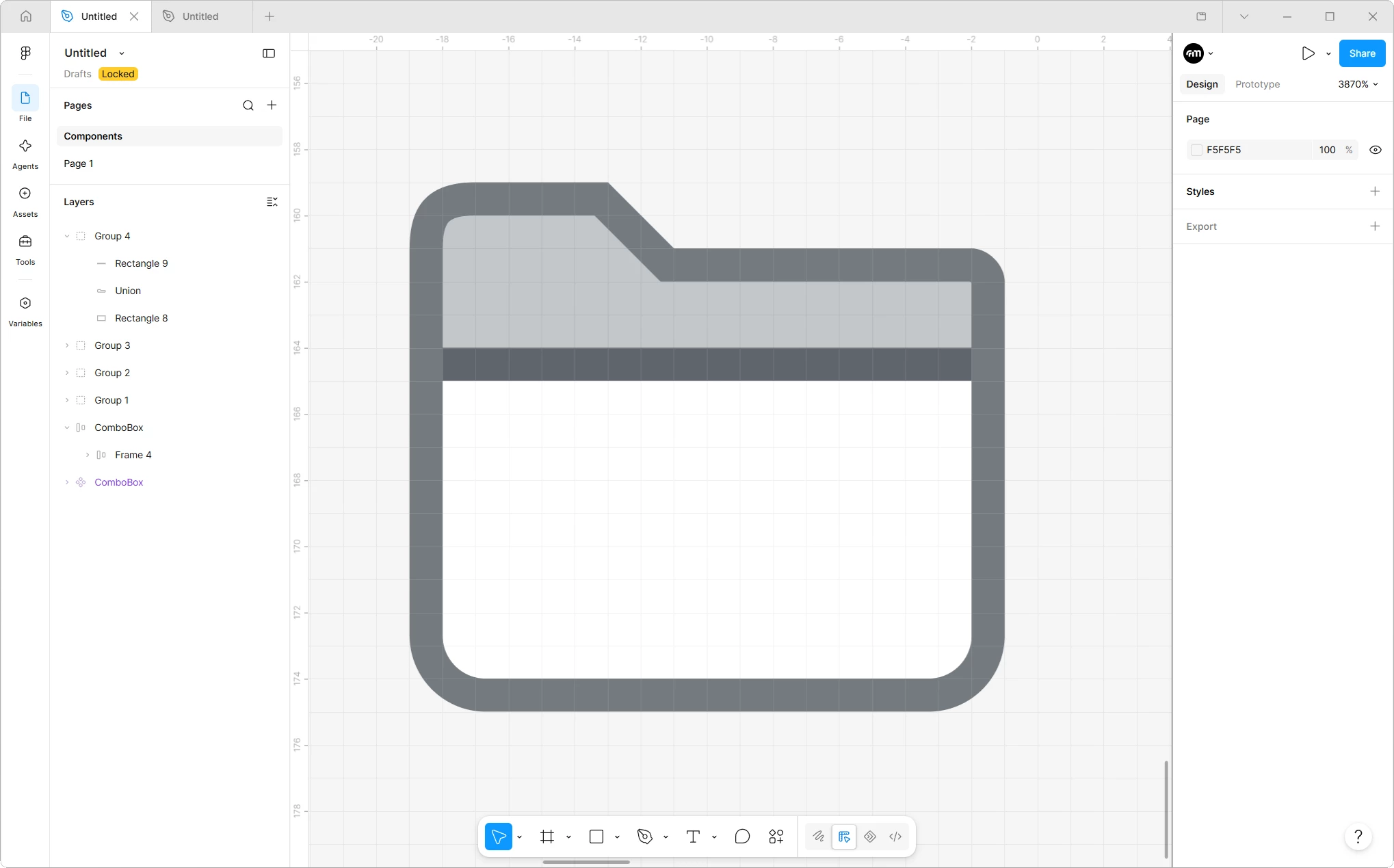
I am working on a simple folder Icon. Everything is completely aligned to the pixel grid. See this example image:


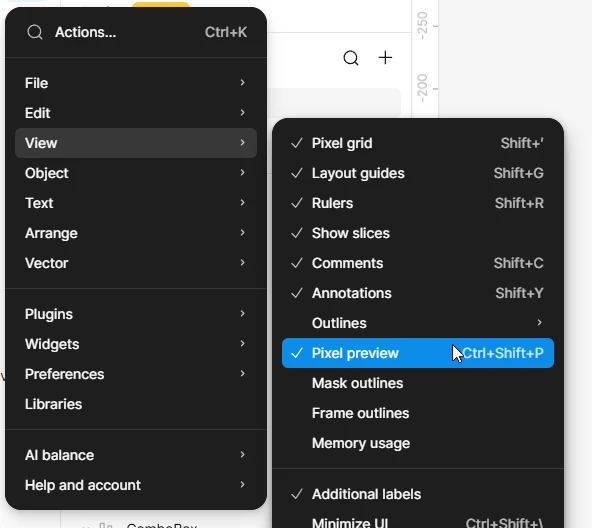
But when I go to the menu and select “Pixel Preview” to preview how the icon will look at 100%:


The resulting image and UI components in my file look distorted, some with double borders, etc. It just looks janky:
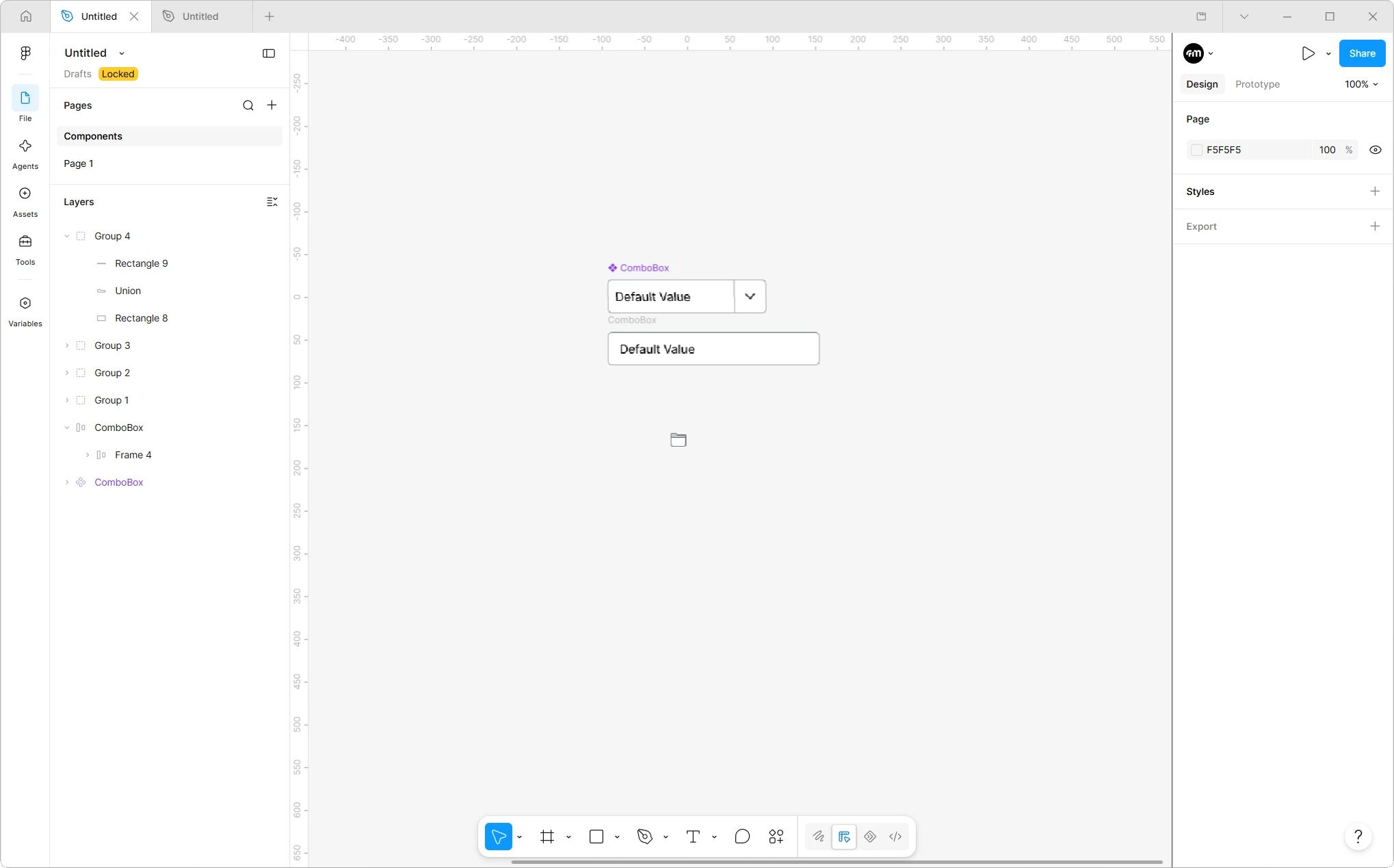


The interface zoom is set to 100%. All shapes are aligned perfectly to the pixel grid.

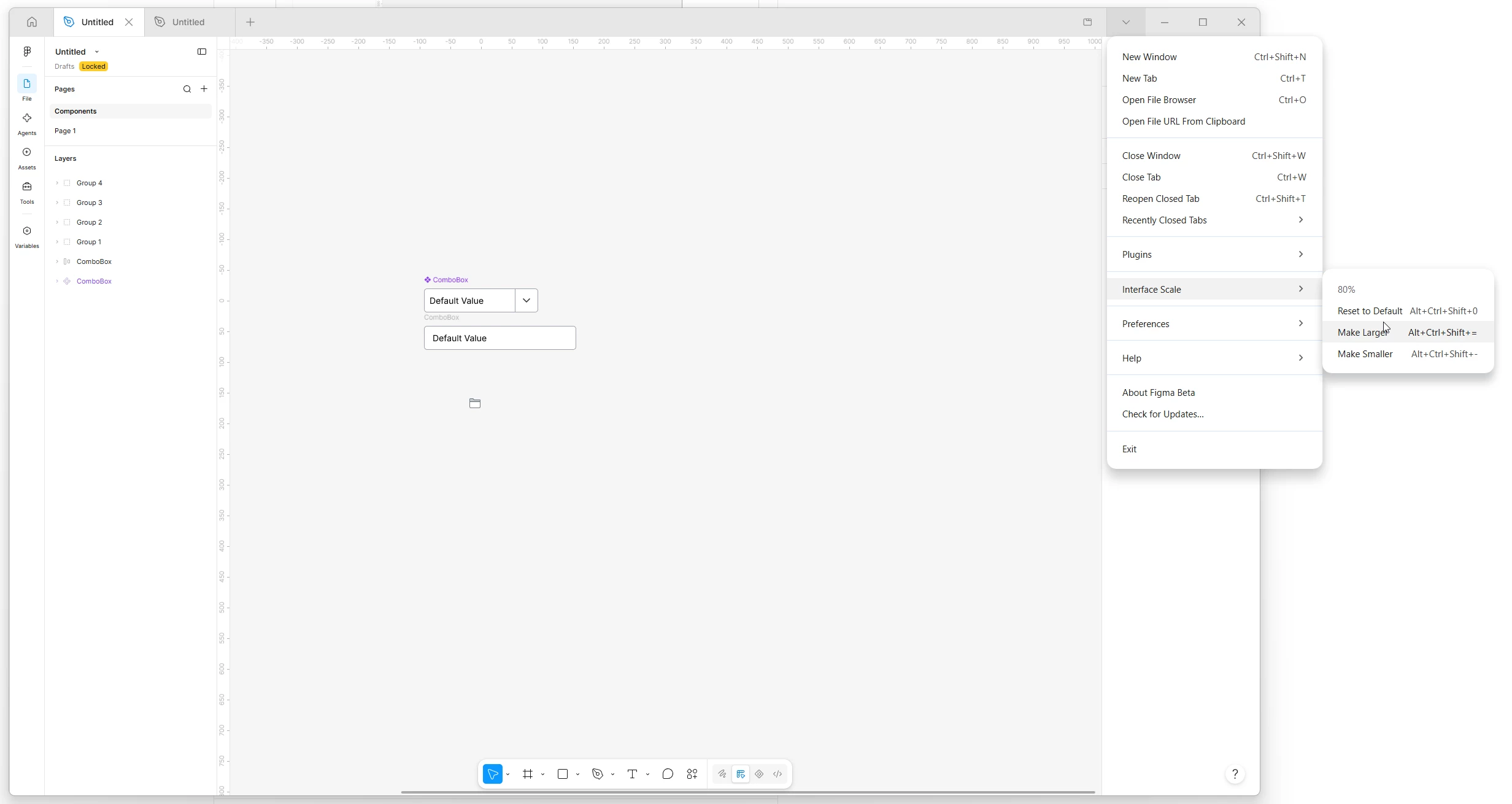
I noticed that if I set the interface scale to 80%, everything looks crisp. See this image:


But I can’t work like this. The UI is way too small. Why does pixel preview look horrible for me when the interface is at the default 100% scale?

Possibly Related: I have a 4k monitor and my Windows DPI scaling is set to 125%. Could this be causing the issue?

Can someone help?

Edit: I don’t know why, but the last image with the UI scaling set to 80% looks a lot larger in my browser than it does on my desktop. The UI controls are super small despite this image looking like they aren’t. 

Either way, the pixel preview should not be distorted when my UI scaling is set to 100%. Just wanted to add that caveat.
 

1 reply

djv
Figmate
  • Community Support
  • August 11, 2026

Hi @Futuremotion Studio, thanks for reaching out about this! 

I’m Denise from the Community team at Figma. I think I may have replied to you not too long ago on Reddit as well? 


I’d be happy to look into this with you further. Your DPI hunch is a good one. At 125% Windows scaling with Figma's interface at 100%, one design pixel doesn't land on a whole number of physical screen pixels, so the crisp raster Pixel Preview generates gets resampled on the way to your display. That's what's producing the soft and doubled edges. Dropping the interface to 80% cancels out the 125% and puts you back on whole pixels, which matches exactly what you're seeing.


The good news is this is almost certainly a display issue, not a problem with your icon. Two things that would confirm it:

  1. Export the icon as a PNG at 1x and open it outside Figma. If the export is clean, your geometry is fine and only the on-screen preview is affected.
  2. Try Windows scaling at 150% briefly, with Figma's interface back at 100%. If that looks better than 125%, it points squarely at the fractional scaling factor.

Also, let us know whether this happens in the desktop app, the browser, or both, as well as your Figma and Windows versions and GPU. That'll help us build a solid repro.


You definitely shouldn't have to design at 80%, so I wouldn't treat that as a permanent fix. If your monitor supports it, Windows at 100% scaling with a slightly lower resolution is often more comfortable than 4K at 80% interface scale, and it keeps you on whole pixels. Hope this helps!