
Question

Figma Slides WebGL Crash / Blank Canvas when interacting with MP4 videos on Windows 11 Desktop App

  • June 8, 2026
  • 3 replies
  • 24 views

Antonio Roldán

Hi Figma Team,

I am experiencing a persistent WebGL crash ("An error occurred...") when working with videos inside Figma Slides on the Windows 11 Desktop App. I have been dealing with this issue for over a month now, and it is severely disrupting my daily workflow. The crash occurs even with very small, highly optimized video files and persists after a clean cache reinstall.

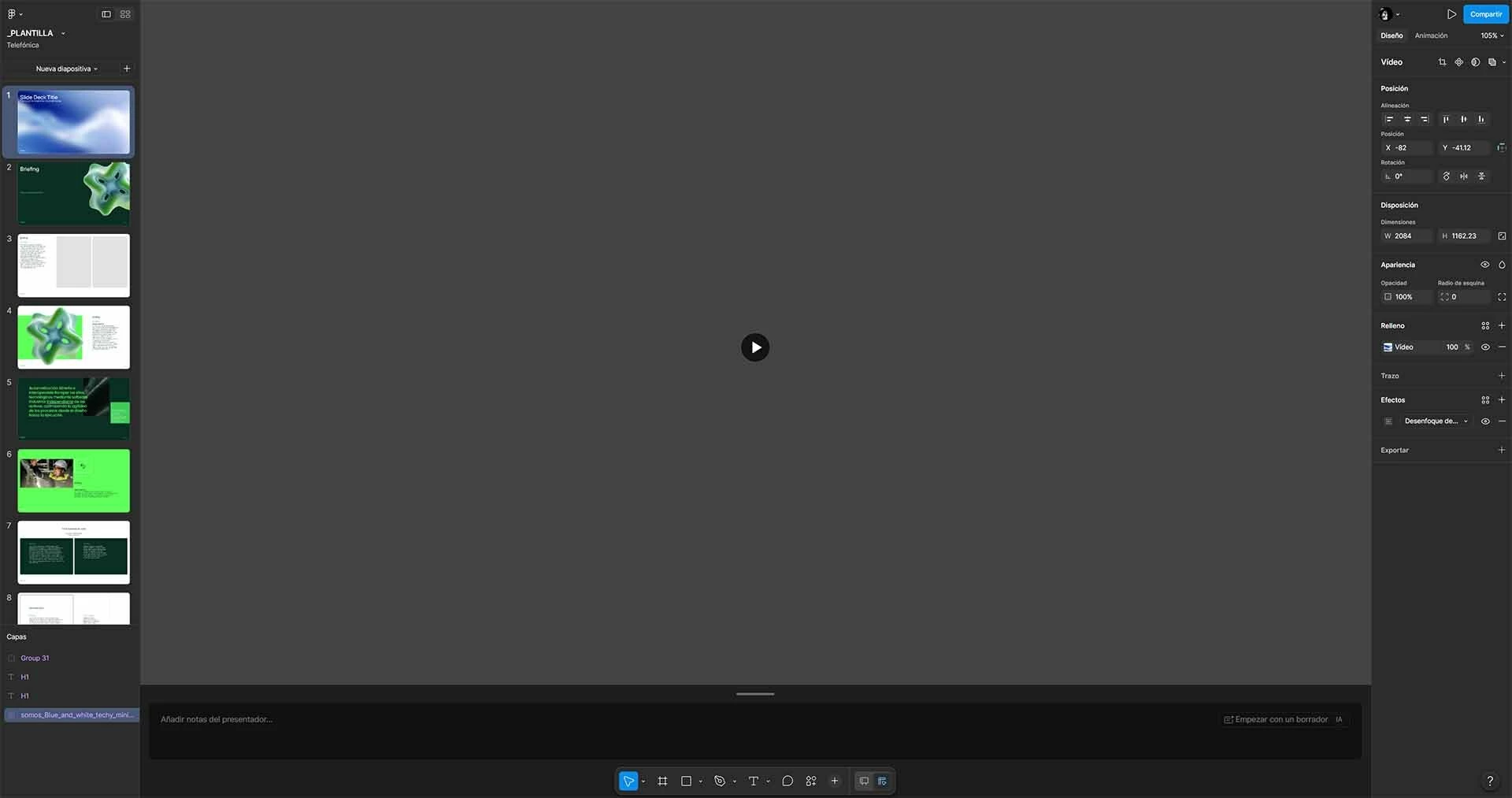
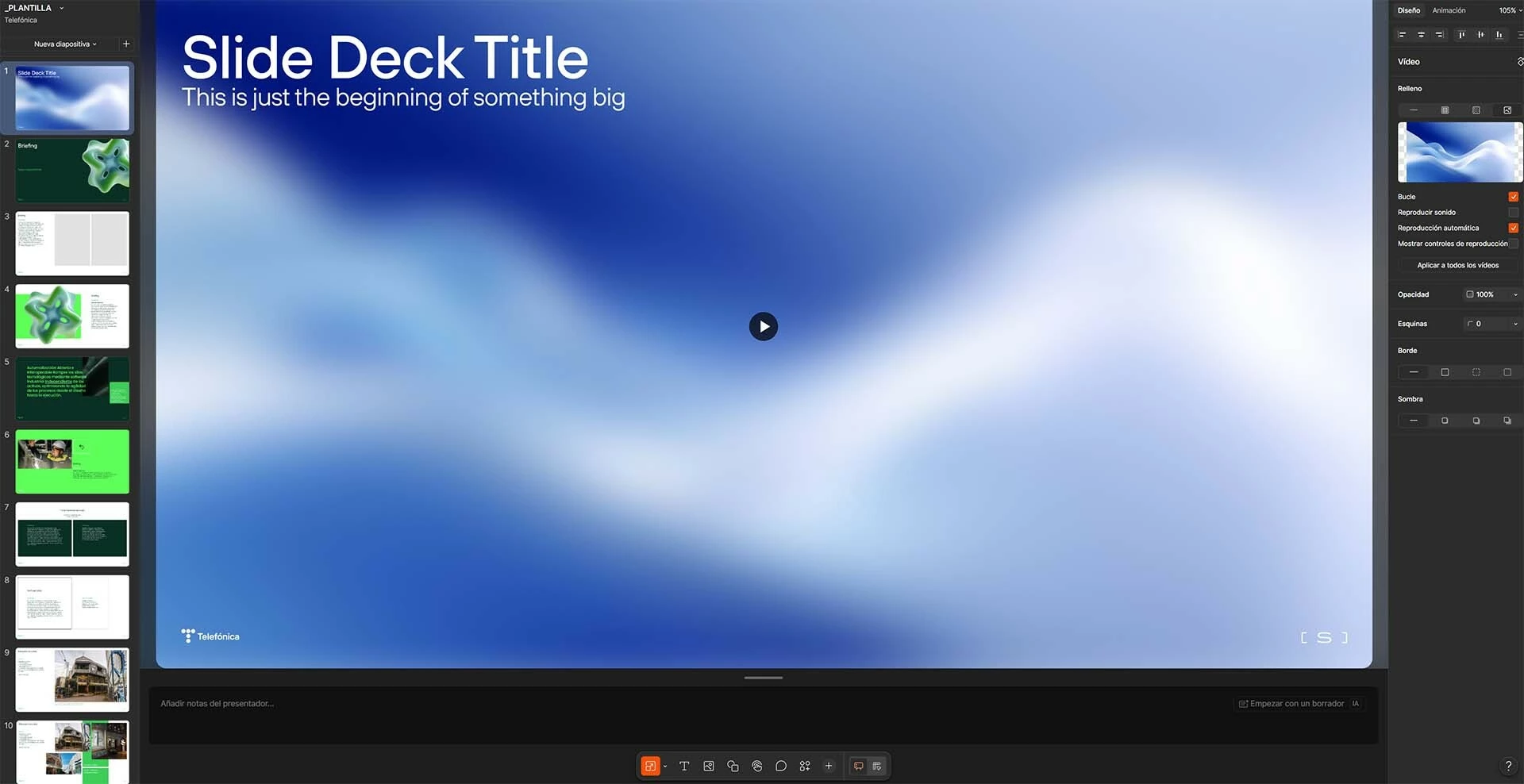
I am attaching three screenshots to this report: the initial WebGL error dialog, and a "before" and "after" comparison showing the canvas degradation after switching workspace views.

Bug Description:

The canvas completely breaks when interacting with an MP4 video or switching workspace modes. The slide ends up looking completely "empty" or invisible. If I close the file and try to reopen it, Figma throws the generic WebGL crash screen: "No podemos abrir este archivo porque tenemos problemas con WebGL..." / "An error occurred. Please try reloading the page."

Video Specifications:

To rule out asset memory overload, I tested this with a minimal, highly optimized video file, but the crash still happens:

  • Quantity: Only 1 video asset in the entire presentation.

  • Size: 1.5 MB

  • Duration: 8 seconds

  • Resolution: 837 x 464 px

  • Format: MP4 (H.264)

Steps to Reproduce:

  1. Open a Figma Slides presentation that contains an MP4 video layer.

  2. Switch back and forth between Slides view and Design mode 3 times. Behavior noticed: The screen blinks/flickers for a few seconds during each transition, and by the 3rd switch, the canvas goes completely blank (as shown in the attached before/after screenshots).

  3. Alternatively, select the video layer, move or scale it on the canvas, and then immediately click on any other element on the slide.

  4. The slide content disappears, leaving an invisible canvas.

  5. Close the file. Upon reopening, the file fails to load, showing the WebGL error screen.

Troubleshooting Already Attempted:

  • I have completely cleared the Figma Desktop App deep cache by deleting the %appdata%\Figma\DesktopProfile directory. The issue still persists immediately upon restarting the app.

System Specifications (from DxDiag):

  • OS: Windows 11 Pro 64-bit (10.0, Build 26200)

  • Figma Version: Latest Desktop App

  • CPU: AMD Ryzen 9 7900 12-Core Processor (24 CPUs), ~3.7GHz

  • GPU: NVIDIA GeForce RTX 4070 Ti SUPER (Display Memory / VRAM: 16061 MB)

  • System RAM: 65536 MB (64 GB RAM)

  • Graphics Driver Version: 32.0.15.9597 (Driver Date: 3/17/2026)

Given the high-end hardware specs (64GB RAM / 16GB VRAM), this seems to be an issue with how the Figma Slides workspace handles hardware acceleration transitions or VRAM allocation for video textures on Windows 11.

Any insights or fixes from the engineering team would be highly appreciated.

Thank you!


3 replies

Jaycee Lewis
Figmate

Hi ​@Antonio Roldán 👋 Thanks for such a thorough report—the DxDiag, the minimal repro file, and the step-by-step really help.

Let's confirm where it's breaking with a few quick tests. Could you try these in order and let me know which step it happens at?

  • Open the same file in a browser (Chrome or Edge) and run your repro—switch between Figma Slides and Figma Design views three times. Does it crash there too, or only in the Figma Desktop app? This is the most useful single test, since it tells us whether the issue is in the desktop client specifically.

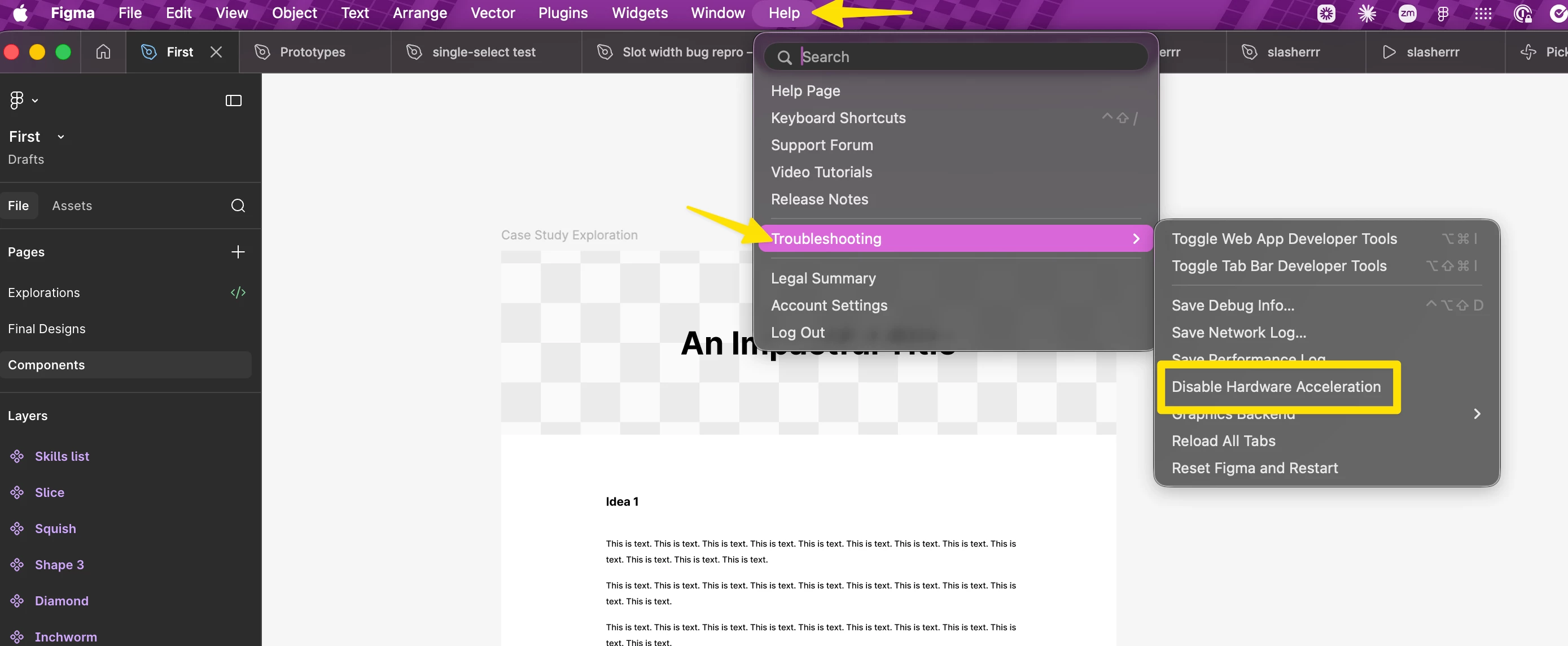
  • In the Figma Desktop app, go to Help > Troubleshooting > Disable Hardware Acceleration, restart the app, and try the repro again. This forces a different rendering path and often sidesteps driver-related WebGL crashes (screenshot from Mac for some reference 🙃)


  • Try the Figma Beta desktop app and run the same steps—it uses a newer internal runtime that sometimes resolves these. You can install and run it alongside your regular app (no need to uninstall anything, and you don't have to be logged into the same account on both): https://help.figma.com/hc/en-us/articles/5601429983767-Guide-to-the-Figma-desktop-app#Download_the_beta_version


Let's see what the browser and hardware-acceleration tests tell us first before you roll back anything. 

Looking forward to your results, and thanks again for the detailed write-up! — Jaycee


Antonio Roldán

Hi ​@Jaycee Lewis 

thank you for the quick response and for providing these troubleshooting steps! :)

Here are the results from the tests you suggested:

  • 1. Browser Test (Chrome): I opened the file in Google Chrome, and everything works perfectly fine when switching between views. Note to clarify my previous message: The screen flickering only happens specifically when switching to Design mode.

  • 2. Disable Hardware Acceleration: Disabling hardware acceleration in the regular Desktop App (Help > Troubleshooting > Disable Hardware Acceleration) completely fixed the problem. The file loads and transitions smoothly now. (I add and image with the location of this function in windows)

  • 3. Figma Beta App: I tested the Figma Beta desktop app as well, but unfortunately, the issue persists there. When switching from Slides to Design mode, it still flickers 3 times and the slide viewport/canvas goes completely "invisible".

It definitely looks like a hardware acceleration conflict with the desktop client's runtime on my system configuration.

Thank you again for all your amazing help! 🏅


Jaycee Lewis
Figmate

Hey ​@Antonio Roldán 👋 Thank YOU for all the details. I opened a support ticket for this (ID 1952554) There are a few requests in the email and any follow ups from support will be there as well. Keep an eye on your email inbox. Have a great rest of your week! — Jaycee