Awaiting SSL certificate Your DNS records were validated. Once Figma issues your SSL certificate, your domain will be securely activated. Please check back later.
Hey @Burak_Basci , Céline from Figma here. I’m working closely with Gayani, happy to help!
If you’re running into issues connecting your domain, there could be a few different causes. Please try the steps Gayani shared in this Help Center article and let us know if that helps.
I’ll also summarize those steps here for reference:
Cloudflare domains: If Cloudflare is your custom domain provider, you need to set the proxy status for the domain to DNS only. This configuration is required to successfully verify the domain.
DNS propagation delays: DNS changes can take time to update across the internet. If you think this might be the problem, we recommend waiting a while and checking back later.
Incorrect record types or values: Ensure the provided values exactly match what’s required. Even a small typo can interrupt the process. Figma will display an error icon if one or both of the records can’t be verified.
Conflicting DNS settings: Check for duplicate or conflicting entries in your DNS settings—for instance, multiple CNAME records for the same subdomain.
Conflicting AAAA record on apex domain: If you're connecting an apex domain—like example.com—using an A record, check whether there’s an existing AAAA (IPv6) record on the same host (@). Having both can prevent your domain from connecting properly. Remove the AAAA record from your DNS settings and try again.
Awaiting SSL certificates: Figma automatically provisions SSL certificates for custom domains, which ensures secure HTTPS access. This process typically takes up to 15 minutes, but can sometimes require additional time. If you're still waiting after 30 minutes, we recommend checking if you have any CAA (Certificate Authority Authorization) DNS records configured for your domain. If so, make sure they allow certificates from Google Trust Services, Let's Encrypt, and SSL.com.
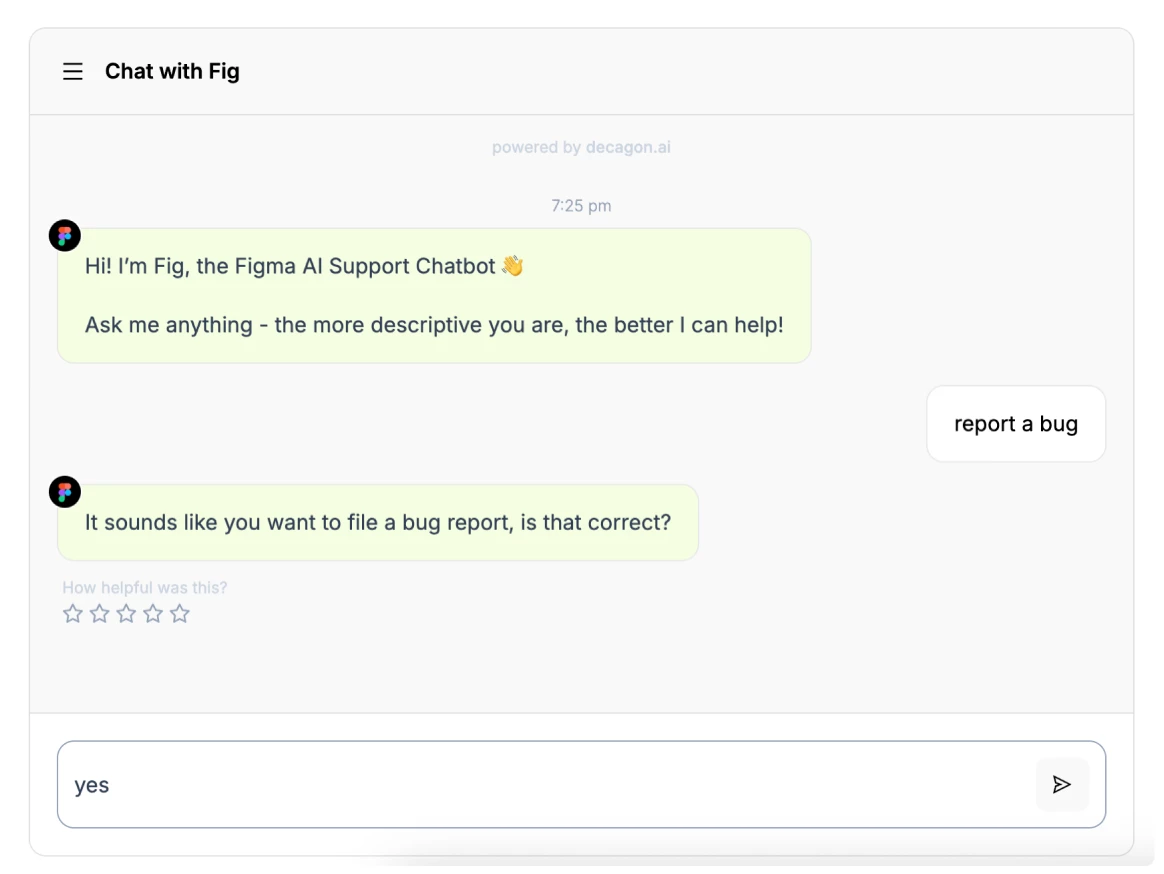
Still, if the issue is still persisting, I’d recommend reaching out directly our support team so they can take a closer look at your case. To do this, please:
I'm currently stuck on the "Awaiting certificates" step for my custom domain.
I've verified that all the required DNS records, the A record, TXT record, and CNAME record, have been correctly configured and have successfully propagated. It's now been over 4 days since the records were updated. The domain is resolving correctly, but the SSL certificate still hasn't been issued by Figma.
Could you please investigate this issue and help me figure out why the SSL certificate is not being provisioned?
Hey @Burak_Basci , Céline from Figma here. I’m working closely with Gayani, happy to help!
If you’re running into issues connecting your domain, there could be a few different causes. Please try the steps Gayani shared in this Help Center article and let us know if that helps.
I’ll also summarize those steps here for reference:
Cloudflare domains: If Cloudflare is your custom domain provider, you need to set the proxy status for the domain to DNS only. This configuration is required to successfully verify the domain.
DNS propagation delays: DNS changes can take time to update across the internet. If you think this might be the problem, we recommend waiting a while and checking back later.
Incorrect record types or values: Ensure the provided values exactly match what’s required. Even a small typo can interrupt the process. Figma will display an error icon if one or both of the records can’t be verified.
Conflicting DNS settings: Check for duplicate or conflicting entries in your DNS settings—for instance, multiple CNAME records for the same subdomain.
Conflicting AAAA record on apex domain: If you're connecting an apex domain—like example.com—using an A record, check whether there’s an existing AAAA (IPv6) record on the same host (@). Having both can prevent your domain from connecting properly. Remove the AAAA record from your DNS settings and try again.
Awaiting SSL certificates: Figma automatically provisions SSL certificates for custom domains, which ensures secure HTTPS access. This process typically takes up to 15 minutes, but can sometimes require additional time. If you're still waiting after 30 minutes, we recommend checking if you have any CAA (Certificate Authority Authorization) DNS records configured for your domain. If so, make sure they allow certificates from Google Trust Services, Let's Encrypt, and SSL.com.
Still, if the issue is still persisting, I’d recommend reaching out directly our support team so they can take a closer look at your case. To do this, please: