
adeena
New Member
November 25, 2025
Solved

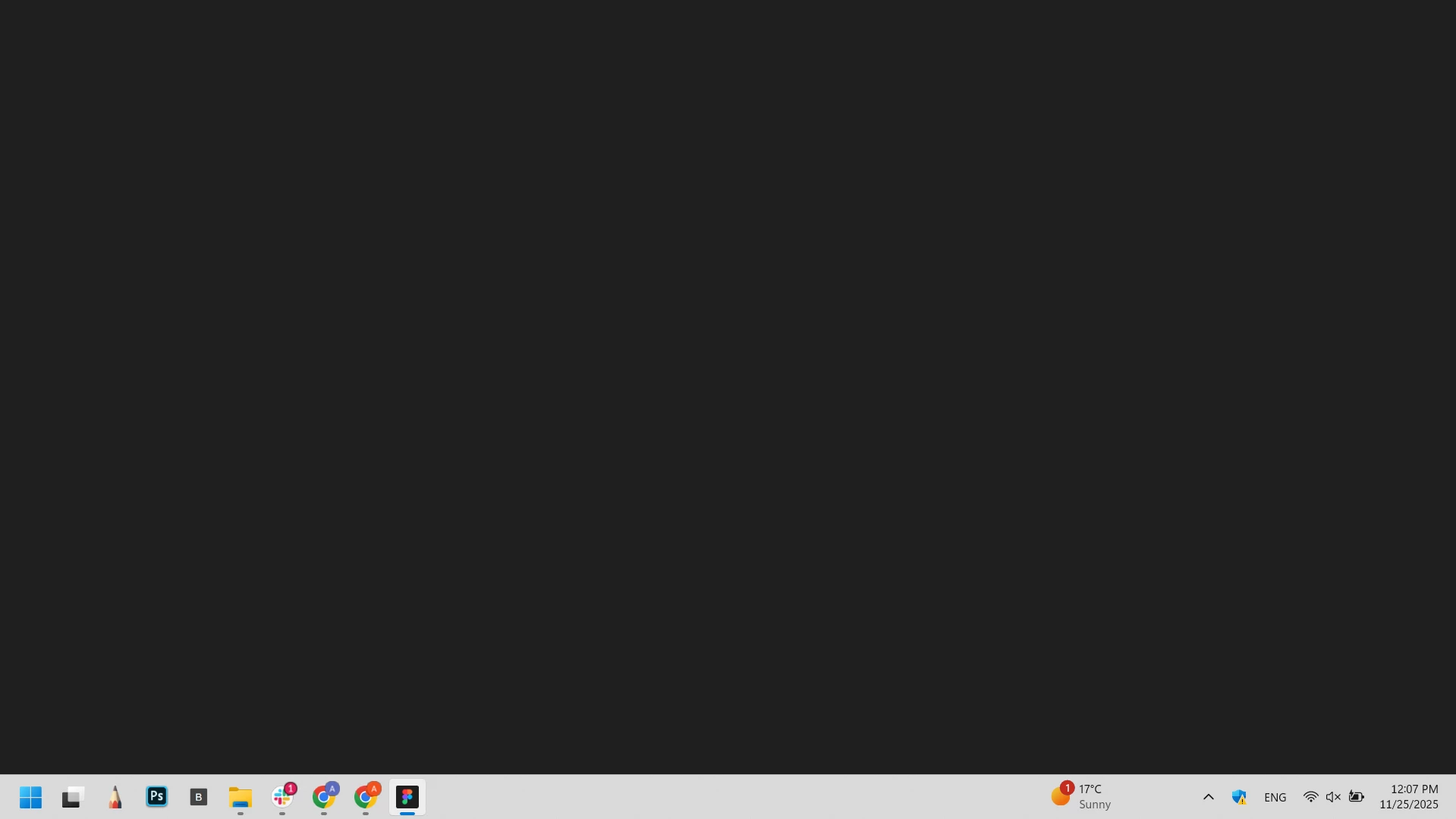
Figma desktop app is not work , it's showing black screen.

  • November 25, 2025
  • 12 replies
  • 786 views

I’m experiencing an issue where the Figma Desktop App shows a black screen. I have tried uninstalling, clearing all related files in the file manager, and reinstalling, but the app still doesn’t open.

  • I’m running the latest version of Figma Desktop App.
  • My device’s operating system and graphics drivers are fully up to date.
  • The issue does not occur in the web version of Figma, which works fine.
  • The desktop app fails to open any files, even when trying to access them directly via a file URL.

Steps I have already tried:

  • Clearing Figma cache
  • Running Figma with GPU acceleration disabled
  • Updating graphics drivers
  • Resetting and reinstalling with full cleanup

Please help me resolve this issue!
 

This topic has been closed for replies.
Best answer by Celine_

Hey ​@Yusuf AA , I am working closely with Junko, happy to help!
Our engineers are looking into this, and in the meantime, we have a few additional troubleshooting steps that have helped other users facing the same issue.

Can you please see if the following steps help resolve the issue?

  1. Download the settings.json file
  2. Quit the Figma app
  3. Open the Start menu
  4. Enter this command: %APPDATA%\Figma
  5. Drag the downloaded settings.json file into the open File Explorer window, and choose "Replace the file in the destination" to confirm that it should overwrite the existing one
  6. Run the Figma app

Hope that resolve the issue on your side!

12 replies

Кравцова Мария
New Member
January 25, 2026

Hey ​@Yusuf AA , I am working closely with Junko, happy to help!
Our engineers are looking into this, and in the meantime, we have a few additional troubleshooting steps that have helped other users facing the same issue.

Can you please see if the following steps help resolve the issue?

  1. Download the settings.json file
  2. Quit the Figma app
  3. Open the Start menu
  4. Enter this command: %APPDATA%\Figma
  5. Drag the downloaded settings.json file into the open File Explorer window, and choose "Replace the file in the destination" to confirm that it should overwrite the existing one
  6. Run the Figma app

Hope that resolve the issue on your side!

thank you. Your answer helped solve the same problem. thank you very much.

Celine_
Figmate
Community Support
January 26, 2026

Hello ​@Кравцова Мария I’m glad to hear it is working now. Thanks for letting me know!