Hi - my header is disappearing when it should be visible in a prototype. The element is not set to be a fixed element and it is nested correctly within the frames. If I change anything on the current frame while in the prototype, it reappears. I have tried clearing the cache on the desktop app, resetting/restarting, and opening it the file on the web.
I’ve attached video showing the issue in question -a ny help would be greatly appreciated!
I understand that the header layer nested in your "Features" and "Checkout" frames isn't appearing as expected in the prototype.
After reviewing your screen recording, I noticed a few things:
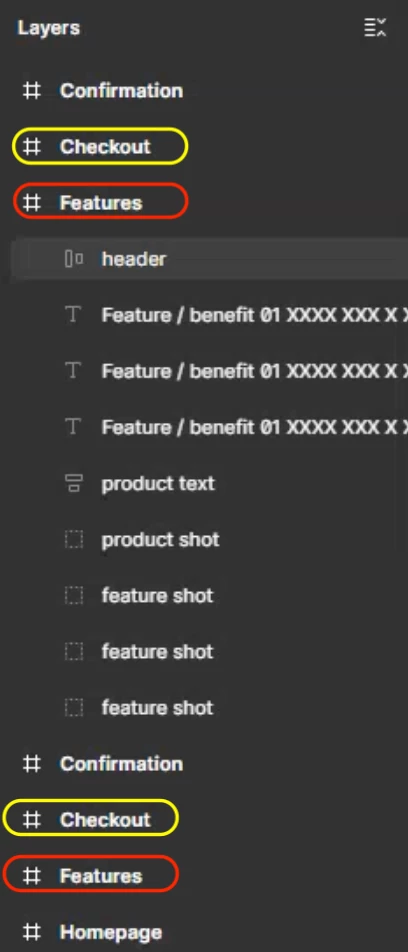
While there is only one “Homepage” frame, there seem to be duplicate "Features" and "Checkout" frames in your Layers panel—though only one of each is actually visible on the canvas.
It looks like if you click the “header” layer nested inside the "Features" or "Checkout" frames directly on the canvas, the header does appear in the inline preview. (This suggests that the frame you are clicking on the canvas might not be nested in the top-level frame connected to the prototype interactions of those buttons on the “Home” frame.)
With that in mind, you might want to try the following:
Check the structure of the other "Features" and "Checkout" frames: See where they are located on the canvas and if they have any active prototype connections. For example, you could temporarily rename these duplicated frames to easily identify which one is actually set as the destination for your prototype interactions running from those buttons.
Verify the hotspot of your prototype noodles: Make sure the noodles running from the “Buy now” and “Learn more” buttons are actually connecting to the specific top-level frames you are viewing in your screen recording.
Test via Inline Preview: Hover over the flow name on your "Homepage" and click the Preview button to open the inline preview, then check if the issue persists there.
If the issue persists after checking the above, please submit a support request. Due to our privacy and security policies, we cannot review individual files directly here on the public forum, so our team will need to take a closer look via a secure support ticket:
I understand that the header layer nested in your "Features" and "Checkout" frames isn't appearing as expected in the prototype.
After reviewing your screen recording, I noticed a few things:
While there is only one “Homepage” frame, there seem to be duplicate "Features" and "Checkout" frames in your Layers panel—though only one of each is actually visible on the canvas.
It looks like if you click the “header” layer nested inside the "Features" or "Checkout" frames directly on the canvas, the header does appear in the inline preview. (This suggests that the frame you are clicking on the canvas might not be nested in the top-level frame connected to the prototype interactions of those buttons on the “Home” frame.)
With that in mind, you might want to try the following:
Check the structure of the other "Features" and "Checkout" frames: See where they are located on the canvas and if they have any active prototype connections. For example, you could temporarily rename these duplicated frames to easily identify which one is actually set as the destination for your prototype interactions running from those buttons.
Verify the hotspot of your prototype noodles: Make sure the noodles running from the “Buy now” and “Learn more” buttons are actually connecting to the specific top-level frames you are viewing in your screen recording.
Test via Inline Preview: Hover over the flow name on your "Homepage" and click the Preview button to open the inline preview, then check if the issue persists there.
If the issue persists after checking the above, please submit a support request. Due to our privacy and security policies, we cannot review individual files directly here on the public forum, so our team will need to take a closer look via a secure support ticket:
Thank you SO much! Looks like those duplicate frames were the issue. Once I got rid of the duplicates, everything worked perfectly. Really appreciate your help!