
Cheery W.
New Member
September 20, 2026
Solved

Education plan expired earlier than the time it emailed before

  • September 20, 2026
  • 1 reply
  • 26 views

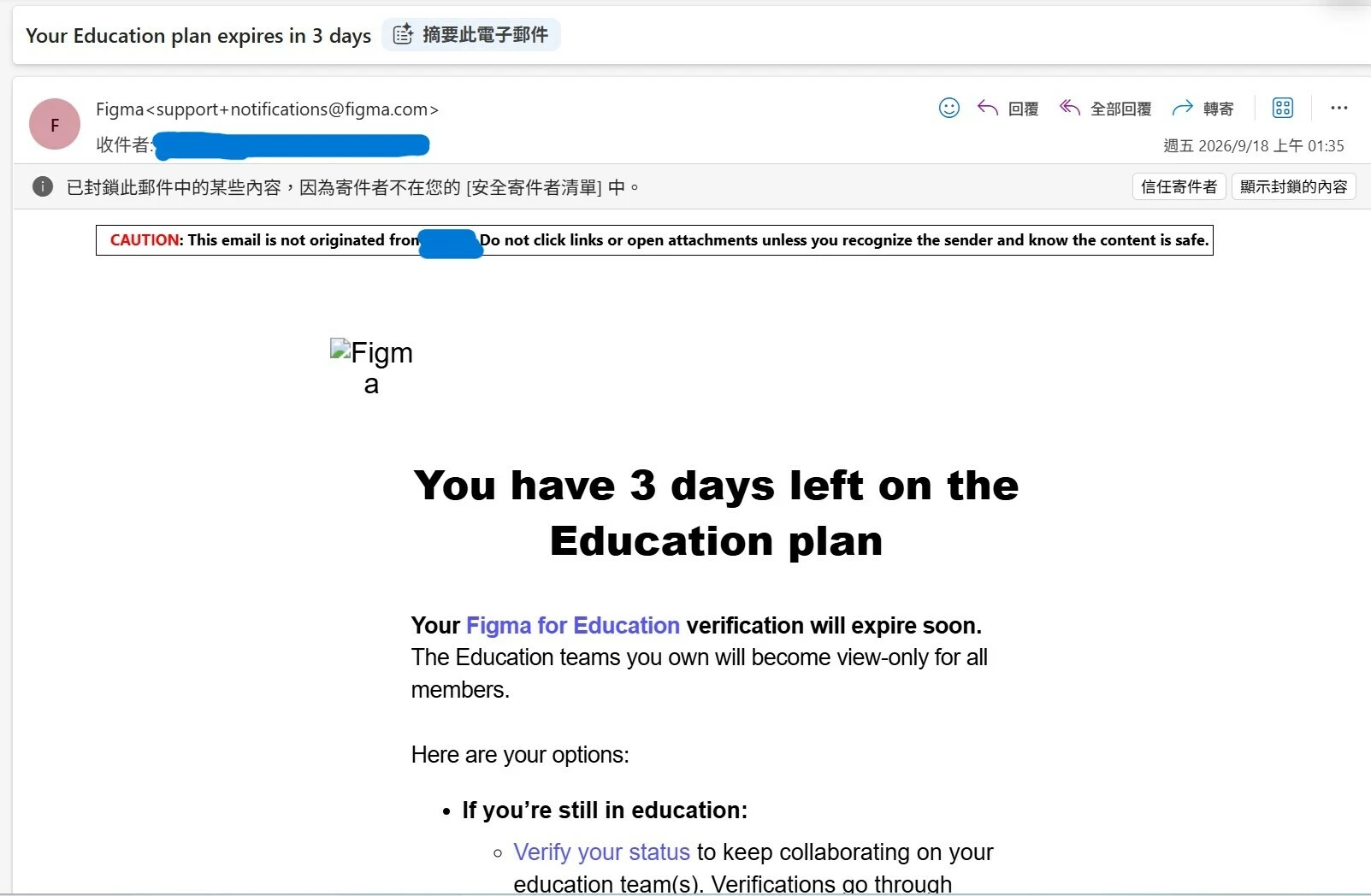
 On Friday 1:35AM, I received the email about my education plan would be expired after three days. Therefore, I started duplicating and moving files to a folder to save my works, and planned to transfer the ownership of the folder to another account which I am going to subscribe the Professional plan. However, a notification about the expiration of Education status appeared suddenly on the screen when I was moving my files to the folder. It did not provide me the exact time and date about the expiration of my Education plan, so I thought it counts 3 days starting from Friday and ends at the end of the Sunday. Now, I cannot continue saving my works and transfer them to my other account. I would like to ask for a solution so that I can continue saving and transferring my works.
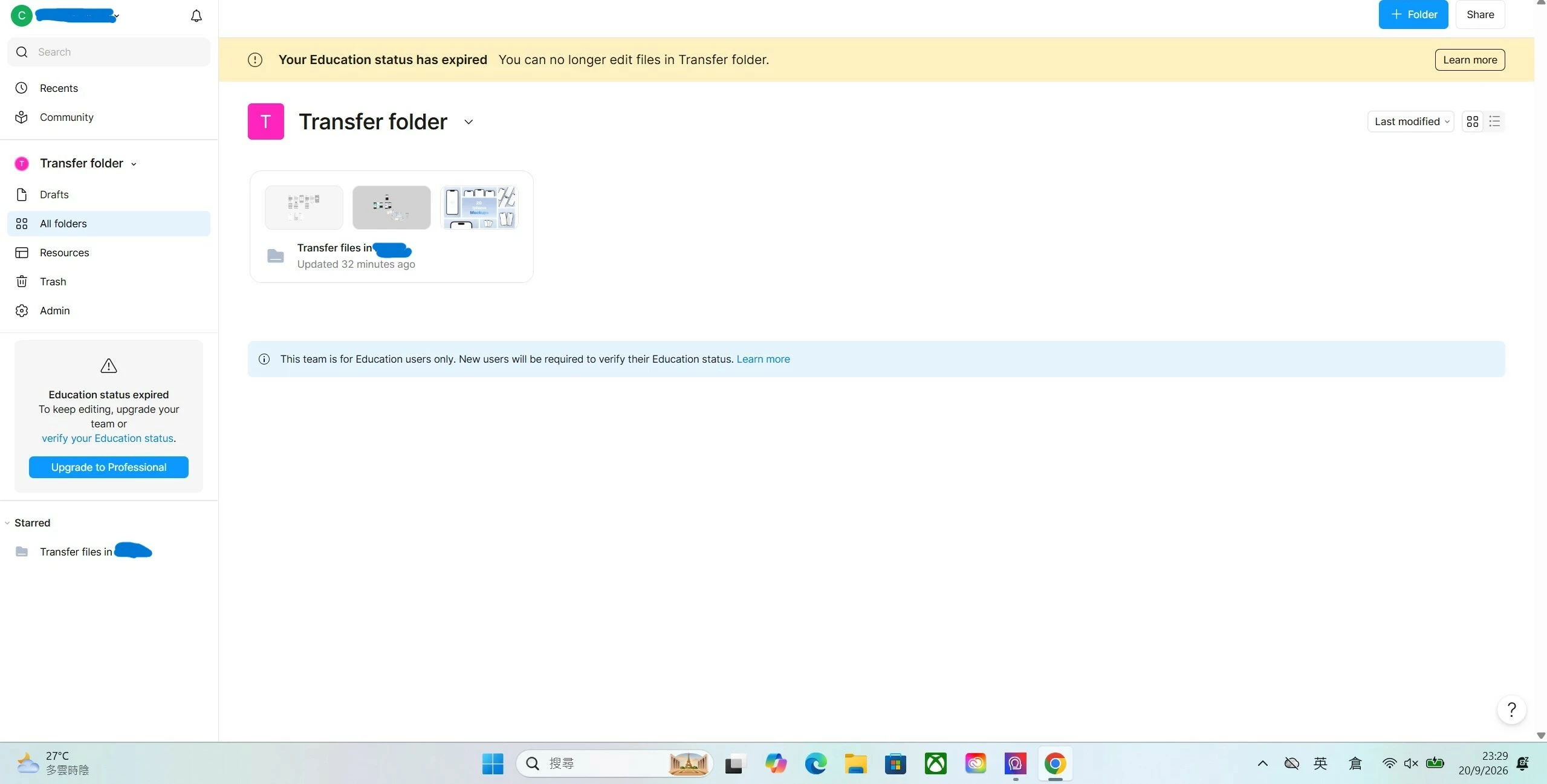
A notification suddenly appeared when I was moving my files to a folder for ownership transfer
The latest email told me the education plan would expired in 3 days but it expired before the end of the Sunday


Best answer by Gayani_S

Hey ​@Cheery W., thanks for reaching out! 

Your Education status expires at a specific date and time tied to when your status was originally verified. That countdown email is meant as a heads up, but since it doesn't show the exact cutoff, it's possible for the actual expiration to land earlier in that window than the full 3 days might suggest. 

Once your status expired, your education team automatically downgraded to a free Starter team. Since it currently has more files than the Starter plan allows, the team locked for editing, which is why you're seeing that banner in your transfer folder.

Nothing is deleted. Your files are all still there, just not editable until one of these happens:

  • Move files directly to your new team. Even while your current team is locked, you can still move individual files out. Right-click a file in the file browser, select Move file, then choose your destination team. This gets your work into your Professional plan account without needing to unlock anything first.
  • Reduce your file count to unlock this team. Move extra files to Drafts (or delete ones you don't need) until you're at three or fewer. That unlocks the team, and you could then use the folder transfer flow as originally planned.
  • Upgrade this team directly to a paid plan. If that works for what you need, upgrading this exact team to Professional (using the button in that banner) restores full edit access immediately, with everything staying right where it is. No moving required at all.


For more detail, take a look at Figma for Education, Move a file, and Transfer a folder or team to a different account.


Hope this helps, let me know if you have any other questions! 

1 reply

Gayani_S
Figmate
Gayani_SAnswer
Community Support
September 21, 2026

Hey ​@Cheery W., thanks for reaching out! 

Your Education status expires at a specific date and time tied to when your status was originally verified. That countdown email is meant as a heads up, but since it doesn't show the exact cutoff, it's possible for the actual expiration to land earlier in that window than the full 3 days might suggest. 

Once your status expired, your education team automatically downgraded to a free Starter team. Since it currently has more files than the Starter plan allows, the team locked for editing, which is why you're seeing that banner in your transfer folder.

Nothing is deleted. Your files are all still there, just not editable until one of these happens:

  • Move files directly to your new team. Even while your current team is locked, you can still move individual files out. Right-click a file in the file browser, select Move file, then choose your destination team. This gets your work into your Professional plan account without needing to unlock anything first.
  • Reduce your file count to unlock this team. Move extra files to Drafts (or delete ones you don't need) until you're at three or fewer. That unlocks the team, and you could then use the folder transfer flow as originally planned.
  • Upgrade this team directly to a paid plan. If that works for what you need, upgrading this exact team to Professional (using the button in that banner) restores full edit access immediately, with everything staying right where it is. No moving required at all.


For more detail, take a look at Figma for Education, Move a file, and Transfer a folder or team to a different account.


Hope this helps, let me know if you have any other questions!