
Question

Drop Shadow effect on trasparent png images.

  • August 11, 2026
  • 1 reply
  • 16 views

udaygmail

If anyone facing problem while appling drop shadow effect on transparent png images?

I get the shadow as a box instead of circluer shaeow.
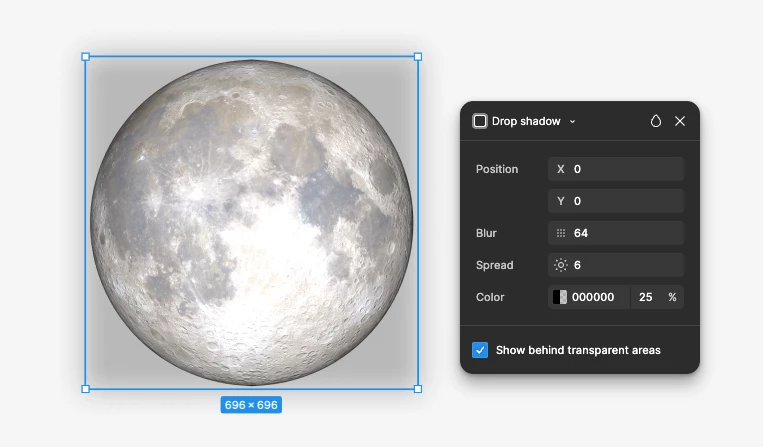
 

1 reply

djv
Figmate
  • Community Support
  • August 11, 2026

Hi ​@udaygmail, thanks for reaching out about this! 
 

This definitely seems odd. Drop shadows in Figma Design should follow the transparent areas of a PNG rather than its bounding box, so a square shadow points to something fixable. A few things to check:

  • The "Show behind transparent areas" checkbox: Open the effect settings (the ⚙️ next to your Drop shadow) and make sure it's unchecked. When it's on, the shadow renders behind the full layer, which looks exactly like what you're seeing.
  • Where the effect is applied: If the shadow is on a parent frame or group instead of the image layer itself, it'll trace that container's rectangle. Select the image layer directly and apply it there.
  • The PNG's actual transparency: Some export settings flatten the background or leave it at a very low opacity instead of fully transparent. Dropping the image onto a dark background is a quick way to spot it.

More on the effect options here: Apply shadow or blur effects. If none of these help, could you let us know:

  • Are you in Figma Design, or previewing/publishing through Figma Sites? Shadows are rendered differently in a published site, and that's a known difference we're tracking.
  • Which browser or desktop app version are you on?

One thing worth mentioning either way: because shadows are generated from the image's alpha edge, shadows on imported PNGs that already have antialiasing baked in can look slightly harder than shadows on native Figma shapes. If the artwork is available as a vector, applying the shadow to that will give you the cleanest result. Hope this helps, but let us know and we can continue troubleshooting together.
