

Question

Autolayout bug with new update

  • May 17, 2026
  • 3 replies
  • 71 views

Alex Fitzroy

Sunday May 17, 2026

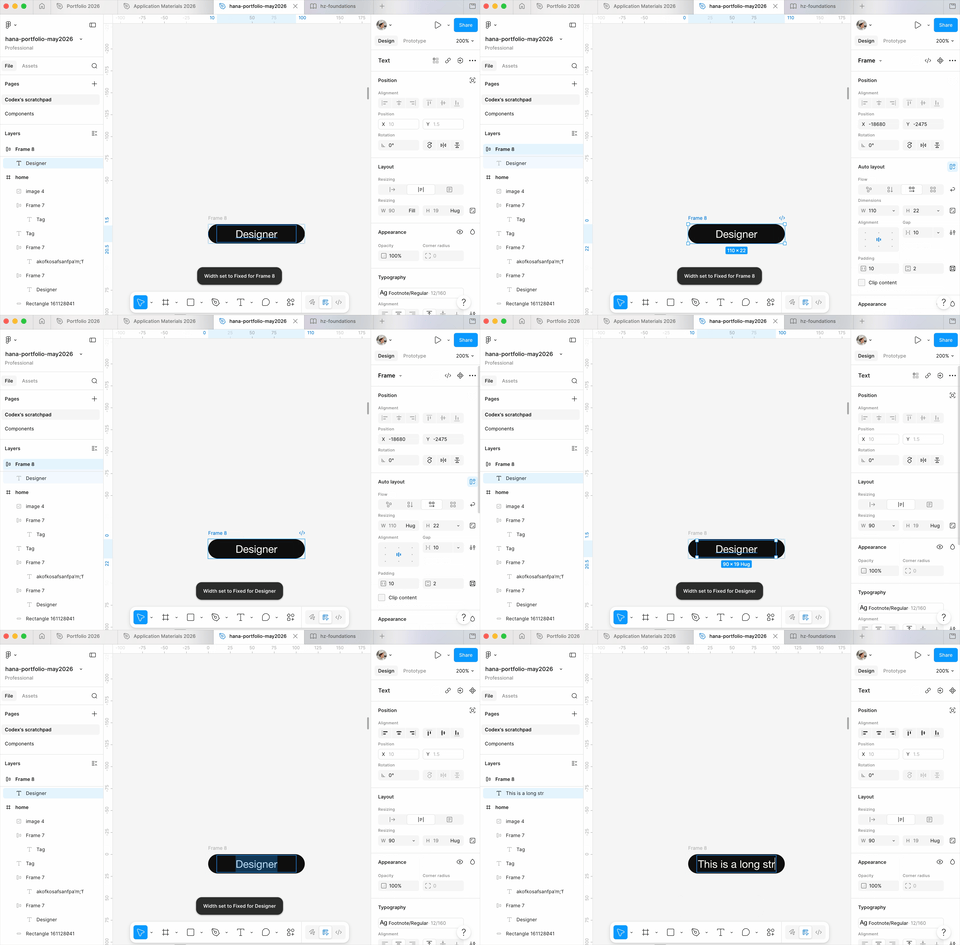
Noticed there are some updates to AutoLayout bc there’s new icons in the UI. I’m unable to make a responsive button. I create the button background layer shape, place the text on top, group it, turn on autolayout. By default text set to ‘hug’, button length set to ‘fixed’.

Change text width to ‘fill’, then change button width to ‘hug’ and text width automatically changes to ’fixed’. I can’t get around it!!! 


3 replies

djv
Figmate
  • Community Support
  • May 18, 2026

Hey ​@Alex Fitzroy, thanks for reaching out! 

I understand the frustration here, especially when the UI has changed and things are behaving differently than you'd expect. What you're running into is actually expected behavior though.

There's a circular dependency at play here: a parent set to Hug sizes itself based on its children, while a child set to Fill sizes itself based on its parent. Since each one is waiting on the other to define its size first, Figma can't resolve the layout, so it breaks the loop by resetting the child back to Fixed.


Before suggesting a solution, I'd love to understand your goal a little better. Are you trying to:

  • Build a button that stretches to fill a container (like a full-width button in a card or form)?
  • Or a button that hugs its content, but still allows the internal text to be flexible?


The right setup will depend on what you're going for, and I can help recommend a clean solution for either case! Happy to walk you through it once I know a bit more. 😊


Alex Fitzroy
  • Author
  • New Member
  • May 22, 2026

Hi thanks for getting back to me. 
 

I always create buttons for component libraries that hug - you can easily resize them to full width with another auto layout group. 
 

I usually build them by drawing a shape layer, typing a word, grouping them, applying auto layout, then setting text to fill and shape to hug. 
 

With the recent update I could not work out how to do this. If I set text to fill, the shape layer automatically sets itself to fixed. If I set the shape layer to hug, the text layer changes. 


djv
Figmate
  • Community Support
  • May 22, 2026

Hi ​@Alex Fitzroy, thanks for clarifying!

Since you're building a button that hugs its content, the fix is actually a small workflow change rather than a settings workaround.


The root cause here is the extra shape layer. When you draw a rectangle and then group it with a text layer before applying Auto Layout, that shape ends up inside the frame. This is how you end up back to the fill/hug circular dependency.

The solution is to skip the shape entirely:

  1. Create your text layer only — no background shape.
  2. Select it and press Shift + A to wrap it in an Auto Layout frame.
  3. Set your horizontal and vertical padding on the frame (e.g. 32px horizontal, 16px vertical).
  4. Give the frame a fill color and corner radius to style it as your button.


The frame itself becomes the button background. Since the text is the only child, you can leave it at Hug (or Fixed with a min-width if you like), and the frame will hug around it naturally with your padding applied. From there, resizing to full-width in another Auto Layout group works exactly as you'd expect; just set the button's width to Fill inside the parent container. Hope this helps!