

Swap Library Not Updating Variable Aliases Correctly on Hover State
I have been having a problem with Figma for several days when using Swap Library. Let me explain:
I created a design system with, among other things, our colors (for example: #406eff for the primary color, #383838 for the secondary color, and #848484 for the tertiary color). Then I published the library of this design system.
I created a mockup for client A. In this mockup, I used instances of components created in my design system. The issue with this mockup is that these components, whose instances I am using, include the colors from my design system (for example: #406eff for the primary color, #383838 for the secondary color, and #848484 for the tertiary color).
So I need a file to specify, among other things, the colors for client A (for example: #003746 for the primary color, #00a29c for the secondary color, and #a1c516 for the tertiary color).
To do this, and to keep the same variable architecture as my design system (collection names, variable names, mode names, and aliases), I duplicated my design system.
In this file, which I renamed Theme client A (Design system -> Theme client A), I:
-
Deleted all components, keeping only the variables and everything associated with them (collection names, variable names, mode names, and aliases)
-
Only modified the hard-coded values to replace them with my client's values (for example #003746 for the primary color, #00a29c for the secondary color, and #a1c516 for the tertiary color)
-
Published the library of this file
Then I went back to my mockup.
In the Libraries panel, I added to the mockup file:
-
The library of my design system
-
The library Theme client A
Then, still in Libraries, I clicked on the library of my design system and then on the Swap Library button.
At the top, I selected the library I wanted to swap with (in this case Theme client A).
For each collection of my design system, I selected the corresponding collection in Theme client A.
Once that was done, I clicked Swap Library.
The problem I am encountering is the following:
-
(Example with my Button 1 components, the ones I use the most) By default, everything is fine: the background color of my button and the label color are correctly set to my client's values (#003746 for the background and White for the label). This matches what I have in the Button 1 collection, in the Primary Default mode of the Theme client A file.
-
If I switch Button 1 to the Hover state, everything breaks: the background color, border color, and label color are not my client's values on hover (namely White for the background and #003746 for the text and border), but instead the values from my design system on hover (namely White for the background and #406eff for the text and border).
Do you know where the problem might come from and how to fix it? Is there another method besides Swap Library?
Please note: the Figma plan I am using does not allow more than 16 modes, so I cannot use a method based on additional modes.
Also, I would like to clarify the following:
In my "Button 1" collection, I have:
On my Design System file :
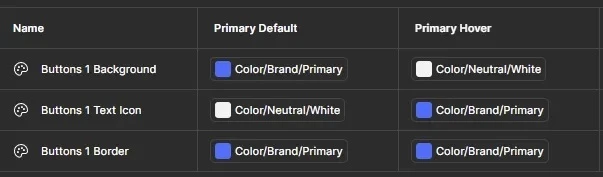
On my Theme Client A file :
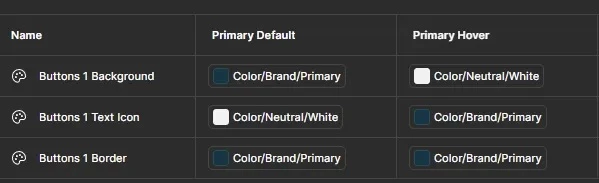
As you can see, there are no direct values (no hex colors). Each value is an alias.
I have the same architecture in my design system and in my Theme client A file. The only difference is that in my design system Color/Brand/Primary = #406eff, while in my Theme client A file Color/Brand/Primary = #003746.
And precisely, after performing Swap Library, on my Button 1 in Primary Hover, I should have:
Buttons 1 Background White
Buttons 1 Text Icon #003746 and NOT #406eff
Buttons 1 Border #003746 and NOT #406eff
Thank you very much for your answer
Have a nice day 😉