May 2, 2023
Solved

I want to fix an element when scrolling. When in prototype mode, the fixed position element disappears

  • May 2, 2023
  • 21 replies
  • 28371 views


Hello,

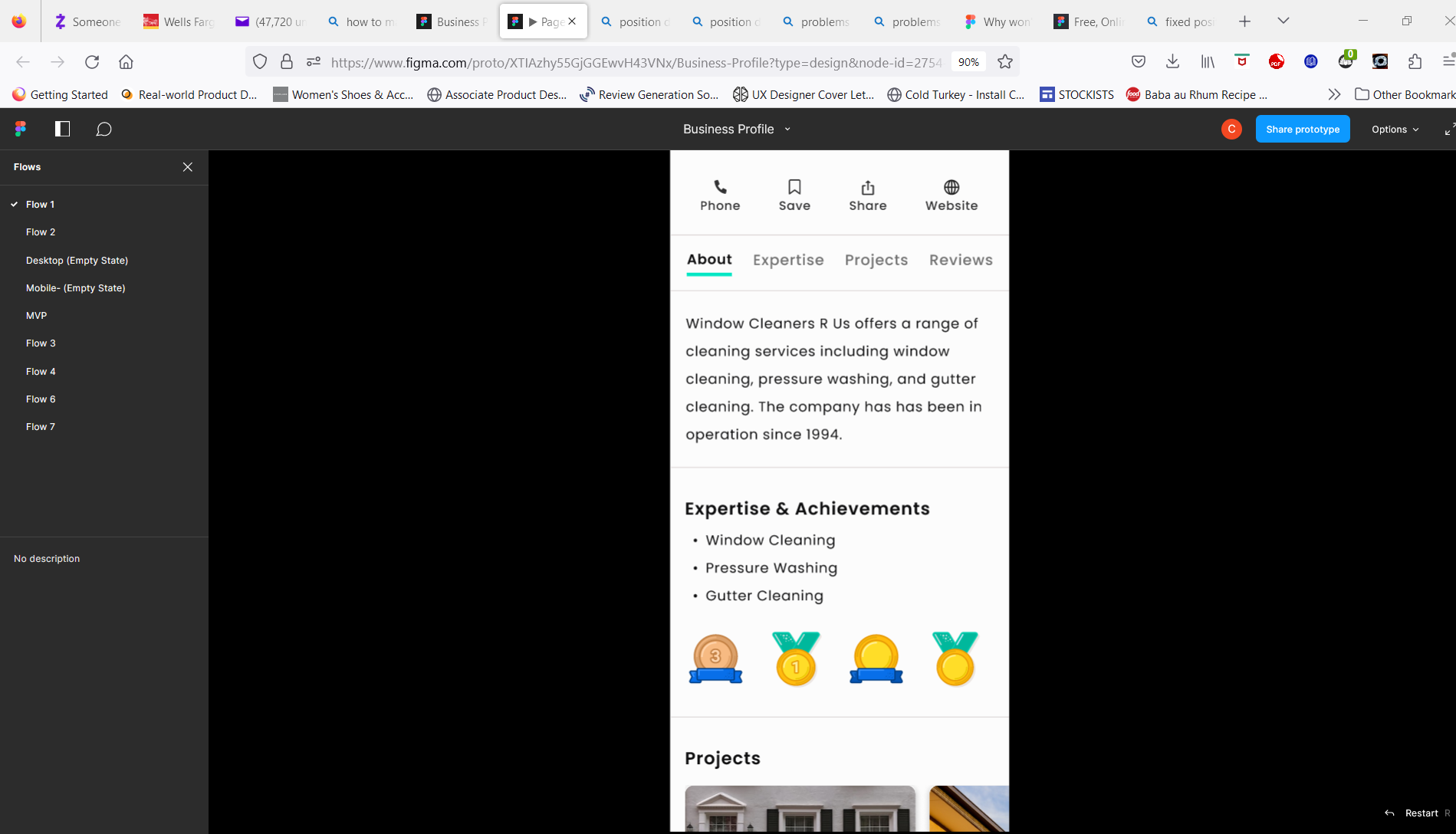
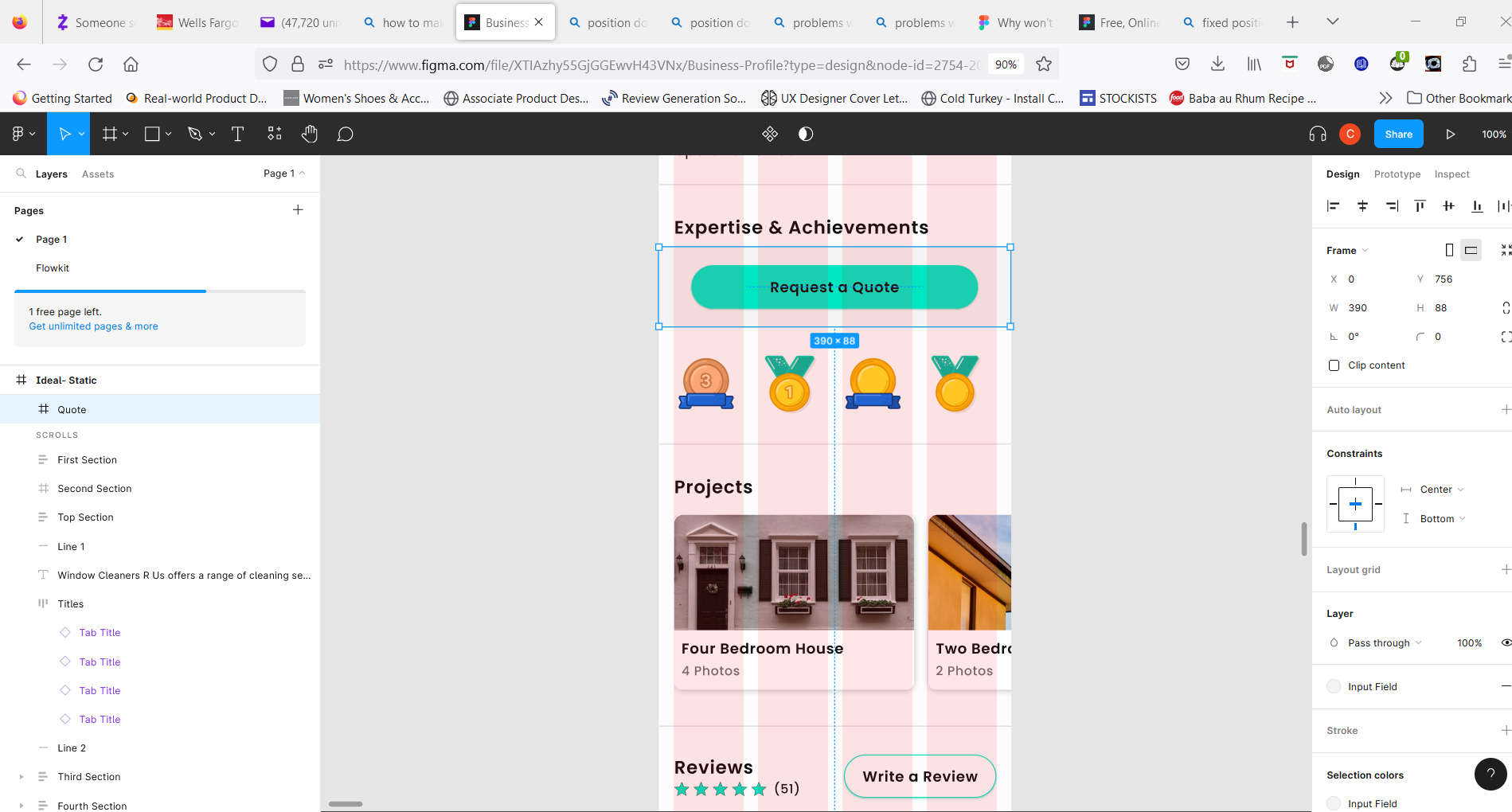
I want the ‘Request for Quote’ button and its background to fix position when scrolling. I manage to get it “fixed” in the prototype tab, but it then this button doesn’t appear in prototype mode. Please see pictures.

I’m not sure if I’ve set up constraints properly or not. It’s a long screen, so I don’t want it right at the bottom of the screen, I want it stuck at the Y 756 axis point. Not sure if its an auto layout issue either since I thought absolute position could override any issues with auto layout and fixed-position elements when scrolling.

Thanks.

This topic has been closed for replies.
Best answer by Celine_

Hi @Caroline_Keane ,
Thanks for reaching out the Community! It is odd, it should work when you select the “Fixed”.

To cover some bases in how to select “Fixed”:
You can only apply one scroll position to each object.

  1. Select the object, group or component in the canvas.
  2. Open the Prototype panel in the right sidebar.
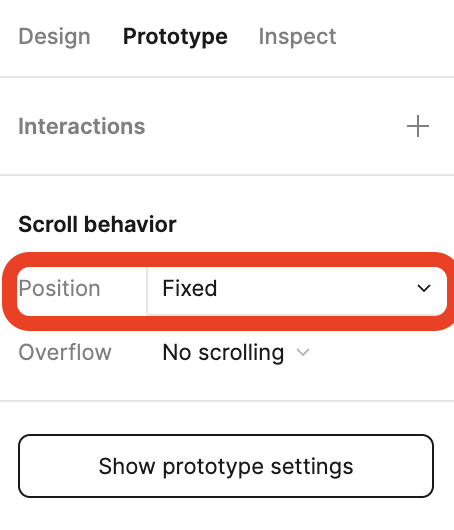
  3. In the Scroll behavior section, select the Position dropdown.
    Choose : Fixed
  4. Click the present icon to view the prototype in Presentation view and see the results.

In order to have a deeper look into your prototype file, you can also share a link to an example file here so anyone can help find the cause.
Still, if you would prefer not to share your file publicly, you can temporarily invite a representative of the Support team to the file (support-share@figma.com) and shared link to the file in question - by filling the form : here

21 replies

Celine_
Figmate
Celine_Answer
Community Support
May 3, 2023

Hi @Caroline_Keane ,
Thanks for reaching out the Community! It is odd, it should work when you select the “Fixed”.

To cover some bases in how to select “Fixed”:
You can only apply one scroll position to each object.

  1. Select the object, group or component in the canvas.
  2. Open the Prototype panel in the right sidebar.
  3. In the Scroll behavior section, select the Position dropdown.
    Choose : Fixed
  4. Click the present icon to view the prototype in Presentation view and see the results.

In order to have a deeper look into your prototype file, you can also share a link to an example file here so anyone can help find the cause.
Still, if you would prefer not to share your file publicly, you can temporarily invite a representative of the Support team to the file (support-share@figma.com) and shared link to the file in question - by filling the form : here

May 3, 2023

OK, I will do that- thanks.

Kashou
June 27, 2023

It’s no longer possible to keep a selection in fixed position when scrolling or resizing the screen. Unfortunately, Figma made this weird decision to have the selection stay in fixed position relative to top and not to bottom (if needed), and so if the selection is a tabbar, it has to be placed relative to top, and over scrollable content. This prevents a designer from presenting screens in Figma Design mode, and it also prevents developers from inspecting content that is underneath or masked by the tabbar. I think that Figma should allow fixed to bottom, so that the selection can stick to bottom when resizing or scrolling the screen, without obstructing the view of content that manager or developers need to inspect…

Kashou
June 27, 2023

Have you found a solution? I reported this bug several months ago, I still don’t see any fix.

Parker4
August 11, 2023

Is there a solution to this issue? I am still experiencing this.

August 15, 2023

Please address this issue.

September 23, 2023

I am also getting this issue please help me with is

Sohel_Rana_UI_UX
December 10, 2023

I am still experiencing this. @Celine_Figma could you please make a tutorial video for this issue?

Celine_
Figmate
Community Support
December 11, 2023

Hi @Sohel_Rana_UI_UX ,
Sorry to hear you are having trouble with the fixed position. You should be able to see the fixed position in your right panel. If you are not able to see it, I’d recommend you to reach out directly to the support team with a copy of your file in order to investigate further: here
Be sure to use your Figma account email, include a link to the file, and share it with support-share@figma.com, and a quick video recording of the issue on your end if you are able to, so we can take a closer look. Thank you!

Sohel_Rana_UI_UX
December 11, 2023

I did it. but after applying the position fixed and opening the proto, the element going to vanish. It’s a bug I think.