I must have clicked something and now I have a square following me and my view. It stays the same size, my cursor changes when I enter it, I cannot delete or select it. Does anyone know what this is?
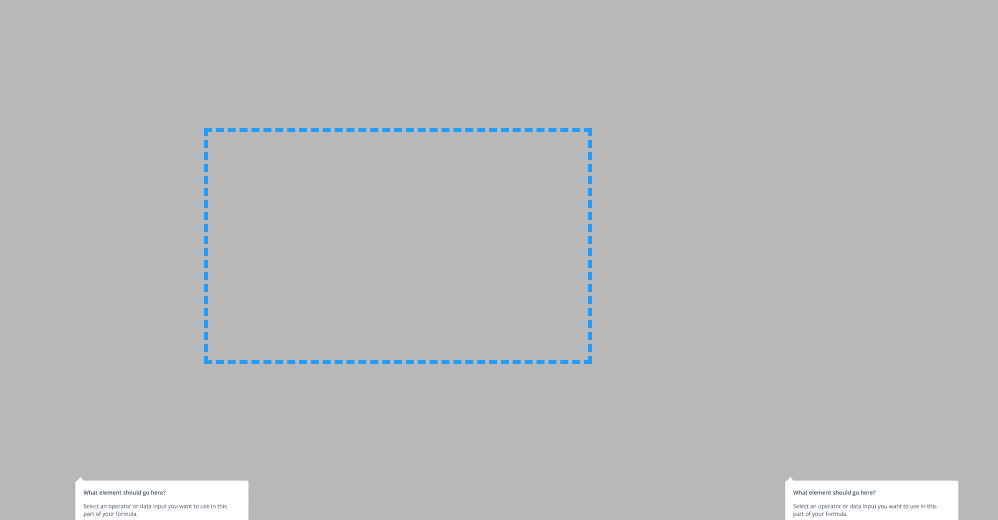


I must have clicked something and now I have a square following me and my view. It stays the same size, my cursor changes when I enter it, I cannot delete or select it. Does anyone know what this is?
Best answer by Celine_
Hi Emily,
Have you tried to refresh your browser and/or desktop to see if the blue dotted line disappears?
And does this blue dotted line appearing when you are in comment mode? Usually, this appears because you select a region when you add a comment.
You have two options to remove them:
Option 1: Left click on the comment → Mark as read or click on the 3 dots and select “delete thread”.
Option 2: Mark the comment as read on the right hand side of the comments panel. This will make the whole comment disappears as we can not simply remove the dotted lines. We can only remove the whole comment.
See below the video:
You can open the comment panel by pressing “C” on your keyboard.
If this doesn’t work, would be great to have a copy of your file to see if we can replicate on our end. If you can’t share it publicly, feel free to share it to our support team by filling this form: here
(Please also include your file link with support-share@figma.com invited directly as an editor). Hope it helps!
Enter your E-mail address. We'll send you an e-mail with instructions to reset your password.