

Export to BMP or any uncompressed image file (working on an LCD screen for an HMI)
Hi everyone,
I’m working on a very specific requirement for an LCD screen prototype and I’m running into an issue with Figma exports.
Here’s the context:
- I have frames sized 100 × 42 pixels.
- The goal is to export this frame pixel-perfect, because it will be displayed on a physical LCD screen of this resolution (not sure about the DPI but does it matter). It is meant to be a display test, all screens will be then coded on a framework for HMIs called emWIN, but we need to make sure the designs fit first.)
- The LCD only supports pure black or pure white pixels (no grayscale, no anti-aliasing).
- Every time I export from Figma (PNG or JPEG), the image gets blurred or anti-aliased, introducing grayscale pixels and round corners instead of sharp black and white.
- SVG is not an option because the final format must be flat rasterized pixels, not vector.
Here are screenshots of my frames:
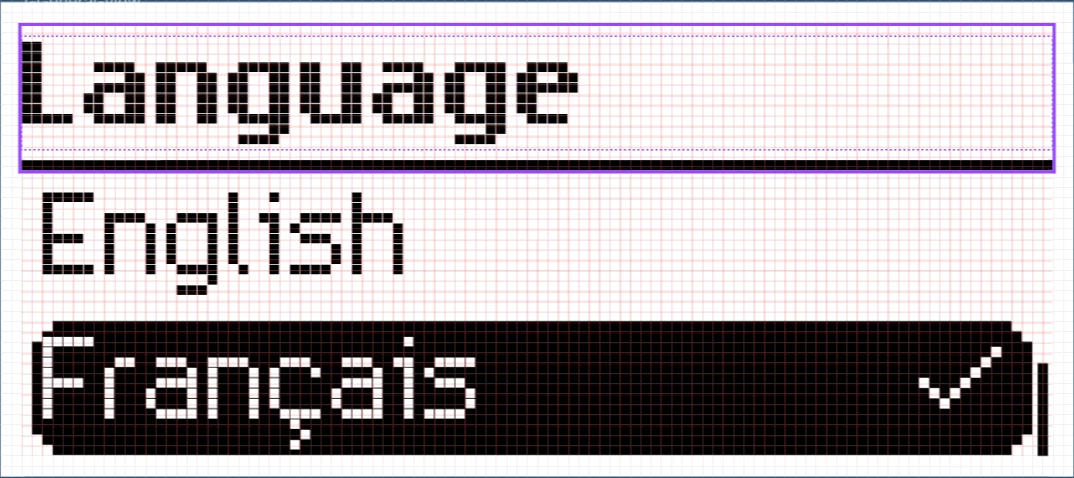

Here is how they are exported by Figma in pngs:


When magnified, we can clearly see this is blurred:

The problem is that jpg to bmp converting tools will then reinterpret the png and the output will be pretty terrible (I can’t import bmps here apparently)
What I need:
- A way to export the frame as a strict 100 × 42 pixel grid, with no smoothing, no compression, and no intermediate colors.
- Ideally, the exported file should preserve the exact pixel layout for testing on the LCD before integration into the embedded system.
Has anyone faced this issue before when designing for pixel-based UIs or LCD screens? Any tips, plugins, or workflows to achieve a true pixel-perfect export from Figma?
Actually any tips to make sure to align everything on a pixel grid before export would also be great.
Thanks in advance for your insights! Maybe the only solution is to directly code the more complex screens, but I really hope not!